<?xml version="1.0" encoding="utf-8" standalone="yes"?>
<feed xmlns="http://www.w3.org/2005/Atom">
  <title>macOS on PrivSec - A practical approach to Privacy and Security</title>
  <link rel="alternate" href="https://deploy-preview-444--privsec-dev.netlify.app/posts/macos/" />
  <link rel="self" href="https://deploy-preview-444--privsec-dev.netlify.app/posts/macos/index.xml" />
  <subtitle>Recent content in macOS on PrivSec - A practical approach to Privacy and Security</subtitle>
  <id>https://deploy-preview-444--privsec-dev.netlify.app/posts/macos/</id>
  <generator uri="http://gohugo.io" version="0.119.0">Hugo</generator>
  <language>en</language>
  <updated>0001-01-01T00:00:00Z</updated>
  <author>
    <name>PrivSec.dev Team</name>
    
  </author>
  <rights>[CC BY-SA 4.0](https://creativecommons.org/licenses/by-sa/4.0/)</rights>
      <entry>
        <title>Secure Time Synchronization on macOS</title>
        <link rel="alternate" href="https://deploy-preview-444--privsec-dev.netlify.app/posts/macos/secure-time-synchronization-on-macos/" />
        <id>https://deploy-preview-444--privsec-dev.netlify.app/posts/macos/secure-time-synchronization-on-macos/</id>
        <published>2023-06-25T00:00:00Z</published>
        <updated>2025-04-18T17:08:08-04:00</updated>
        <summary type="html">macOS by default uses the unencrypted and unauthenticated Network Time Protocol (NTP) for time synchronization. A popular solution to mitigate this problem is to use ChronyControl to setup NTS. However, the application requires administrator privileges, which is less than ideal.
In this post, I will go over how to leverage virtualization to setup a local Linux server, update its time using NTS, and synchronize your macOS host with it using NTP, all without needing a privileged application.</summary>
          <content type="html"><![CDATA[<p><img loading="lazy" src="/images/macos-ntp.png" alt="macOS NTP"  />
</p>
<p>macOS by default uses the unencrypted and unauthenticated Network Time Protocol (NTP) for time synchronization. A popular solution to mitigate this problem is to use <a href="https://whatroute.net/chronycontrol.html">ChronyControl</a> to setup NTS. However, the application requires administrator privileges, which is less than ideal.</p>
<p>In this post, I will go over how to leverage virtualization to setup a local Linux server, update its time using NTS, and synchronize your macOS host with it using NTP, all without needing a privileged application.</p>
<h2 id="installing-utm">Installing UTM</h2>
<p>The virtualization software we are going to use for this setup is <a href="https://mac.getutm.app/">UTM</a>. You can obtain it through the <a href="https://apps.apple.com/us/app/utm-virtual-machines/id1538878817">App Store</a> for $10 USD or directly through <a href="https://github.com/utmapp/UTM/releases">GitHub</a> free of charge.</p>
<p>Personally, I would recommend using the App Store, since you are getting automatic updates with it, and a small donation would really help out the developers.</p>
<p>Note that I am recommending UTM here over other solutions like <a href="https://www.parallels.com/">Parallels</a>, specifically for the <a href="https://docs.getutm.app/settings-qemu/devices/network/network/#network-mode">Emulated VLAN</a> network setup. Parallels only supports the <a href="https://kb.parallels.com/4948">Shared Network mode</a> where all VMs and the host are connected to the same VLAN, which is less than ideal considering that we will still communicate with our Linux server using the insecure NTP protocol. I have not tried VMWare Fusion or VirtualBox yet, but the general idea is that you should be connecting to the NTP server using a private interface which only the host and the target VM have access to. Another nice thing about UTM is that it is a <a href="https://developer.apple.com/documentation/xcode/configuring-the-macos-app-sandbox/">sandboxed</a> application and runs without any special privileges.</p>
<h2 id="choosing-your-linux-distribution">Choosing your Linux distribution</h2>
<p>Generally, any distribution with <code>chrony</code> 4.0 or above would work fine. I recommend using Fedora since it is easy to manage, is generally up to date, and has mostly sane defaults.</p>
<p>You can download Fedora Server from their <a href="https://fedoraproject.org/server/download/">official website</a>.</p>
<h2 id="setting-up-the-virtual-machine">Setting up the virtual machine</h2>
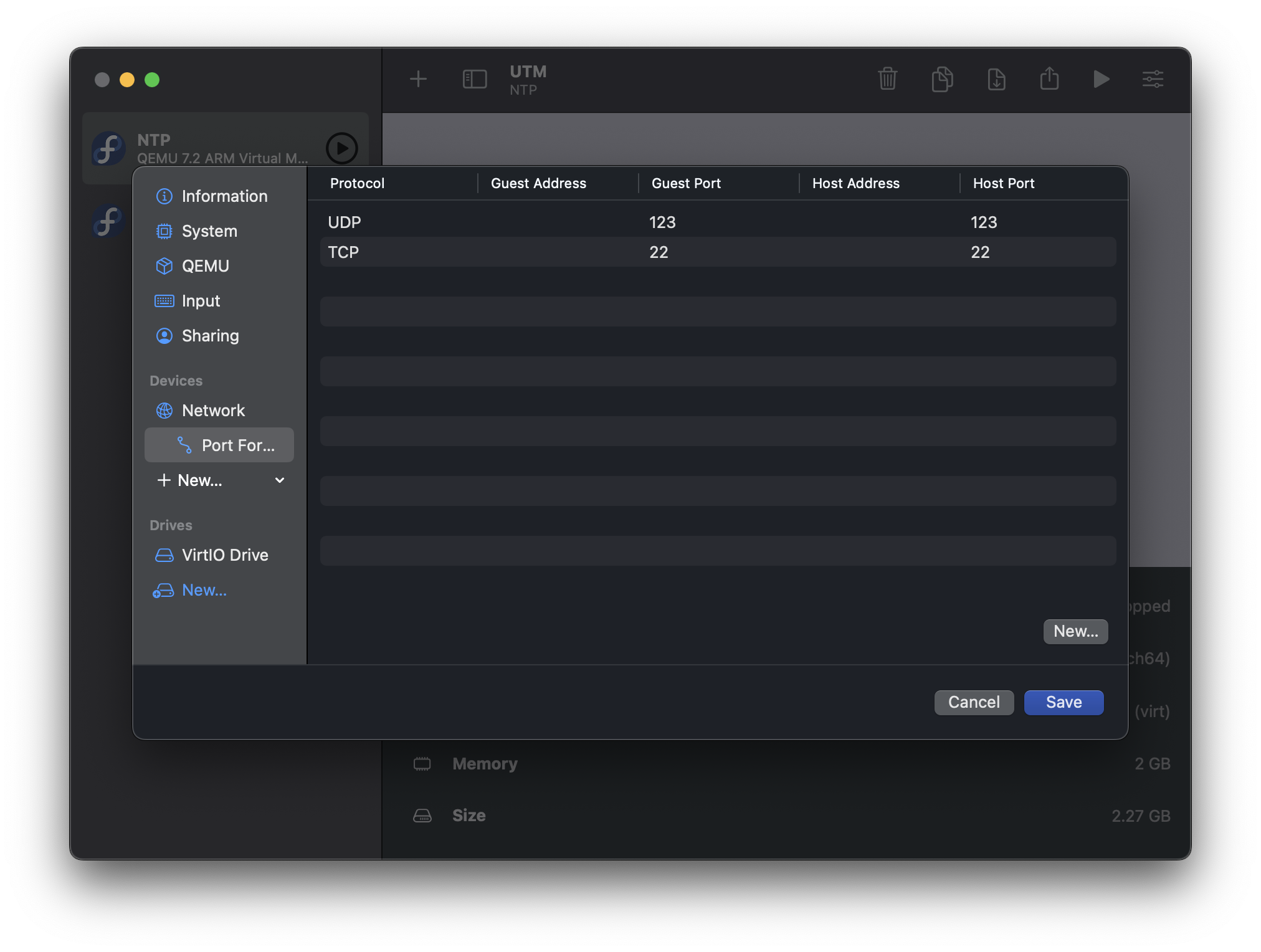
<p>Next, create your Linux VM in UTM. Make sure that you use the QEMU backend (as opposed to Apple Virtualization), set the Network Mode to Emulated VLAN, and port forward port <code>123/UDP</code> and <code>22/TCP</code>.</p>
<p><img loading="lazy" src="/images/macos-ntp-port-forwarding.png" alt="macOS NTP Port Forwarding"  />
</p>
<p>Optionally, you can also:</p>
<ul>
<li>Set the CPU allocation to 2 vCPUs. The NTP server does not need access to all of your performance cores.</li>
<li>Reduce the allocated Memory to 2048. This is a fairly lightweight server.</li>
<li>Enable memory ballooning.</li>
</ul>
<p>Next, install your operating system. If you are using Fedora, I recommend going with the &ldquo;Minimal Install&rdquo; option.</p>
<h2 id="post-operating-system-installation">Post operating system installation</h2>
<p>Once the operating system is installed, shut down the VM. Remove &ldquo;USB Drive&rdquo; from your VM configuration to ensure that you have the correct boot order.</p>
<p>You can also remove other unnecessary features from the VM for attack surface reduction:</p>
<ul>
<li>Disable USB support</li>
<li>Disable Clipboard sharing</li>
<li>Delete the display device (we will run the server headless)</li>
<li>Delete the audio device</li>
</ul>
<p>Start the VM, then SSH into it via <code>127.0.0.1:22</code>:</p>
<div class="highlight"><pre tabindex="0" class="chroma"><code class="language-bash" data-lang="bash"><span class="line"><span class="cl">ssh 127.0.0.1
</span></span></code></pre></div><p>Update the OS:</p>
<div class="highlight"><pre tabindex="0" class="chroma"><code class="language-bash" data-lang="bash"><span class="line"><span class="cl"><span class="c1">#This is an example for Fedora:</span>
</span></span><span class="line"><span class="cl">sudo dnf upgrade -y
</span></span></code></pre></div><p>You can also consider installing the <code>qemu-guest-agent</code>. It will help against insane clocks caused by snapshotting and rolling back if UTM implements these features in the future.</p>
<div class="highlight"><pre tabindex="0" class="chroma"><code class="language-bash" data-lang="bash"><span class="line"><span class="cl"><span class="c1">#This is an example for Fedora:</span>
</span></span><span class="line"><span class="cl">sudo dnf install qemu-guest-agent -y
</span></span></code></pre></div><p>If your operating system comes with <code>systemd-timesyncd</code> instead of <code>chrony</code> by default (as is the case with Ubuntu and Arch Linux), disable it and replace it with <code>chrony</code>. Fedora users can skip this step, since it already uses <code>chrony</code> by default.</p>
<div class="highlight"><pre tabindex="0" class="chroma"><code class="language-bash" data-lang="bash"><span class="line"><span class="cl"><span class="c1">#This is an example for Ubuntu:</span>
</span></span><span class="line"><span class="cl">sudo systemctl disable --now systemd-timesyncd
</span></span><span class="line"><span class="cl">sudo apt purge -y systemd-timesyncd
</span></span><span class="line"><span class="cl">sudo apt install -y chrony
</span></span><span class="line"><span class="cl">sudo systemctl <span class="nb">enable</span> --now chronyd
</span></span></code></pre></div><p>Enable automatic updates:</p>
<div class="highlight"><pre tabindex="0" class="chroma"><code class="language-bash" data-lang="bash"><span class="line"><span class="cl"><span class="c1">#This is an example for Fedora:</span>
</span></span><span class="line"><span class="cl">sudo dnf install dnf-automatic
</span></span><span class="line"><span class="cl">sudo sed -i <span class="s1">&#39;s/apply_updates = no/apply_updates = yes\nreboot = when-needed/g&#39;</span> /etc/dnf/automatic.conf
</span></span><span class="line"><span class="cl">sudo systemctl <span class="nb">enable</span> --now dnf-automatic.timer
</span></span></code></pre></div><h2 id="configuring-chrony">Configuring <code>chrony</code></h2>
<p>Next, configure <code>chrony</code> to use NTS. On Fedora, the configuration file is <code>/etc/chrony.conf</code>. We will use <a href="https://github.com/GrapheneOS/infrastructure/blob/main/etc/chrony.conf">GrapheneOS&rsquo;s configuration</a> as a reference.</p>
<p>Your configuration should look something like this:</p>
<div class="highlight"><pre tabindex="0" class="chroma"><code class="language-fallback" data-lang="fallback"><span class="line"><span class="cl">server time.cloudflare.com iburst nts
</span></span><span class="line"><span class="cl">server ntppool1.time.nl iburst nts
</span></span><span class="line"><span class="cl">server nts.netnod.se iburst nts
</span></span><span class="line"><span class="cl">server ptbtime1.ptb.de iburst nts
</span></span><span class="line"><span class="cl">
</span></span><span class="line"><span class="cl">minsources 2
</span></span><span class="line"><span class="cl">authselectmode require
</span></span><span class="line"><span class="cl">
</span></span><span class="line"><span class="cl"># EF
</span></span><span class="line"><span class="cl">dscp 46
</span></span><span class="line"><span class="cl">
</span></span><span class="line"><span class="cl">driftfile /var/lib/chrony/drift
</span></span><span class="line"><span class="cl">ntsdumpdir /var/lib/chrony
</span></span><span class="line"><span class="cl">
</span></span><span class="line"><span class="cl">leapsectz right/UTC
</span></span><span class="line"><span class="cl">makestep 1.0 3
</span></span><span class="line"><span class="cl">
</span></span><span class="line"><span class="cl">rtconutc
</span></span><span class="line"><span class="cl">rtcsync
</span></span><span class="line"><span class="cl">
</span></span><span class="line"><span class="cl">cmdport 0
</span></span><span class="line"><span class="cl">
</span></span><span class="line"><span class="cl">noclientlog
</span></span><span class="line"><span class="cl">allow 10.0.2.2/32
</span></span></code></pre></div><p>Optionally, you can enable the secommp filter for chronyd in <code>/etc/sysconfig/chronyd</code>:</p>
<div class="highlight"><pre tabindex="0" class="chroma"><code class="language-fallback" data-lang="fallback"><span class="line"><span class="cl"># Command-line options for chronyd
</span></span><span class="line"><span class="cl">OPTIONS=&#34;-F 1&#34;
</span></span></code></pre></div><p>If you are confused about what these configurations are doing, here are some quick explanations:</p>
<ul>
<li>We get our time from 4 different sources:</li>
</ul>
<div class="highlight"><pre tabindex="0" class="chroma"><code class="language-fallback" data-lang="fallback"><span class="line"><span class="cl">server time.cloudflare.com iburst nts
</span></span><span class="line"><span class="cl">server ntppool1.time.nl iburst nts
</span></span><span class="line"><span class="cl">server nts.netnod.se iburst nts
</span></span><span class="line"><span class="cl">server ptbtime1.ptb.de iburst nts
</span></span></code></pre></div><ul>
<li>Should there be a discrepancy, a time change will only happen if at least 2 sources agree on it:</li>
</ul>
<div class="highlight"><pre tabindex="0" class="chroma"><code class="language-fallback" data-lang="fallback"><span class="line"><span class="cl">minsources 2
</span></span></code></pre></div><ul>
<li>Lastly, we add this line to the configuration file to allow macOS to get time from it:</li>
</ul>
<div class="highlight"><pre tabindex="0" class="chroma"><code class="language-fallback" data-lang="fallback"><span class="line"><span class="cl">allow 10.0.2.2/32
</span></span></code></pre></div><p>Note that <code>10.0.2.2</code> is the default IP address of the macOS host from the virtual machine&rsquo;s perspective. If you changed the Host Address using the Advanced Settings in the virtual machine&rsquo;s network configuration, you need to adjust it accordingly here.</p>
<p>Once you are happy with the configuration, restart <code>chronyd</code>:</p>
<div class="highlight"><pre tabindex="0" class="chroma"><code class="language-bash" data-lang="bash"><span class="line"><span class="cl">sudo systemctl restart chronyd
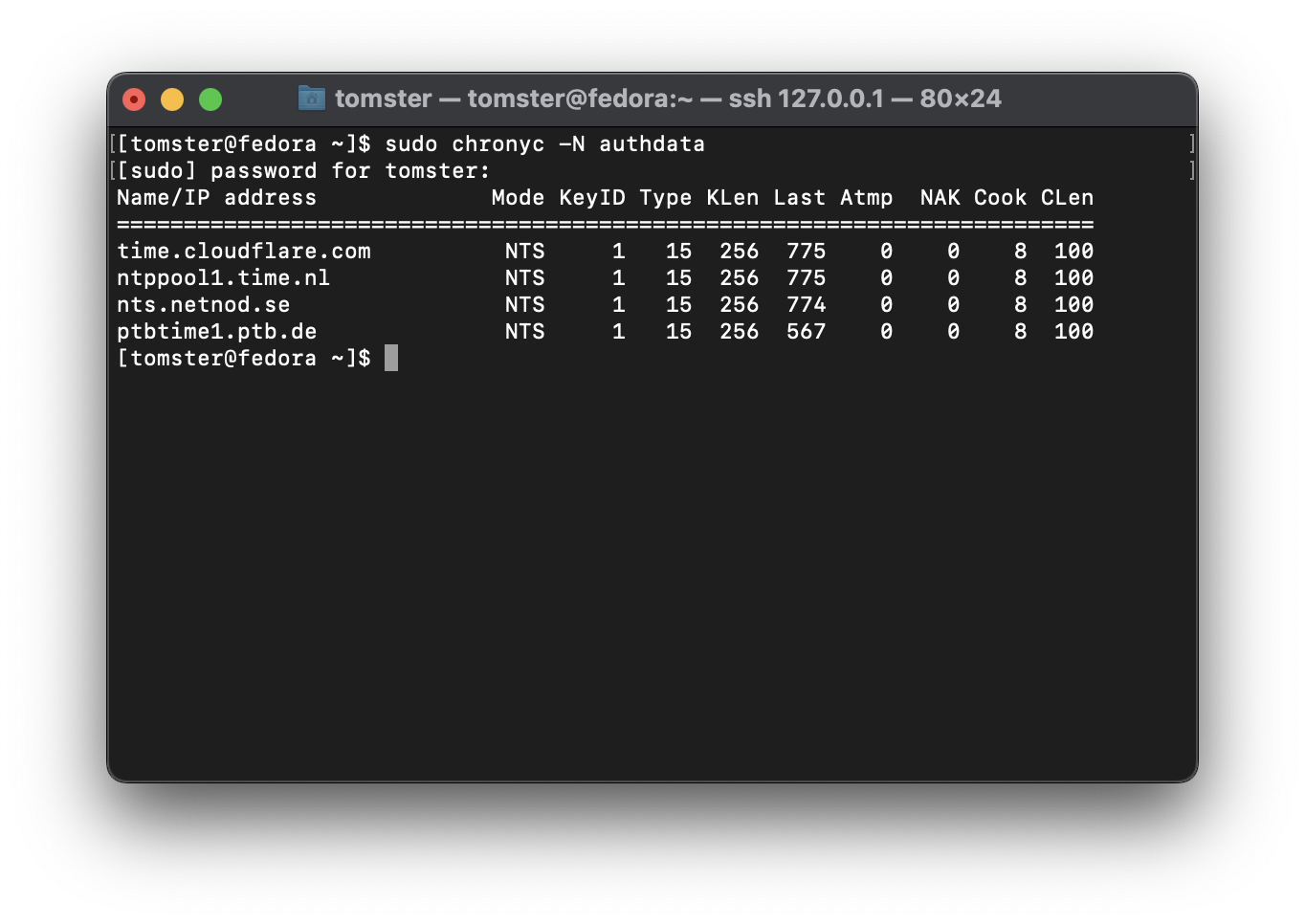
</span></span></code></pre></div><p>Verify that NTS is working:</p>
<div class="highlight"><pre tabindex="0" class="chroma"><code class="language-fallback" data-lang="fallback"><span class="line"><span class="cl">sudo chronyc -N authdata
</span></span></code></pre></div><p><img loading="lazy" src="/images/nts.png" alt="Verifying NTS configuration"  />
</p>
<h2 id="open-the-firewall">Open the firewall</h2>
<p>We will need to open port 123/udp inside of the virtual machine to allow connections from the macOS host:</p>
<div class="highlight"><pre tabindex="0" class="chroma"><code class="language-bash" data-lang="bash"><span class="line"><span class="cl"><span class="c1">#This is an example for Fedora:</span>
</span></span><span class="line"><span class="cl">sudo firewall-cmd --permanent --add-service<span class="o">=</span>ntp
</span></span><span class="line"><span class="cl">sudo firewall-cmd --reload
</span></span></code></pre></div><h2 id="use-the-ntp-server-with-macos">Use the NTP server with macOS</h2>
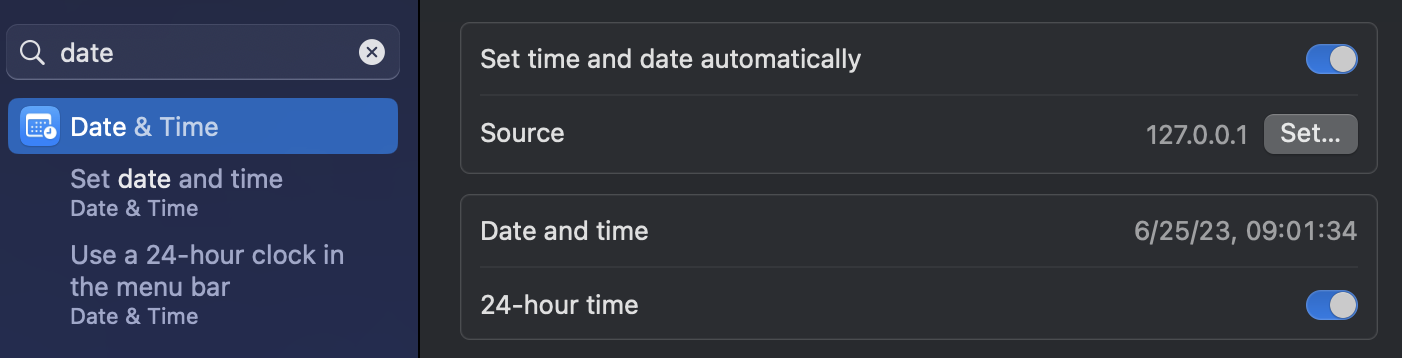
<p>Now, we can use our NTP server as the time server for your macOS. Set the time source to <code>127.0.0.1</code> in your macOS settings:</p>
<p><img loading="lazy" src="/images/macos-time-source.png" alt="macOS time source"  />
</p>
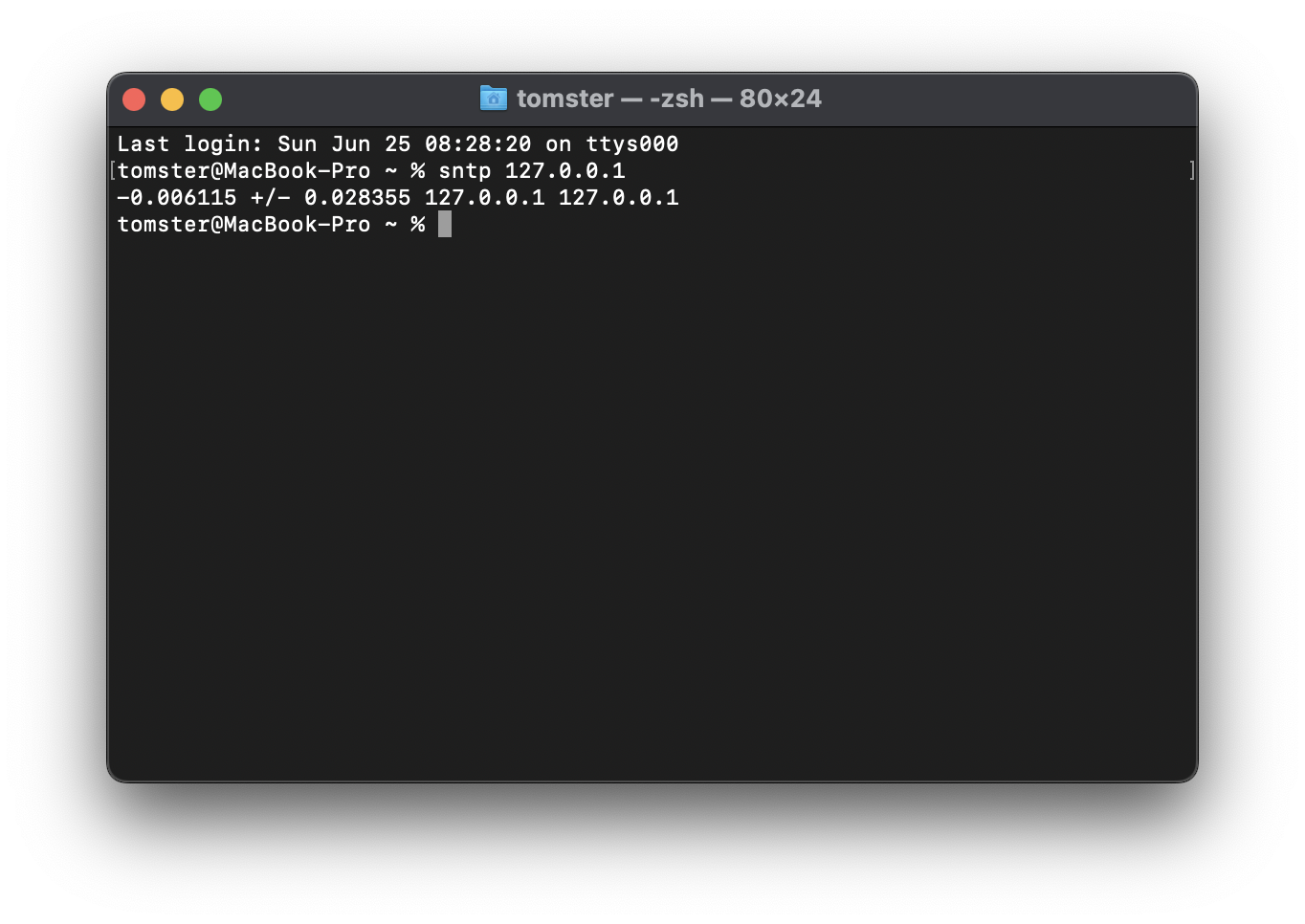
<p>Verify that NTP works on your macOS host:</p>
<div class="highlight"><pre tabindex="0" class="chroma"><code class="language-bash" data-lang="bash"><span class="line"><span class="cl">sntp 127.0.0.1
</span></span></code></pre></div><p><img loading="lazy" src="/images/macos-sntp-verification.png" alt="macOS SNTP verification"  />
</p>
<p>Once you have verified that everything is working, you can optionally remove the port <code>22/TCP</code> forwarding since we will no longer need it.</p>
<h2 id="create-a-synchronization-cron-job">Create a Synchronization Cron Job</h2>
<p>macOS synchronizes time with the NTP server around once every 20 minutes. This can cause the clock to be out of sync for quite awhile when the computer wakes up from sleep, as the NTP server may not have its time corrected by the time macOS makes the first synchronization request.</p>
<p>To work around this, create a cron job to have macOS synchronize time every minute as <code>root</code>:</p>
<div class="highlight"><pre tabindex="0" class="chroma"><code class="language-bash" data-lang="bash"><span class="line"><span class="cl">sudo crontab -e
</span></span></code></pre></div><p>Add the following:</p>
<div class="highlight"><pre tabindex="0" class="chroma"><code class="language-fallback" data-lang="fallback"><span class="line"><span class="cl">* * * * * /usr/bin/sntp -Ss 127.0.0.1
</span></span></code></pre></div><h2 id="automatically-start-the-ntp-server-at-boot">Automatically start the NTP server at boot</h2>
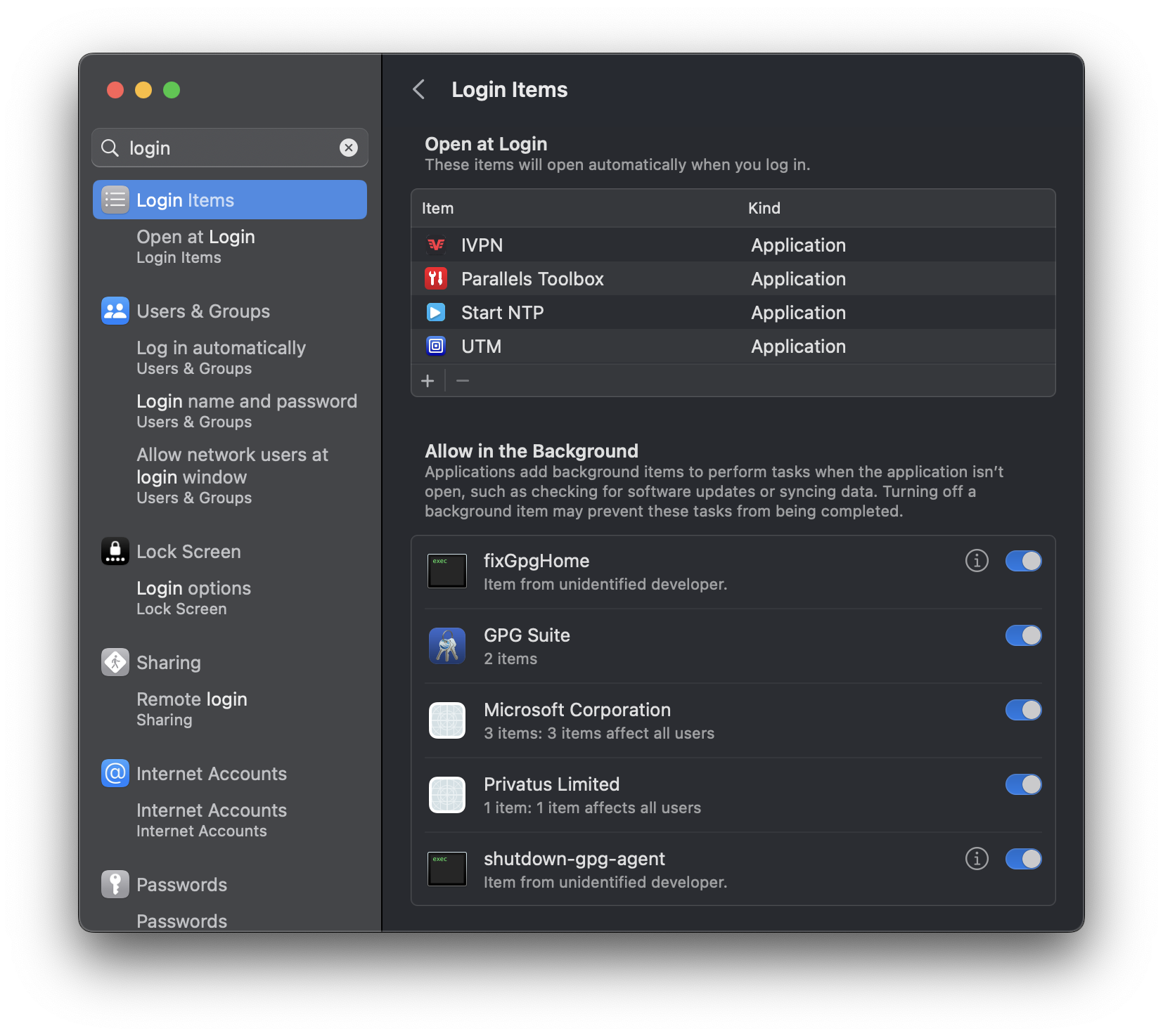
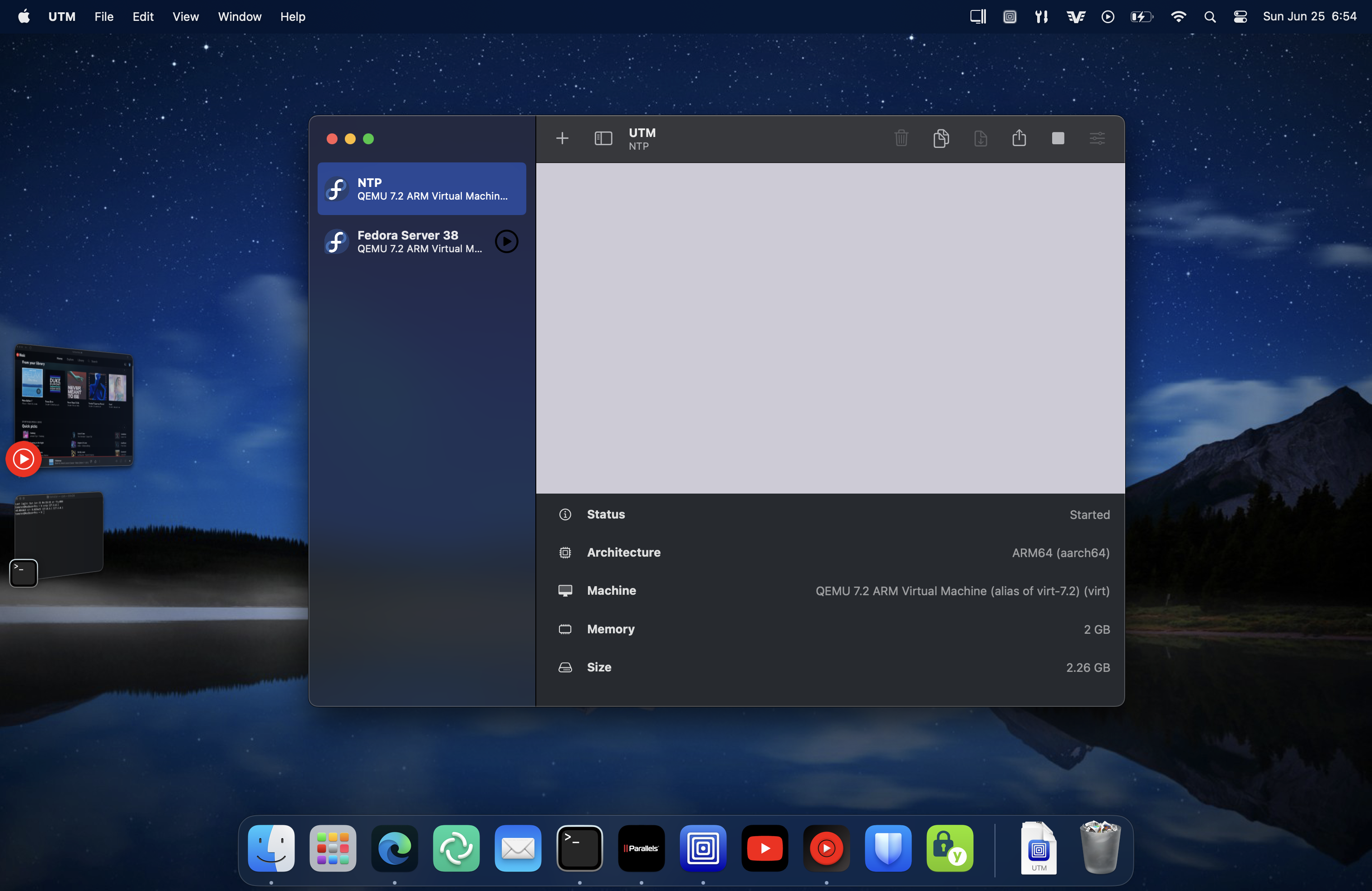
<p>Finally, follow the <a href="https://docs.getutm.app/advanced/remote-control/">official documentation</a> to automatically start the virtual machine at boot.</p>
<p>Note that, for some reason, adding the shortcut to &ldquo;Login Items&rdquo; alone is not enough: UTM will launch but it will not start the VM. UTM also needs to be added to the list of &ldquo;Login Items&rdquo; for this to work properly. You can follow the discussion regarding this on <a href="https://github.com/utmapp/UTM/issues/4179#issuecomment-1606041021">GitHub</a>.</p>
<p><img loading="lazy" src="/images/macos-login-items.png" alt="macOS login items"  />
</p>
]]></content>
      </entry>

</feed>